






As a small business owner, there’s already a lot on your plate.
You’re probably handling admin, logistics, social media, and once you start selling to customers, support too.
The first thing you’d want to do is get a platform that helps you with it. The last thing you’d need is for it to be clunky or a chore of its own.
And if you’re in the same boat as this Reddit user looking for a helpdesk:

Then, we’ve got you.
I personally battle-tested 30+ helpdesks, and in the process, jotted down the criteria for small businesses, and tested which would actually help, and which ended up adding tasks.
The result? This list of 15 helpdesks which I think is a great list to choose from. But if you’re in a hurry, here’s the “too long; didn’t read” version:
- Hiver is a powerful helpdesk that adds AI Copilot and Agents directly to your workflow to automate tasks without the complexity of legacy tools.
- HubSpot Service Hub is ideal if you already use their CRM and want support, sales, and marketing data synced in one place.
- Zoho Desk is a reliable, budget-friendly option for small businesses that need multi-channel support with a clear path for scaling.
By the end of this guide, I’m positive you’ll be able to choose the best helpdesk for your team and needs.
Let’s dive in!
What is a Small Business Help Desk?
A small business helpdesk is software that helps small teams organize customer requests in one place, assign owners, track response times, and use simple automation or AI to resolve issues faster across email, chat, and other channels.
15 Best Small Business Help Desk Solutions (Compared by Buying Criteria)
| Platform | Best fit for | G2 rating | Pricing (starts from) |
|---|---|---|---|
| Hiver | Teams that want budget-friendly AI-native helpdesk | 4.6/5 | Free plan (unlimited users), paid plans from $25/user/month |
| Zoho Desk | Teams already running on Zoho CRM | 4.4/5 | Free plan (upto 3 agents), paid plans from $7/agent/month |
| Help Scout | Best for email-centric shared inbox support | 4.4/5 | ~$20/user/month |
| HappyFox | Clean handoffs across functions | 4.5/5 | ~$29/agent/month |
| Giva | Best for Small Teams in Regulated Industries | 4.6/5 | Paid plans from $69/user/month |
| Kayako | AI to reduce backlogs | 4.0/5 | ~$79/month |
| Gorgias | Small ecommerce teams | 4.6/5 | ~$10/month |
| HubSpot Service Hub | Support + sales + marketing in one system | 4.4/5 | Free CRM and basic tools, paid plans from $20/seat/month |
| Front | Collaboration-heavy shared inbox | 4.7/5 | ~$19/seat/month |
| Zendesk | Best for teams planning to scale with robust enterprise features | 4.3/5 | ~$19/agent/month |
| Freshdesk | Traditional ticketing system | 4.4/5 | ~$15/agent/month |
| Missive | SMBs that run on email | 4.6/5 | Free plan (upto 3 users), paid plans from $14/user/month |
| Tidio | Affordable live chat + AI | 4.7/5 | Free plan (live chat+ basic bots), paid plans from $24/month |
| Intercom | Chat-first, AI-assisted support | 4.5/5 | ~$29/seat/month |
| Pylon | B2B omnichannel + Slack/community support | 4.9/5 | $59/seat/month |
How I Evaluated These Helpdesks for Small Businesses
I looked at these tools the way a small business owner would — someone setting things up themselves, handling tickets between other work, and keeping costs predictable as the team grows.
Along with my own testing, I also leaned on ratings and feedback from trusted review sites like G2 and Capterra, plus product walkthroughs and demos. Essentially, these helped me see how the tool performs beyond the sales page.
In brief, here’s what I tested:
- Solo setup — could one person get this live without IT help?
- Day-to-day usability — does it fit a small team’s rhythm?
- Customer context — does it reduce back-and-forth?
- Pricing reality — can you predict costs? I
- Ongoing effort — how much maintenance does it need once it’s live?
The tools that made the cut are easy to set up, simple to use, and priced predictably. For small businesses, that combination is what makes a helpdesk sustainable.
1. Hiver (Best for Small Teams That Want a Budget-Friendly AI-Native Helpdesk)
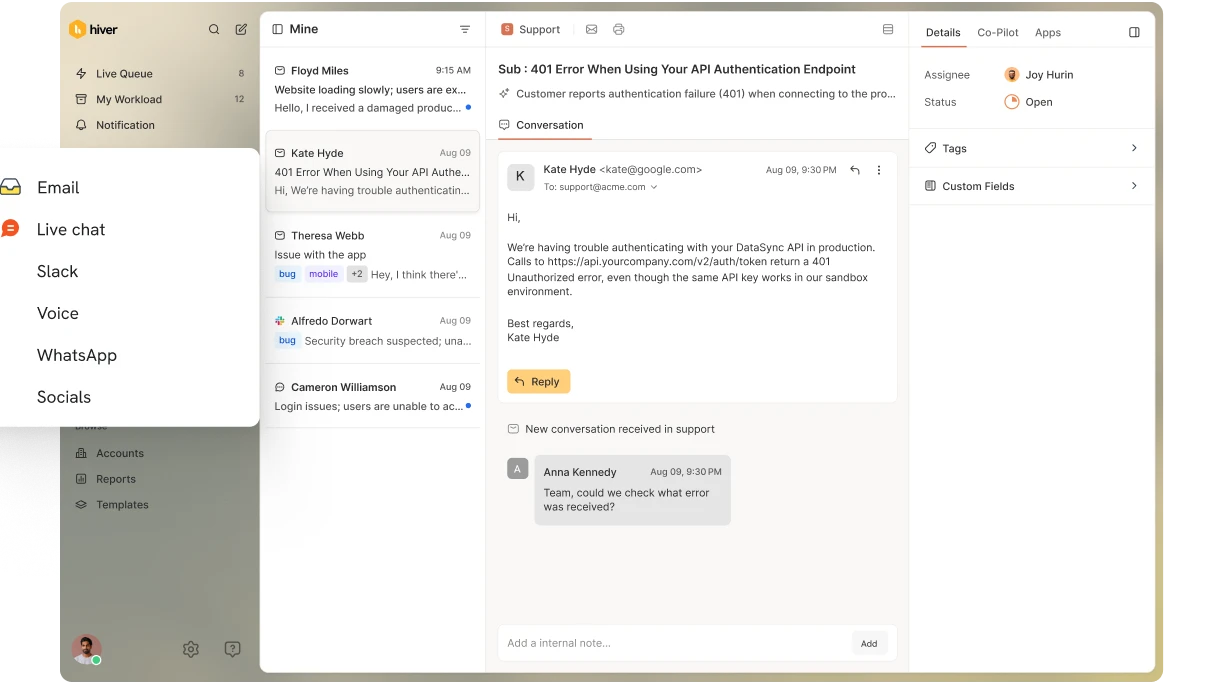
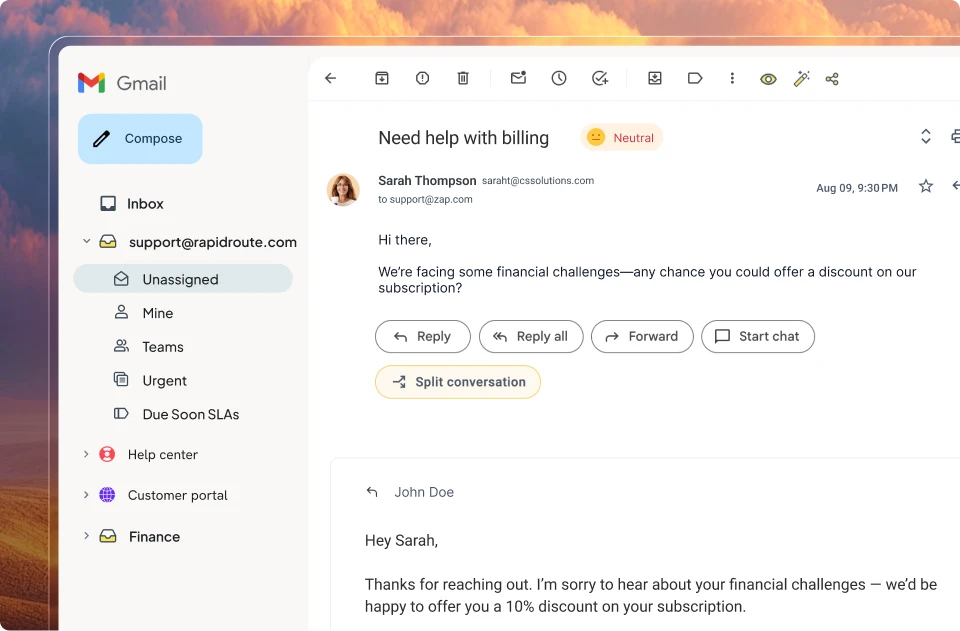
Hiver is built for small teams that want a full helpdesk across email, chat, WhatsApp, voice, and a simple portal, without a heavy ticketing system or long rollout.
It adds structure, accountability, and AI that quietly handles repetitive work like triage, drafting replies, and sending CSAT/NPS surveys when tickets close.
What makes Hiver work well for small teams is how quickly you can get started. Setup takes minutes, not weeks, with almost no training, because Hiver plugs into the inboxes your team already uses.
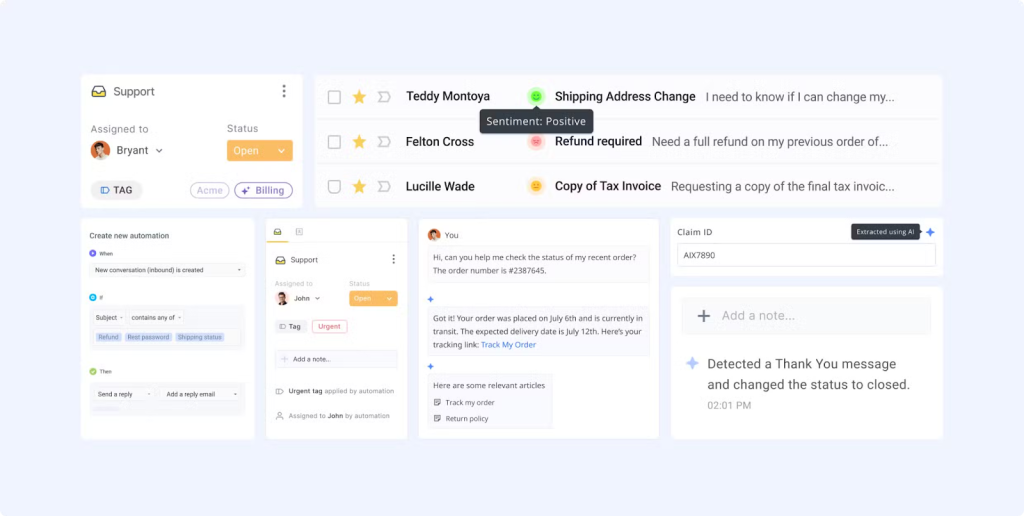
Instead of manually forwarding emails, chasing teammates, or replying twice to the same customer, with Hiver, conversations are auto‑assigned, follow‑ups are tracked, and overlapping replies are flagged, with automation and AI taking care of these. This way, small teams can comfortably handle more volume without hiring.
For example, New York Custom Labels, a small business that manufactures apparel, eliminated chaos in their inbox using Hiver’s auto-assignment and tracking.
With Hiver’s Shared templates, their team could send faster quotes. Collision alerts stopped duplicate replies, and visibility across conversations enabled systematic follow-ups and smooth remote collaboration.
The result? Over 105 hours saved per month, faster quote turnaround, and improved conversions — all without adding headcount.
Why Hiver’s Helpdesk Features fit Small Businesses
- Omnichannel support: Email, chat, WhatsApp, voice, and portals all land in one place, but stay as simple, readable threads.
- AI that quietly organizes work: Hiver automatically analyzes every conversation for intent, urgency, and sentiment, with AI throughout the support workflow, using that context to prioritize and route work.
- Automation anyone can set up: Assignment, escalation, and tagging rules use simple conditions, so non-technical teams can keep work flowing without extra tools.
- Portals for customers and teams: Customers and internal teams can submit and track requests through lightweight portals instead of messy email chains.
- Feedback and reporting built in: CSAT, NPS, and focused reports on SLAs, workload, and trends help small businesses see what’s working and where to improve, without extra software.
Hiver Pros and Cons
| Pros | Cons |
|---|---|
| Teams get structure, automation, and analytics without being forced into rigid ticket workflows. | Teams unwilling to lean into AI-assisted workflows may not fully benefit from the platform. |
| Shared queues, internal notes, and automation make it easier for teams to work from the same context. | If not managed properly, too many tags can clutter the interface, especially in busy inboxes. |
Hiver Pricing
Hiver uses simple, tiered per‑user pricing with AI available on all paid plans, so small teams can start lean and upgrade only when needed.
- Free – $0 (unlimited users): Good for very small teams moving from a shared inbox and wanting basic ticketing across email, chat, WhatsApp, and voice to add structure without cost.
- Growth – $25/user/month: Suited for growing small businesses that need auto‑assignment, simple workflows, and basic analytics to manage volume without hiring.
- Pro – $65/user/month: Better for small but busy teams that need stronger SLAs, deeper performance reporting, and more advanced workflows as support becomes a core function.
You can try everything with a 7‑day free trial before committing, which is helpful for small businesses testing fit and value.
2. Zoho Desk (Best for Small Teams Already Running on Zoho CRM)
Zoho Desk is a strong fit for small businesses already running on Zoho CRM. Instead of adding a disconnected helpdesk, it turns existing CRM data into a structured support workflow.
When I tested the platform, what stood out to me was how quickly support started merging with sales and accounts. Tickets are automatically linked to contacts, companies, and deals in Zoho CRM, so agents see account details immediately without switching tools.

Zohodesk’s AI can definitely give small teams a productivity boost. You can use Zia AI to classify tickets by intent and sentiment, while CRM data like account tier or renewal stage influences what surfaces first. Issues from high-value or at-risk customers rise to the top early, not after something went wrong.
For small teams already invested in Zoho, Desk feels less like adding another tool and more like finally giving CRM data a real support layer.
Why Zoho Desk fits Small Businesses
- Deep integration with Zoho CRM and Zoho apps: Tickets automatically link to CRM contacts, companies, and deals giving small teams a unified customer view.
- Zia AI for intent, sentiment, and prioritization: Zia analyzes tickets to classify issues, detect sentiment, and flag risky conversations early.
- Omnichannel ticketing in one system: Email, web forms, live chat, phone, and social channels all create tickets in Zoho Desk.
- Automation rules and Blueprints: Rules handle routing, field updates, and escalations, while Blueprints enforce step-by-step workflows for approvals or QA.
- Self-service knowledge base and widgets: Teams can publish a branded help center, embed widgets on their site, and suggest articles inside tickets to reduce repetitive questions.
- Dashboards and SLA reporting: Built-in reports cover SLA compliance, agent workload, channel performance, and resolution times, giving small managers visibility.
Zohodesk Pros and Cons
| Pros | Cons |
|---|---|
| Zoho Desk offers omnichannel support, automation, SLAs, a knowledge base, and reporting even on lower tiers | The number of options can feel heavy for very small or non‑technical teams, especially without clear onboarding |
| It’s an excellent fit if you already use Zoho CRM | Some features that would benefit small businesses are locked to higher tiers |
Zoho Desk Pricing
Zoho Desk uses tiered per‑agent pricing, with a free plan and several paid tiers.
- Free: $0 for up to 3 agents – good for very small teams replacing a shared inbox.
- Express: $7/agent/month – entry paid tier for small teams that need basic automation and reporting.
- Standard: $14/agent/month – usually the best starting point for most small businesses, adding a full knowledge base, better SLAs, and more configuration.
For a 2‑agent small team, that means roughly $28/month on Standard for a full-featured helpdesk on top of Zoho CRM, while very small teams can start on the Free or Express plans and upgrade as ticket volume grows.
Zoho Desk is widely regarded as strong value at lower tiers, but some of the capabilities that really differentiate it (AI prioritization, deeper reporting) live in the Professional or higher plans.
Recommended reading
3. Help Scout (Best for Small Teams Replacing a Shared Gmail Inbox)
Help Scout is ideal for small teams that have outgrown a basic support@ Gmail or Outlook inbox but don’t want a heavy, ticket-first helpdesk. It keeps support feeling like normal email while adding shared ownership, light automation, and a simple knowledge base.
The biggest benefit for small teams is that it won’t really replace how customers reach out.

Email, forms, and the Beacon (Help Scout’s chat widget) all feed into one shared inbox, with clear owners, private notes, and tags so small teams don’t double‑reply or lose messages.
When someone writes a clear, reusable reply, they can turn it into a Docs article straight from the inbox, so the knowledge base grows naturally from real conversations.
Beacon can then surface those articles on key pages like pricing or checkout, offering self‑service before chat or email. If customers still reach out, agents can see which articles were shown and which page they’re on, making it easier to respond quickly without repeating information.
Help Scout’s Top Helpdesk Features
- Shared inbox designed around email workflowsL Help Scout keeps the email experience intact while adding ownership, collision detection, internal notes, and tagging.
- Docs knowledge base: Docs lets teams build a simple, searchable help center, and those articles show up inside Beacon and in the inbox sidebar.
- Beacon widget for self-service: Beacon combines suggested help articles, an email form, and optional live chat in a single widget.
- AI assistance that supports agents: Help Scout’s AI can draft replies, summarize long threads, and improve Beacon suggestions.
- Workflows and saved replies: Visual workflows handle tagging, routing, and follow-ups, while saved replies speed up common responses.
- Reporting focused on inbox health: Built-in reports cover volume, response time, resolution time, and happiness ratings, broken down by mailbox.
Help Scout Pros and Cons
| Pros | Cons |
|---|---|
| Feels familiar for email-based teams, with minimal learning curve | Advanced workflows and higher limits require Plus or Pro |
| Affordable entry point for small teams | Some users note the scope to improve reporting features |
Help Scout Pricing
Help Scout has a free plan and simple per‑user paid tiers.
- Free: $0/month for up to 5 users – good for very small teams moving off a shared Gmail inbox.
- Standard: $25/user/month – the most practical starting point for small businesses, with shared inboxes, Docs, and Beacon chat.
For a 2‑agent team, that’s about $50/month on Standard for email, live chat, and a lightweight knowledge base in one tool. At this plan, Help Scout does deliver strong value, but more advanced automation and higher limits kick in on higher plans, which makes more sense once volume and channels expand.
Recommended reading
4. HappyFox (Best for Small Teams That Want Clean Handoffs Across Functions)
HappyFox is a ticketing-first helpdesk for small teams where support often involves ops, finance, or fulfillment, not just “replying to the customer.” It keeps those handoffs visible in one place instead of scattering them across email threads and side channels.

When I used the tool, HappyFox felt more like a shared task system built around customer conversations.
A ticket can move from Support to Ops to Finance and back, with tasks, owners, and due dates all tied to the same thread, so no one wonders who’s on it.
Smart rules help by routing work, surfacing stalled tickets or SLA risks, and nudging the right person. For small teams where the same people wear multiple hats, HappyFox brings just enough structure to keep cross-team work flowing.
HappyFox’s Helpdesk Features for Small Teams
- Category-based ticketing and SLAs: Set up simple categories like Support, Billing, or Sales, each with its own queues and basic SLAs.
- Smart Rules for handoffs: Automate routing, tagging, and follow-ups so stalled tickets or SLA risks show up in the right views.
- Tasks inside tickets: Break one ticket into small tasks with owners and due dates, which is handy when a few people wear multiple hats.
- Simple self-service and portal: Offer a branded help center and ticket portal so customers can self-serve or log issues in one place.
- Practical dashboards: Use custom dashboards to see ticket volume, SLA breaches, and workload without extra tools.
HappyFox Pros and Cons
| Pros | Cons |
|---|---|
| HappyFox feels straightforward to set up and maintain, letting small teams start handling tickets and SLAs quickly. | Some users find building and organizing help articles less intuitive compared to other platforms. |
| Smart Rules and task automation reduce a lot of routine work without needing complex workflow design. | Some users point out the scope to have more guided help to get the most out of automation and knowledge workflows. |
HappyFox Pricing
HappyFox offers per‑agent plans that start at a small‑team‑friendly entry tier, plus higher plans and unlimited‑agent options for larger organizations.
- Basic: from about $24/agent/month – aimed at small teams that need core ticketing, SLAs, and a knowledge base without advanced automation.
- Team: $49/agent/month – adds more customization, multi‑brand support, and extra configuration that growing teams may need.
For a 2‑agent small team on Basic, you’re looking at roughly $50–60/month for structured ticketing, SLAs, and a help center. HappyFox’s more advanced automation, tasking, and enterprise‑style controls sit on higher plans, which usually make sense only once your volume and internal workflows are more complex.
Recommended reading
5. Giva (Best for Small Teams in Regulated Industries That Need HIPAA Compliance)
Giva is a cloud-based helpdesk built for small teams in healthcare, finance, legal, and other regulated industries that can’t treat security as an afterthought. Where most small business helpdesks bolt compliance onto their higher tiers, Giva includes HIPAA and HITECH compliance in every edition at no extra cost and backs it with a cyber liability insurance policy.
When I looked at Giva, what stood out was how quickly a small, non-technical team could get going. Giva says agents can start serving customers after about an hour of training, and the uncluttered, dashboard-first interface makes that claim believable.

Giva’s real-time helpdesk dashboard
For small teams, the biggest benefit is that it removes the usual trade-off between “secure” and “simple.” You get a signed Business Associate Agreement (BAA), enterprise-grade data center security, and AI Copilots that summarize tickets and surface the single best knowledge base answer — without the weeks of configuration or the dedicated admin that heavier compliant platforms usually require.
For a clinic, a small finance team, or a law office, that combination is hard to find elsewhere on this list.
Why Giva’s Helpdesk Features Fit Small Businesses
- HIPAA/HITECH compliance in every plan: Compliance is included at no additional cost, with a signed BAA and cyber liability insurance, so even a two-person team gets enterprise-grade security from day one.
- AI Knowledge and Ticket Copilots: The Knowledge Copilot pinpoints the single best answer instead of a long list of search results, while the Ticket Copilot summarizes long threads — together cutting resolution times.
- Fast setup and roughly one hour of training: A clean interface and a library of “how-to” videos help new agents become productive in hours, reducing training time by up to 70%.
- Automation for routine work: Scheduled tasks, macros, and quick resolutions cut time spent on repetitive tickets by up to 56% — useful when the same people wear several hats.
- Easy Three-Click Reporting™ and real-time dashboards: Create, schedule, and share reports in a few clicks and customize a dashboard in about three minutes from a prebuilt widget library, lowering report prep time by up to 80%.
- Knowledge and asset management built in: An integrated knowledge base plus ITIL-aligned asset and software tracking keep customer service and IT context in one place.
Giva Pros and Cons
| Pros | Cons |
|---|---|
| HIPAA/HITECH compliance, a signed Business Associate Agreement, and cyber liability coverage are included in every plan. | Pricing starts higher than most small business helpdesks and requires a minimum of 5 licenses, so it’s less suited to solo operators or very small teams. |
| Genuinely fast to learn and deploy, with free setup help from USA-based product experts during and after the trial. | Built around secure IT and customer service ticketing rather than social, live-chat, or ecommerce-first channels. |
Giva Pricing
Giva uses simple per-agent pricing billed annually, with a 5-license minimum and no permanent free plan.
- Professional – $69/agent/month: Up to 10 agents and 1,500 end users, with 3 service desks and 3 email-to-ticket inboxes — a fit for a small but established support or IT team.
- Enterprise – $89/agent/month: Unlimited agents, end users, service desks, and email inboxes, plus a dedicated customer success manager.
Every plan includes unlimited AI Copilot usage, unlimited storage, HIPAA compliance, and free setup assistance. For a 5-agent team, that works out to about $345/month on Professional.
There’s no free tier, but a 30-day free trial (with free setup help from product experts) lets you test fit before committing. Giva is priced for teams that genuinely need compliance and security — if you don’t, lighter tools on this list might be a better fit.
6. Kayako (Best for Small Teams That Want AI to Reduce Backlogs)
Kayako One is an AI‑first helpdesk for small teams that feel stuck in constant backlog and can’t just keep adding headcount. It pulls email, chat, and help center tickets into one place, then uses AI to cut down repetitive work rather than just organizing queues.
For small teams that spend a lot of time on simple but repetitive tickets, AI triage auto‑categorizes, prioritizes, and routes common tickets like password resets or status checks, while AI answers draft responses or fully resolve simple cases before an agent steps in.

Agents then work from focused views like “Today” or “High Priority,” often with summaries and suggested replies already prepared, so they spend less time scanning old threads and more time on the tricky issues
Why Kayako’s Helpdesk Features fits Small Businesses
- AI triage that sorts tickets: Kayako classifies incoming tickets by intent and urgency, then routes them to the right queue, removing the daily chore of manually sorting backlogs.
- AI answers for repetitive, low-risk questions: It can draft or fully resolve common requests using your help center and past resolutions, while sensitive issues still go to humans.
- AI handoffs with summaries and reasoning: When a ticket is escalated from AI to an agent, it comes with a clear summary, detected intent, and what’s already been tried.
- Unified customer history: Each ticket shows a timeline of past interactions across email, chat, and the help center, so agents have quick context.
- Built-in self-service and deflection: A searchable help center and smart suggestions surface answers for common questions.
- Core helpdesk tools without heavy configuration: Shared inbox, assignment rules, SLAs, internal notes, and collaboration are available out of the box without needing a dedicated admin.
Kayako Pros and Cons
| Pros | Cons |
|---|---|
| Kayako fits small teams that want a clear ticketing flow, shared inbox, and built-in knowledge base in a simple setup | Teams that want customized workflows, complex automation, or granular control may find Kayako too lightweight |
| Small teams often mention that Kayako is easy to pick up and manage day to day. It balances structure and simplicity well | Analytics cover the essentials but lack depth for data-heavy teams |
Kayako Pricing
Kayako’s cloud product is built around a single all‑in‑one plan, which keeps things straightforward for small teams.
Kayako One – around $79/month (flat)
Covers shared inbox, ticketing, live chat, help center, and reporting for a lean team.
AI add-on (optional)
AI-powered resolutions are typically priced separately, often around $1 per successfully resolved ticket, depending on usage.
For small businesses, this makes budgeting simple, but overall spend can increase if you add AI‑powered resolutions or need heavier customization beyond the core plan.
Recommended reading
7. Gorgias (Best for Small Ecommerce Teams)
Gorgias is an ecommerce-focused helpdesk for small brands on Shopify, BigCommerce, Magento, or WooCommerce that want support tied directly to orders and payments instead of a separate tool.
For small teams, the biggest difference is going to be the reduced manual work. It pulls store data into each conversation so agents see orders, shipping status, and history upfront, which cuts manual lookup and speeds up replies.

As more channels come online, email, live chat, Instagram DMs, and Facebook messages all flow into one queue, with each ticket linked to the right customer and order.
From the same screen, agents can issue refunds, resend items, or apply discounts, and then layer on light automation and AI to handle repetitive questions, so small ecommerce teams can focus on higher-value conversations.
Why Gorgias is a Fit for Small Teams
- Order and store actions inside tickets: Agents can see order history, shipping status, and issue refunds or edits without leaving Gorgias.
- AI Agent and Shopping Assistant: AI handles common questions from your help center and store, while the Shopping Assistant recommends products and helps build carts in live chat.
- Intent and sentiment detection: Conversations are auto-tagged by intent (refund, shipping, complaint) and sentiment so small teams can focus on urgent or high-risk issues first.
- Revenue tracking from support: Gorgias tracks which chats and emails drive purchases, showing how much revenue support helps generate.
- Ecommerce-ready macros and automation: Prebuilt macros and rules cover typical workflows like order updates, returns, and shipping delays.
- Multi-channel support for online stores: Email, onsite chat, social DMs, SMS, and more all flow into one helpdesk, keeping pre- and post-purchase conversations together.
Gorgias Pros and Cons
| Pros | Cons |
|---|---|
| Deep Shopify and ecommerce integrations make support faster and more contextual | Ticket-based pricing can get expensive as volume grows |
| Live chat works well for both support and pre-purchase sales | Lower tiers can feel restrictive for very small or early-stage stores |
Gorgias Pricing
Gorgias charges by ticket volume instead of per seat, which can be cost‑effective for very small teams but scales up as your store grows.
- Starter – $10/month for 50 tickets (about 3 seats)
Good for solo sellers or very early‑stage stores testing a structured helpdesk. - Basic – $60/month for 300 tickets
The most realistic starting point for small ecommerce teams with steady order volume.
For a small brand doing a few hundred tickets a month, expect to be on Basic at around $60/month, keeping costs predictable, but watch for overage fees if you spike during sales or peak seasons
8. HubSpot Service Hub (Best for Small Teams That Want Support, Sales, and Marketing in One System)
HubSpot Service Hub is built for small teams that want support in the same place as their CRM, sales, and marketing, instead of adding a separate helpdesk. It layers ticketing, shared inboxes, and a help center directly on top of HubSpot CRM, so support plugs into tools many small businesses already use.
When a ticket comes in from email, forms, or chat, agents can instantly see who the customer is, their company, deal status, and past interactions, which makes replies more targeted and reduces back-and-forth.

High‑value customers can be routed differently, stuck tickets can be nudged with simple automation, and issues that turn into renewal risks or upsell opportunities can be handed to sales without re‑entering data.
For small teams, the main benefit is that everything runs from one system, with shared context across support, sales, and marketing.
HubSpot’s Top Helpdesk Features for Small Teams
- Help Desk workspace on the CRM: Tickets, conversations, and customer records live in one view, so agents can reply with full lifecycle stage and history visible.
- Ticket pipelines with light automation: Custom stages with simple workflows to auto‑assign, prioritize, and follow up when tickets move or stall.
- Shared inbox with omnichannel intake: Email, chat, forms, calls, WhatsApp, and Facebook Messenger feed into one inbox and route based on rules or customer type.
- AI assistance inside tickets: AI helps name tickets, summarize long threads, gauge sentiment, and suggest replies, giving small teams practical help.
- Customer portal, surveys, and knowledge base: Publish articles, let customers track tickets, and send CSAT/NPS surveys, all tied back to the contact record.
- Cross‑team reporting and dashboards: Dashboards cover volume, speed, and satisfaction, with CRM‑level reports showing how support links to retention and revenue.
Hubspot Service Hub Pros and Cons
| Pros | Cons |
|---|---|
| Because tickets, emails, and chats sit on the same CRM as deals and campaigns, support teams can easily trigger follow‑ups and upsell | Advanced automation, SLAs, and reporting are locked behind higher-priced tiers |
| Easy to configure for small teams, especially if you already use HubSpot CRM | Costs rise quickly as you add seats, hubs, or move into Professional plans |
HubSpot Service Hub Pricing
HubSpot Service Hub sits on top of HubSpot’s free CRM and scales by seat and tier.
- Free – $0 (up to 2 users): Basic shared inbox, simple ticketing, live chat, and limited reporting — enough for very small teams testing a helpdesk.
- Starter – around $20/seat/month: A realistic starting point for most small businesses, with fuller ticketing, basic automation, and customer feedback tools.
- Professional and above: Much more expensive and better suited to teams that truly need structured SLAs, advanced automation, and custom reporting, plus can justify onboarding costs.
For most small businesses, Free or Starter are the practical options; Professional only makes sense once support is more mature and process-heavy.
Recommended reading
9. Front (Best for Small Teams That Need a Collaboration Heavy Shared Inbox)
Front is built for small teams that have outgrown a basic support@ inbox but still want email at the center of their workflow. It keeps the inbox familiar while adding clear ownership, lightweight collaboration, and better visibility for everyone on the team.
When I checked out the tool, what felt different wasn’t new channels or heavy automation. It was how the inbox itself started working better for a team.

Each conversation has a clear owner, so people aren’t double‑replying or guessing who’s on it. Internal comments keep side questions (“Can you approve this refund?”) attached to the thread instead of spilling into Slack, and if someone is out, it’s easy to reassign their messages.
With simple tags and routing rules, small teams get helpdesk‑style structure and accountability, without the overhead of a full ticketing system.
Front’s Top Helpdesk Features for Small Businesses
- Inbox-level SLAs without heavy setup: Set simple response-time expectations per inbox (like sales@ or support@) and see visual warnings when messages are close to slipping.
- AI that helps draft and triage: Summarizes long threads, suggests replies from past conversations, and tweaks tone so small teams spend less time writing emails.
- No-code rules that connect to other tools: Auto-assign or tag messages and update your CRM, ping Slack, or trigger webhooks to keep systems in sync.
- Team-specific template libraries: Support, sales, and success can keep their own templates with variables so replies stay fast and consistent.
- Customer context in the inbox sidebar: Shows key CRM, billing, or ecommerce data right next to the conversation, avoiding tab-switching.
- Conversation and workload analytics: Tracks response times, volume, and workload by inbox or teammate so leads can quickly spot bottlenecks and rebalance.
Front Pros and Cons
| Pros | Cons |
|---|---|
| Team collaboration feels natural with clear ownership and in-thread comments | Not really plug and play for small teams- especially when configuring inboxes, rules, and views |
| Flexible enough for SMBs to support support, sales, and ops from the same inbox | Per-seat pricing and add-ons can get expensive as small teams grow |
Front Pricing
Front uses per-seat pricing, which can add up quickly for very small teams, so the lower tiers matter most for small businesses.
- Starter – roughly $20–30 per seat/month
Shared inbox, basic collaboration (assign, comment, shared drafts), simple rules, and core analytics — enough for small teams moving off a shared mailbox. - Growth / Professional – roughly $50–80 per seat/month
Adds stronger automation, more inboxes, and deeper analytics, but often with higher seat minimums that can be harder to justify for very small teams.
For most small businesses, Starter (or the lowest Growth tier your team qualifies for) is the practical choice if you’re specifically paying for better collaboration and visibility on top of email.
Recommended reading
10. Zendesk (Best for Small Teams Planning to Scale Support Operations)
Zendesk is a full-featured helpdesk for small teams that already handle a steady stream of tickets and want structure in place before they add headcount or things get busy.
Instead of just organizing an inbox, it gives you queues, SLAs, workflows, and reporting so work stays under control as volume and channels grow.
When I’ve seen small teams adopt Zendesk, the shift isn’t about moving off email. It’s about moving into defined workflows.

New requests from email, chat, or web forms land in structured views like “High Priority” or “My Open,” driven by fields, tags, and SLA rules, so agents always know what to work on next.
As the team scales, you can layer on stricter SLAs, side conversations, and AI for summaries or common questions without changing how agents already work.
The trade-off is higher cost and setup effort than lighter tools, but for small teams expecting fast growth, Zendesk gives you room to mature without switching platforms later.
Zendesk’s Top Helpdesk Features for Small Teams
- Agent Workspace with customizable views: One place for all tickets, with views filtered by priority, channel, or SLA so small teams know what to work on next.
- Macros, triggers, and automations: Handle routine tasks like routing, setting fields, sending auto‑replies, and escalating overdue tickets without manual effort.
- Help center, bots, and self-service: A built‑in help center and bots answer common questions first, reducing how many tickets reach agents.
- Side conversations and internal collaboration: Loop in teammates or partners inside the ticket, keeping all context in one thread.
- Zendesk analytics and AI: Dashboards track volume, SLAs, CSAT, and agent performance, while higher tiers add AI to suggest replies, summarize tickets, and resolve simple issues automatically.
Zendesk Pros and Cons
| Pros | Cons |
|---|---|
| Teams say it’s fairly easy to launch and get started with the ticketing setup and move off email or simpler tools | Many SMBs mention cost as the biggest drawback, especially once you need better analytics, automation, AI, or more channels. |
| You can start simple and add workflows, channels, and reporting over time without switching platforms | Things like multiple business hours or more advanced configurations are locked behind expensive plans, which can feel restrictive for small teams. |
Zendesk Pricing
Zendesk uses per‑agent pricing, and many small teams find they need the Suite plans (not just basic Support) to get the features they expect.
- Support Team – from about $19/agent/month
Entry ticketing only — fine if you just need to formalize email into tickets, but limited for growing small businesses. - Suite Team – from about $55/agent/month
A more realistic starting point for small teams, with email, chat, voice, a help center, and basic analytics in one plan.
Higher tiers like Suite Growth and Suite Professional (around $89–115/agent/month) add SLAs, advanced reporting, and more automation, but quickly become expensive as you add seats. For most small businesses, Suite Team is the practical entry, with upgrades only when you truly need SLAs and deeper analytics
Recommended reading
11. Freshdesk (Best for Small Teams That Want a Traditional Ticketing System)
Freshdesk is a straightforward helpdesk for small teams that want more structure than a shared inbox without a steep learning curve. Every request becomes a ticket with a clear status, priority, and owner, so nothing gets lost in long email threads.

All incoming emails flow into a central queue where agents work through tickets by priority or issue type, with simple automations handling assignments in the background.
As your small team grows, you can gradually add custom fields, saved views, SLAs, and light AI assistance, while keeping a predictable, ticket‑first workflow that’s easy for everyone to follow.
Why Freshdesk is a Fit for Small Teams
- Multi-channel ticketing in one workspace: Freshdesk pulls in email by default and can add chat, WhatsApp, SMS, social channels, and phone into a single queue.
- Customer portal and knowledge base: You can publish a simple branded portal where customers submit tickets and browse articles, including in multiple languages.
- Threads, tasks, and internal notes on tickets: Teammates can discuss next steps and track subtasks on each ticket without exposing the back‑and‑forth to customers.
- Freddy AI for ticketing and assistance: Freddy helps suggest fields, priorities, solution articles, and canned replies, and can auto-handle low-value “thank‑you” messages.
- Automation and reporting for small teams: Rules handle routing, SLAs, and reminders, while built‑in dashboards track response times, resolution times, channel volume, and CSAT.
Freshdesk Pros and Cons
| Pros | Cons |
|---|---|
| Easy to set up and get running quickly, especially for teams starting with email ticketing | Per-agent pricing plus add-ons can be expensive for small teams |
| Lets small teams add structure and customization over time without changing how they work | Useful features like advanced automation and AI are locked behind higher plans, which can be limiting for small teams |
Freshdesk Pricing
Freshdesk uses per‑agent pricing, with lower tiers that work well for small teams.
- Free (up to 2 agents): Basic email ticketing and a simple knowledge base — enough for very small teams testing a helpdesk.
- Growth (around $15–20/agent/month): The most practical starting point for small businesses, adding automation, a customer portal, and reporting.
- Pro (around $50/agent/month): Better for growing small teams that need custom roles, stronger routing, and deeper reporting.
For most small businesses, Growth is the sweet spot, with Pro making sense once your team and ticket volume are clearly scaling.
Recommended reading
12. Missive (Best for SMBs That Run on Email)
Missive is a shared inbox and team email app for small teams that already live in email. It keeps Gmail/Outlook-style email at the center, but adds clear ownership, internal comments, simple tasks, and light automation.
When I first used Missive, it immediately felt familiar. This is what makes it work well for small teams too, the fact that it feels like a more collaborative version of Gmail or Outlook.

Support, sales, and ops can keep using email as usual, but with shared addresses like support@ or sales@ connected, conversations assigned, and comments left directly on threads instead of using forwards and CCs.
Other channels like SMS, WhatsApp, social DMs, and website chat can also flow into the same inbox, so small teams get more structure without having to learn a full ticketing system.
Missive’s Top Helpdesk Features for Small Businesses
- Team spaces for Support, Sales, and Ops: You can create dedicated spaces with their own inbox, team chat, and task view.
- Shared drafts and live collaboration on replies: Replies are live while you type. Teammates can see drafts in progress, jump in to help, or adjust tone before a message is sent.
- Tasks tied to emails: Turn any email into a task, assign it, and track it through simple stages.
- Rules and light automation: Automatically assign, tag, or prioritize emails based on sender, subject, or keywords, reducing manual triage.
- AI assistance: Use AI to draft replies, summarize long threads, or translate messages using your own OpenAI key.
- Templates and basic analytics: Create shared templates for common replies and track response times and conversation volume.
Missive: Pros and Cons
| Pros | Cons |
|---|---|
| Feels familiar and easy to adopt for email-heavy teams | Analytics are limited on the free and lower-tier plans |
| Strong built-in collaboration directly inside email threads | Finding older conversations can take more effort once your inbox history grows |
Missive Pricing
- Free: Up to 3 users with limited history, shared inboxes, and one messaging channel — enough for very small teams trying out a shared inbox.
- Starter (about $14/user/month): The most practical starting point for small businesses, with shared inboxes, tasks, templates, and basic collaboration.
- Productive (about $24/user/month): Better for growing small teams that need rules, automations, integrations, and simple reporting.
For most small businesses, Starter works well early on, with Productive becoming worthwhile once workflows and analytics start to matter more.
Recommended reading
13. Tidio (Best for Small Teams That Want Affordable Live Chat + AI)
Tidio is a helpdesk and live chat platform for small businesses that want website chat, basic automation, and AI without complex setup or high per-seat costs.
It combines a shared inbox, a chat widget, and an AI agent (Lyro), so small teams can handle more conversations without adding headcount.

When I tried it, the standout benefit was how quickly a non-technical owner could get it live: install the widget, connect email and social channels, teach Lyro your FAQs, and start answering customer questions in a single day.
Chats, emails, and messages from places like Messenger or Instagram all land in one inbox, while Lyro takes care of common questions (shipping, returns, product basics) and passes trickier issues to a human.
For small teams, that means fewer repetitive chats, faster responses at peak times, and a much lower learning curve than heavier helpdesks, with a clear focus on speed and simplicity over deep, complex workflows.
Tidio’s Top Helpdesk Features for Small Teams
- Multichannel inbox: Website chat, email, and social messages all land in one shared inbox.
- Live chat built for quick answers: Tidio’s chat widget is easy to add and designed for real-time support. Agents can see what page a visitor is on and use saved replies to answer common questions fast.
- Lyro AI for everyday questions: Lyro handles basic FAQs using your help docs and site content, giving customers instant answers.
- No-code chatbots and workflows: You can build simple flows for order tracking, or routing questions by topic using a drag-and-drop builder.
- Ticketing with just enough structure: Chats don’t disappear once they’re closed. Conversations are treated like tickets, with priorities, departments, and SLAs.
- E-commerce-friendly integrations: Native integrations with Shopify, WooCommerce, and WordPress show order and customer details right next to the chat.
Tidio Pros and Cons
| Pros | Cons |
|---|---|
| Easy for non-technical teams to set up and manage without IT support | Free and lower-tier plans can feel limiting once chat volume increases |
| Works especially well for live, real-time customer support | Lyro AI is best for straightforward FAQs, not complex or multi-step issues |
Tidio Pricing
- Free: Live chat, basic automation, and limited chatbot/AI usage — good for very small teams just testing chat support.
- Starter (around $24/month): A practical entry point for small businesses that need reliable live chat and a simple shared inbox without heavy automation.
- Growth (around $49/month): Better once you have steady volume and want more automation and AI capacity, especially for ecommerce or SaaS.
For most small teams, Free or Starter is enough early on, with Growth making sense only after chat volume clearly picks up.
Recommended reading
14. Intercom (Best for Small Teams That Want Chat-First, AI-Assisted Support)
Intercom is built for small teams that want to handle website chat, in-app messages, and email from one place, with AI stepping in as volume grows.
With Intercom, the standout was how you don’t have to overthink setup on day one. You can start with a chat widget and shared inbox, then add workflows and Fin AI as you begin seeing repeat questions or higher traffic.
Fin can be set up to answer common questions straight from your help center and only pass conversations to the team when confidence is low or a customer asks for a human. That keeps chat volume manageable, even with a small support team.

Additionally, everything flows through a single inbox. Agents can assign conversations, leave internal notes, and avoid duplicate replies without juggling multiple tools.
For small teams that want fast, chat-led support today and room to automate later, Intercom keeps things centralized.
Why Intercom Works for Small Businesses
- One inbox for chat and email: Website chat, in-app messages, and support emails all land in the same inbox.
- A help center that powers both self-service and AI: You can create a branded help center with articles and FAQs.
- Simple, no-code workflows: Intercom’s visual workflow builder lets you route conversations, set SLAs, and send auto-replies based on things like topic, customer type, or availability.
- Fin AI and Copilot inside the inbox: Fin handles repetitive “How do I…?” questions using your help center, while Copilot helps agents by summarizing long threads and drafting replies.
- Proactive messages: You can send onboarding tips, feature announcements, or renewal nudges based on user behavior.
- Easy integrations with the rest of your tools: Intercom connects with CRMs, ecommerce platforms, analytics, and marketing tools through its app marketplace.
Intercom: Pros and Cons
| Pros | Cons |
|---|---|
| Fin and workflows handle a lot of repetitive questions, so even small teams see real ticket deflection | Getting bots, workflows, and routing set up the “right way” can take time, especially without a dedicated admin |
| Easy to start with chat and a shared inbox, then layer on automation and self-service as volume grows | Pricing adds up quickly with per-seat costs and Fin usage, which can be tough for very small teams |
Intercom Pricing
- Essential – about $29/seat/month: Realistic starting point for small teams, with shared inbox, basic ticketing, help center, and Messenger.
- Advanced – about $85–$99/seat/month: Adds stronger automation and reporting, better once you have multiple teams or higher volume.
AI Pricing (separate from seats)
- Fin AI Agent: ~$0.99 per resolved conversation, counted only when AI fully resolves the issue.
- Fin AI Copilot: Typically ~$29–$35 per agent per month as an add-on.
For most small businesses, Essential is the realistic starting point, with Advanced only becoming worthwhile when you have multiple teams, brands, or more advanced workflow needs.
Recommended reading
15. Pylon (Best for SMBs that run B2B Omnichannel & Community Support)
Pylon is a modern helpdesk built for small B2B teams that support customers across Slack or Teams, email, in-app chat, and community spaces, and want all of that activity tied back to real customer accounts.
What makes Pylon work well for SMBs is that it doesn’t treat each message as an isolated ticket.
Conversations from customer Slack channels, community posts, emails, and forms roll up into accounts, giving you a clear picture of what’s happening with each customer.

AI helps surface urgency, summarize recent activity, and flag patterns like repeated issues or negative sentiment before someone replies, which cuts down manual triage and guesswork.
Teams continue responding from familiar places like Slack or the inbox, while Pylon quietly adds structure, analytics, and account-level insight in the background.
For small B2B teams, that means better visibility into customer health without changing how support actually gets done.
Pylon’s Top Helpdesk Features for Small Teams
- Unified Inbox Across Channels: Get support requests from Slack, Microsoft Teams, email, chat, and forms in one place, so the team always knows who owns what.
- Account Intelligence features: Each customer gets a single view with past conversations, tickets, notes, and key details like tier, ARR, and owner.
- AI-Assisted Triage and Prep Work: Pylon’s AI helps group related issues, flag urgent requests, summarize long threads, and suggest replies.
- Ask AI for Quick Answers: You can ask simple questions like “What’s been going on with this customer recently?” or “What bugs are trending this week?” and get clear answers.
- Simple Workflows and SLAs: You can route and prioritize tickets based on customer type, topic, or channel, and set response targets.
- Broadcasts and Built-In Analytics: Send product updates or downtime notices to selected customers and track engagement. Dashboards show issue volume, response times, CSAT, SLA adherence, and team workload.
Pylon: Pros and Cons
| Pros | Cons |
|---|---|
| Works naturally for Slack and community first B2B support teams | Less suitable for B2C or high-volume consumer support |
| Has a simple to use, and intuitive UI | Fewer native social media integrations |
Pylon Pricing
Pylon combines per-seat platform pricing with optional AI add-ons, so small teams need to factor in both seats and automation.
- Starter – $59/seat/month (3-seat minimum)
Entry plan for small B2B teams, with a support inbox, email, chat widget, ticket forms, and a knowledge base. The effective minimum is about $177/month for three seats. - Professional – $89/seat/month (3-seat minimum)
Adds Slack/Telegram/WhatsApp connectors, automations, integrations, analytics, and API — better for growing teams that need more channels and workflows.
AI Assistants (~$50/seat/month) and AI Agents (from ~$100/month plus usage) are priced separately, so total costs rise as you add people and automation.
For most small businesses, Starter is the realistic entry point, but the 3-seat minimum means it’s best suited once you have at least a small dedicated support pod.
Recommended reading
How to Choose a Helpdesk for Your Small Business in 2026

For small teams, the “right” helpdesk is the one that fits into an already busy day and doesn’t become another thing to manage. Instead of chasing every feature, focus on how quickly you can get value and how predictable costs and effort will be over time.
Here’s an overview of what to factor in:
| Factor | Importance | What it means for small teams |
|---|---|---|
| Total cost of ownership & hidden costs | Highest priority | Can you predict costs as you grow, without surprise add-ons? |
| Setup effort & ongoing admin time | Nearly as important | Can one person set up and maintain it without a dedicated admin? |
| Ability to grow without switching | Critical | Will it still work when tickets and channels increase? |
| Pricing tiers & upgrade pressure | Watch closely | Do basic needs force you into higher, expensive tiers? |
| Mobile usability & integrations | Nice to have, practical | Does it work well on the go and with tools you already use? |
If a tool scores well on those, it will usually outperform a “feature-rich” alternative in a small business environment.
Choosing the Right Helpdesk for Your Small Business
After reviewing and comparing a wide range of helpdesks, especially for small teams one thing stands out clearly.
The “best” tool is rarely the one with the most features. It’s the one that your team can actually set up, run, and stick with as volume grows.
For small teams, support systems usually break down in predictable ways. Setup takes too long. Admin work quietly piles up. Or the tool feels fine at first, but becomes expensive or hard to manage the moment you need more structure.
That’s the gap Hiver is designed to fill.
Hiver works well for small teams that want a real helpdesk across email, chat, WhatsApp, voice, and portals, but don’t want to deal with a heavy ticketing system or weeks of configuration. It keeps conversations familiar while adding ownership, automation, and AI that reduces manual work instead of creating more of it.
If you’re a small business looking for more control and visibility in support, without adding complexity or overhead, Hiver is worth considering.
No pressure. Just a practical option for teams that want support to feel manageable again.Start a free trial today to see how Hiver can fit your team’s workflow.
Frequently Asked Questions
1. What is helpdesk software for small businesses?
Helpdesk software for small businesses is a system that helps teams manage customer questions, issues, and requests in one organized place. Instead of juggling emails, forms, chats, and spreadsheets, everything flows into a shared workspace with clear ownership and status.
2. What type of help desk software is used in a small business?
Most small businesses use one of three types of helpdesk software:
– Email-first shared inbox tools are common for very small teams replacing a support@ email address. They keep things familiar while adding ownership, notes, and basic automation.
– Lightweight ticketing helpdesks add structure through queues, SLAs, and simple workflows. These are often used once volume increases or multiple teams touch the same customer issues.
– AI-assisted helpdesks are becoming more popular with small teams that handle a lot of repeat questions. They help with triage, routing, summaries, and customer feedback without adding admin work.
3. How do you measure ROI on help desk software?
For small businesses, ROI is usually measured in time saved, issues avoided, and customer experience improvements rather than direct revenue alone.
Common ways teams evaluate ROI include reduced response and resolution times, fewer missed or duplicate replies, lower backlog and ticket age, and improved CSAT or NPS scores. Many teams also look at whether the same staff can handle more volume without hiring.