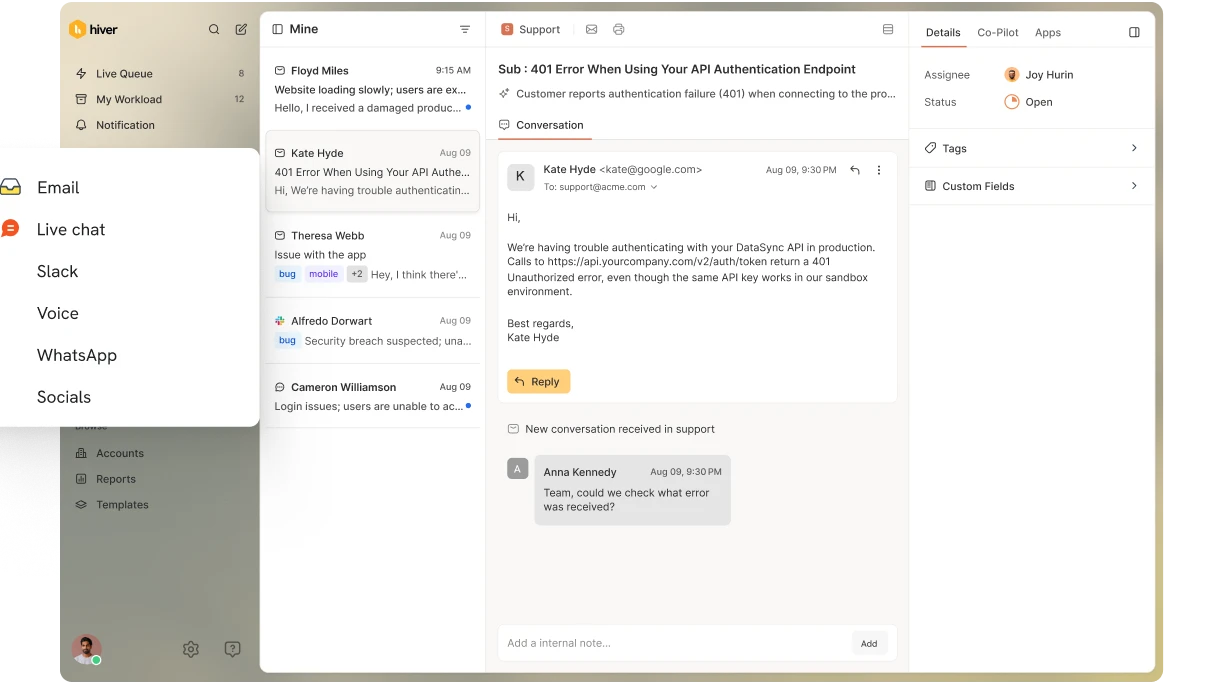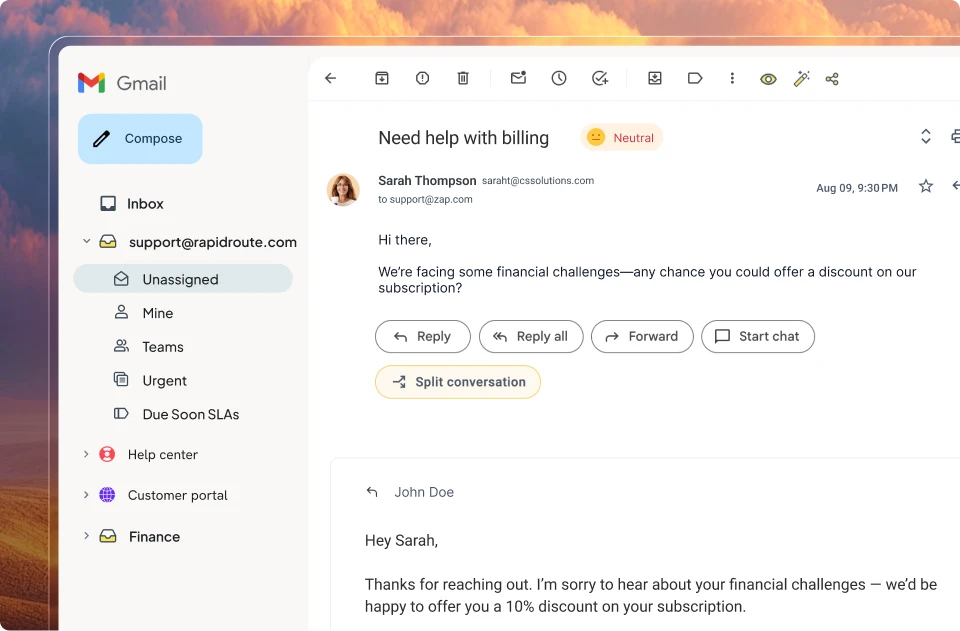







In most companies, customer data lives in the CRM, and customer conversations live in the helpdesk.
Two separate tools, two separate places to look.
On paper, that sounds manageable. But in practice, it creates silos.
Agents switch tabs to find account details. Sales can’t see open support issues. Customer success misses early churn signals. Context gets scattered across tools.
And the more a company grows, the more obvious the friction becomes.
So teams start looking for a better way to connect the two. Not more software — just the right tool for agents to get tickets, SLAs, and escalations alongside the customer record they already use every day.
That’s what a CRM ticketing system is built for. Every ticket comes with full context — past conversations, account history, ownership — without anyone having to go looking for it.
But the question is: which ones actually deliver on that, and how do you find the right fit for your team?
Let’s get into it.
What Is a CRM Ticketing System?
A CRM ticketing system is a ticket management capability built into, or tightly connected with, your CRM. It turns incoming support requests into structured tickets that are linked to the relevant contact or account record.
Instead of using a separate helpdesk, teams can log, assign, prioritize, and resolve issues directly inside the CRM.
All relevant deal data, account history, and ownership details are already there, so everything stays in one place
In practice, that means:
- Every email, chat, call, or form submission becomes a ticket.
- Each ticket is tied to a specific contact or account.
- The full history of conversations, deals, and previous issues is visible in one timeline.
- Ownership, status, and SLAs are tracked inside the same system.
It turns messy conversations into a trackable, accountable workflow — without forcing teams to switch between tools.
How a CRM Ticketing System Works

A CRM ticketing system is easiest to understand when you follow one customer issue from start to finish.
Here’s what that looks like in practice.
1. The request lands and becomes a ticket
A customer sends an email about a login issue.
The CRM automatically converts that message into a ticket. It assigns a unique ID and links it to the correct contact and account based on the email domain.
The ticket is now trackable, visible, and tied to a real customer record.
2. The system pulls in full customer context
Now that the ticket is created, the CRM enriches it with existing data:
- Past emails and previous tickets
- Current plan and renewal date
- Account owner
- Open deals or opportunities
- Internal notes from sales or success
When an agent opens the ticket, they see the entire customer timeline alongside the message. They understand who the customer is, how valuable the account is, and whether this issue has happened before. That way, they have full context rather than getting started on a data hunt.
Recommended reading
3. Routing and prioritization happen automatically
This is the part where automation rules take over.
The CRM can detect the issue type, customer tier, region, or account owner. Based on those conditions, the ticket is:
- Marked with a priority
- Assigned to the right queue or specialist
- Placed under an SLA timer
If response targets are at risk, alerts can notify team leads automatically.
Recommended reading
4. Collaboration and escalation stay inside the CRM
If agents want to collaborate with another department on the ticket, they can easily add internal notes, tag teammates, and reassign ownership – all without leaving the ticket.
If escalation is needed, the case moves to a specialist queue, but the full context remains intact. No one asks for screenshots or forwarded threads because everything lives inside the same customer record.
The result? Internal and external communication stays organized in one place.
Recommended reading
5. Resolution and Reporting Close the Loop
Once resolved, the ticket is closed but not deleted. The full history remains attached to the customer profile.
Leaders can later analyze:
- Resolution time by issue type
- SLA compliance
- Ticket volume by account
- Repeat issues after product releases
Over time, this reporting drives process improvements. Teams refine routing rules, identify product gaps, and reduce recurring issues.
Top 8 CRM Ticketing Tools (Quick Overview)
| Platform | Best fit for | Standout CRM ticketing feature | Pricing |
|---|---|---|---|
| Hiver | Teams that want structured ticketing and CRM-style context without a heavy CRM suite | Helpdesk with contact view plus CRM integrations, so tickets stay in Hiver while key account fields flow in from tools like HubSpot or Salesforce | Free forever plan; paid plans from ~$25/user/month (Growth) |
| HubSpot Service Hub | Teams that want CRM, tickets, automation, and reporting in one native stack | Tickets are first-class CRM objects. This way ticket stages, CSAT, and volume can directly update deals, lifecycle stages, and health scores | Service Hub Starter from ~$15/seat/month (on top of HubSpot CRM) |
| Zoho Desk + Zoho CRM | Price-sensitive teams that want separate but tightly linked CRM and ticketing from one vendor | Two-way Zoho Desk ↔ Zoho CRM sync with Blueprint workflows, so ticket fields and CRM fields can drive each other’s automation | Combined “Standard” pairing from ~$28/user/month (Desk Standard + CRM Standard) |
| Freshdesk + Freshsales | Customer support teams that still want a 360° CRM view in the sidebar | Two-way Freshdesk–Freshsales sync that shows ticket history inside CRM records and uses CRM fields (MRR, tier, segment) to drive SLAs and routing | Growth bundle from ~$28/user/month (Freshdesk Growth + Freshsales Growth) |
| Zendesk + CRM integrations | High-volume support teams that need a solid ticketing system feeding into an external CRM | Zendesk Sunshine unified customer profile plus integrations that pull CRM, billing, and ecommerce data into Zendesk tickets | Zendesk Suite Team from ~$55/agent/month (CRM sold separately) |
| Pipedrive | Sales teams that want light ticket-style tracking alongside deals | “Support” pipeline using deals as tickets, plus helpdesk integrations. This way open ticket counts and status show on contact and company records | Lite plan from ~$14/user/month; CRM-only (helpdesk added via integrations) |
| FluentCRM + Fluent Support | WordPress-native teams that want CRM + helpdesk inside their WP stack | Shared WordPress database for CRM and tickets, giving zero-lag, two-way automation between ticket events and CRM tags/lists | Free tier; Pro combo from ~$180/year per site (FluentCRM Pro + Fluent Support Pro) |
| Lark (Base + templates) | Collaboration-first teams who want flexible internal ticketing built on a no-code database | AI-powered ticketing and CRM templates in Lark Base, linking ticket tables to CRM tables and driving chat-based workflows | Free for ~20 users; Pro from ~$12/user/month |
1. Hiver: Best for AI-Native Ticketing with CRM-Style Context
Hiver is an AI-powered customer service platform designed to bring CRM-level context directly into your support workflow. It’s built for teams that want the structure of a helpdesk without forcing agents to constantly switch into a separate CRM just to understand the customer.
Hiver turns conversations across email, chat, voice, and WhatsApp into structured tickets with clear ownership, statuses, tags, priorities, and SLAs.
At the same time, agents get the customer context they need right inside the conversation. Past interactions stay attached to the thread. Teammates can instantly see ownership, internal notes, and collaboration history.
A built-in contact view surfaces key details like who the customer is, how frequently they’ve reached out, and which conversations are currently open.
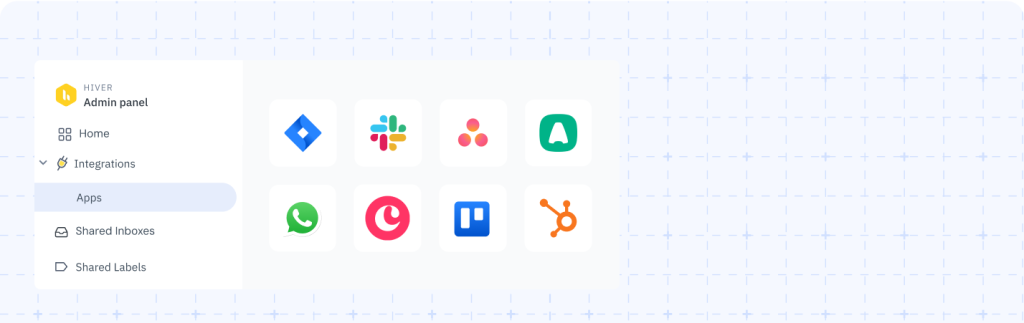
Hiver integrates with tools like HubSpot and Salesforce, allowing teams to pull relevant account data directly into the ticket view. Support signals such as escalations, trends, or activity can also be synced back to the CRM, ensuring both systems stay aligned.
The result is a clear split: Hiver is the system of action for customer communication, while your CRM remains the system of record for accounts, deals, and lifecycle data.
You get CRM-style context on every ticket without turning your helpdesk into a full CRM or your CRM into a clunky support tool.
Hiver’s Top CRM Ticketing Features
- Helpdesk Layer: With Hiver, customer conversations become manageable tickets that your team can assign, prioritize, and resolve with full context. Coordinating work across departments happens without email forwards or side conversations on Slack.
- Multichannel Support and Customer History: Email, live chat, voice, and WhatsApp feed into one timeline for every customer. Agents see the full conversation history across channels, similar to a CRM activity feed but for support interactions.
- Contact-Level View: Hiver shows a quick snapshot of each customer right inside the inbox — past conversations, open tickets, and basic account details — so agents can understand who they’re talking to and prioritize replies without switching tools.
- AI for Replies, Triage, and Routing: Hiver’s AI helps on both sides of the conversation. It drafts replies and summarizes long conversations so agents can respond faster. Behind the scenes, it classifies conversations, adds tags, routes them to the right team, and can even resolve common requests like billing or shipping questions automatically.
- Automation for Assignment and SLAs: Hiver automates common actions: auto-assigning tickets based on availability, updating status, applying tags, and escalating when SLAs are at risk.
- Reporting and Custom Dashboards: Analytics helps track ticket volume, response times, resolution times, and SLA performance. You can report by client, by teammate, or by tag—giving you visibility into which accounts need attention.
- Templates and Collaboration Tools: Reusable templates keep responses consistent across the team, while internal notes, @mentions, and approval workflows keep collaboration organized inside a ticket.
Hiver Pros and Cons
| Pros | Cons |
|---|---|
| Unified inbox plus Linked Conversations and Custom Objects give a near-CRM view of customer issues without heavy setup. | Not a full CRM; you still need an integration or separate CRM for deals, opportunities, and complex account structures. |
| Strong collaboration and workflow features keep ownership and context clear. | Some advanced revenue and product-usage reporting still depend on external CRM or analytics integrations. |
Hiver Pricing
- Forever Free Plan
Best for small teams getting started with structured customer communication.
Includes 1 shared inbox with ticketing, contact visibility, internal collaboration, live chat, knowledge base, and 24×7 support for unlimited users. - Growth – $25/user/month
For teams that need better visibility and reporting.
Includes everything in Free, plus custom reports, advanced integrations (including popular CRMs), and analytics to track interaction patterns and team workload. - Pro – $65/user/month
For teams that want AI and deeper service quality tracking.
Adds AI features for drafting and summarizing replies, CSAT surveys to measure relationship health, SLA reporting and tracking, and more advanced analytics. - Elite – $105/user/month
For larger or more complex teams that need advanced routing and control.
Unlocks skill-based routing, SSO, richer automation, and the most advanced analytics across customers, segments, and teams.
Hiver’s AI capabilities are available on all paid plans, with more advanced AI features (like AI agents and AI insights) gradually unlocking on higher tiers.
There is also a 7-day free trial so teams can test the full feature set before committing.
2. HubSpot Service Hub: Best for teams that want tickets, CRM, and automation in one native stack
HubSpot Service Hub works as a CRM ticketing system-because your helpdesk and CRM are the same product, not two systems you sync after the fact. Tickets, contacts, companies, and deals all live in one database, so every support interaction is tied to a real customer record from day one.
On the support side, every email, chat, or form submission becomes a ticket linked directly to its contact and company.

Agents see CRM context — lifecycle stage, deal stage, account owner — directly in the ticket sidebar. That way, sales and success see the full support history before walking into a renewal or upsell.
The real strength is the two-way workflow. Ticket data (category, CSAT, resolution status) can update health scores and lifecycle stages. CRM data (ARR, segment, renewal date) can drive routing, SLAs, and escalation rules.
With this tool, support directly influences pipeline — which makes HubSpot a strong fit for B2B SaaS or services companies where sales and support share the same accounts.
HubSpot’s Top CRM Ticketing Features
- Bidirectional CRM–Ticket Automation. Ticket activity can automatically update deal stages, lifecycle stages, and company properties — and CRM data can flow back into tickets the same way.
- Native Cross-Object Record Creation. HubSpot can automatically create deals from tickets (and tickets from deals) with all the right associations already in place.
- Custom Ticket Pipelines with Stage Logic. Tickets move through their own pipelines with stages, just like deals. Each stage can trigger emails, tasks, field updates, or workflows automatically.
- Health Scores Powered by Support Data. On Pro and Enterprise, customer health scores can incorporate ticket volume, CSAT, and resolution times alongside other CRM signals.
- Unified Activity Timeline. Tickets live on the same timeline as emails, calls, meetings, and deal updates — giving agents full customer context in one place, with support activity visible across contact, company, and deal records.
- AI Assist in the Ticket View. Agents get AI-generated thread summaries, reply drafts, and knowledge base suggestions directly inside the ticket — informed by the full CRM record, not just the conversation.
HubSpot Pros and Cons
| Pros | Cons |
|---|---|
| Unified customer timeline: sales, marketing, and support all work from the same activity feed | Pricing climbs as you add contacts, seats, and unlock Pro/Enterprise Service Hub features. |
| Bidirectional workflows: ticket stages can update deals, lifecycle stages, and health scores, while CRM fields drive routing, SLAs, and priorities. | Not ideal if your main CRM is different and you don’t want to migrate your data and processes into HubSpot. |
HubSpot Pricing
- Service Hub Starter (from $15/seat/month)
Entry-level ticketing inside HubSpot CRM. Includes shared inbox, up to 2 ticket pipelines, basic routing, and status automation. - Service Hub Professional (from $90/seat/month)
Adds custom workflows between tickets and CRM objects (deals, contacts, companies), SLAs, customer feedback tools, a knowledge base. - Service Hub Enterprise (from $150/seat/month)
Built for larger or more complex teams. Unlocks multiple health scores, advanced cross-object automation, multi-brand support, workload management, and deeper analytics.
With HubSpot, you pay per support seat, not per ticket. Most teams land on Professional, since that’s where the bidirectional ticket–CRM automation and health scoring really kick in.
Recommended reading
3. Zoho Desk + Zoho CRM: Best if you want modular CRM + ticketing with deep cross-linking
With Zoho Desk and Zoho CRM, you’re pairing two focused tools that share the same customer data rather than buying one big all-in-one platform. Zoho Desk handles support, CRM handles sales and accounts, and the two stay in sync in real time.
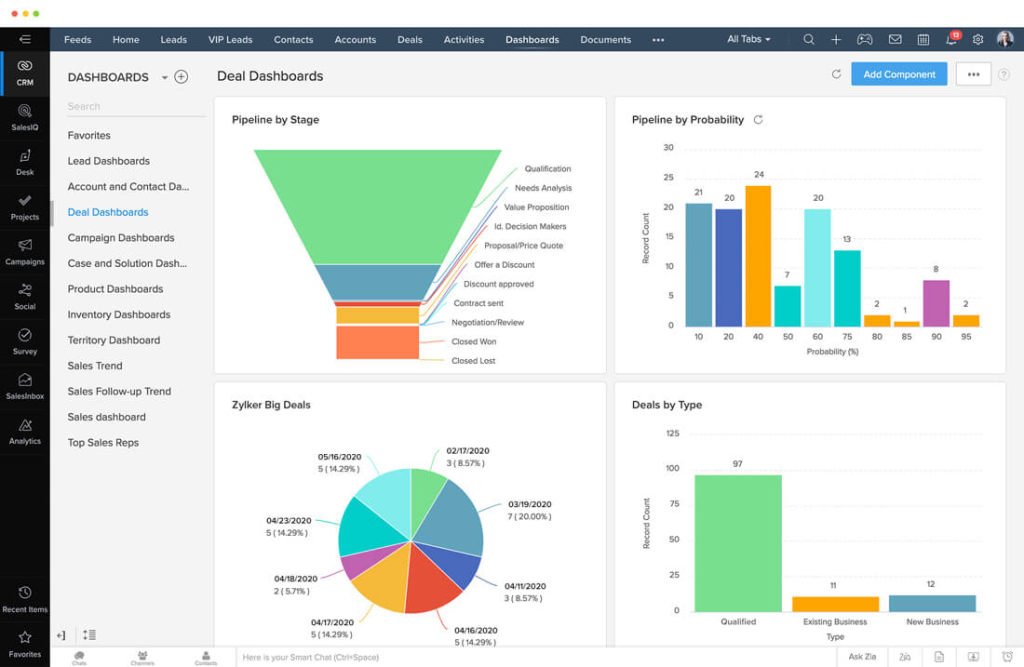
Agents in Desk can see plan type, account owner, open deals, and key CRM fields directly in the ticket sidebar — no CRM licence required.
On the CRM side, sales and success teams can see ticket volume, recurring issue types, and resolution performance at the account level before walking into a renewal or upsell conversation.
Zoho’s AI layer, Zia, adds another dimension. It can suggest field updates, detect sentiment shifts, and surface anomaly patterns across both sales and support data, helping teams spot revenue risk or expansion signals earlier.
Zoho’s Top CRM Ticketing Features
- Two-Way CRM–Desk Sync. Contacts, accounts, and tickets stay linked across both tools, with custom field mapping keeping key properties like status, CSAT, and priority aligned in both directions.
- Blueprint Ticket Workflows. Blueprint lets you build stage-based ticket workflows with mandatory fields and approvals at each step — agents can’t advance a ticket until the required actions are completed.
- Ticket-Driven CRM Automation. Ticket fields like priority, CSAT, or resolution status can trigger CRM workflows — updating deal stages, creating tasks, or adjusting lead scores automatically.
- Real-Time CRM Signals. When significant ticket events happen in Desk, Zoho CRM surfaces live alerts on the relevant contact or account so sales and CS teams stay informed without checking support queues.
- Configurable Context Panels. You choose which CRM fields appear in the Desk ticket sidebar — agents see what’s relevant to their response without being handed the full CRM view.
- Omnichannel Capture with CRM Linking. Email, phone, chat, social, and web forms all create tickets in Desk, automatically attached to the right CRM contact and account so every interaction feeds into a shared customer history.
Zoho Pros and Cons
| Pros | Cons |
|---|---|
| Guided workflows are great for teams that need structured, stage-based ticket processes. | You still juggle Zoho Desk and Zoho CRM as separate products. |
| Ticket fields can update CRM records, and CRM fields can drive routing, SLAs, and priorities, so support and sales stay in sync. | Setup is not fully plug-and-play – Blueprint, field mapping, and flows need upfront planning and resources for configuration. |
Zoho Pricing
- Standard – from ~$28/user/month (Desk Standard + CRM Standard)
Includes ticketing in Zoho Desk with CRM contact/account details in the ticket view, plus simple workflows and basic pipelines in Zoho CRM. - Professional – from ~$46/user/month (Desk Pro + CRM Pro)
Adds Blueprint for stage-based ticket workflows, deeper field mapping between Desk and CRM. - Enterprise – from ~$80/user/month (Desk Enterprise + CRM Enterprise)
Adds AI assistants, skill-based routing, advanced analytics, and richer automation.
Zoho Desk and Zoho CRM are billed as separate products, so you can start with one and add the other later. Most teams aiming for true CRM-ticketing land on the Professional combo, where Blueprint and advanced automation unlock.
Recommended reading
4. Freshdesk + Freshworks CRM: Best for helpdesk-first teams that still want a 360° customer view)
Freshdesk is a helpdesk at its core, but it becomes a solid CRM ticketing tool when paired with Freshsales and Freshsuccess from the wider Freshworks ecosystem.
When connected to Freshsales, tickets are automatically linked to CRM contacts and accounts — so agents can see deal stage, company size, and account owner without leaving the helpdesk.
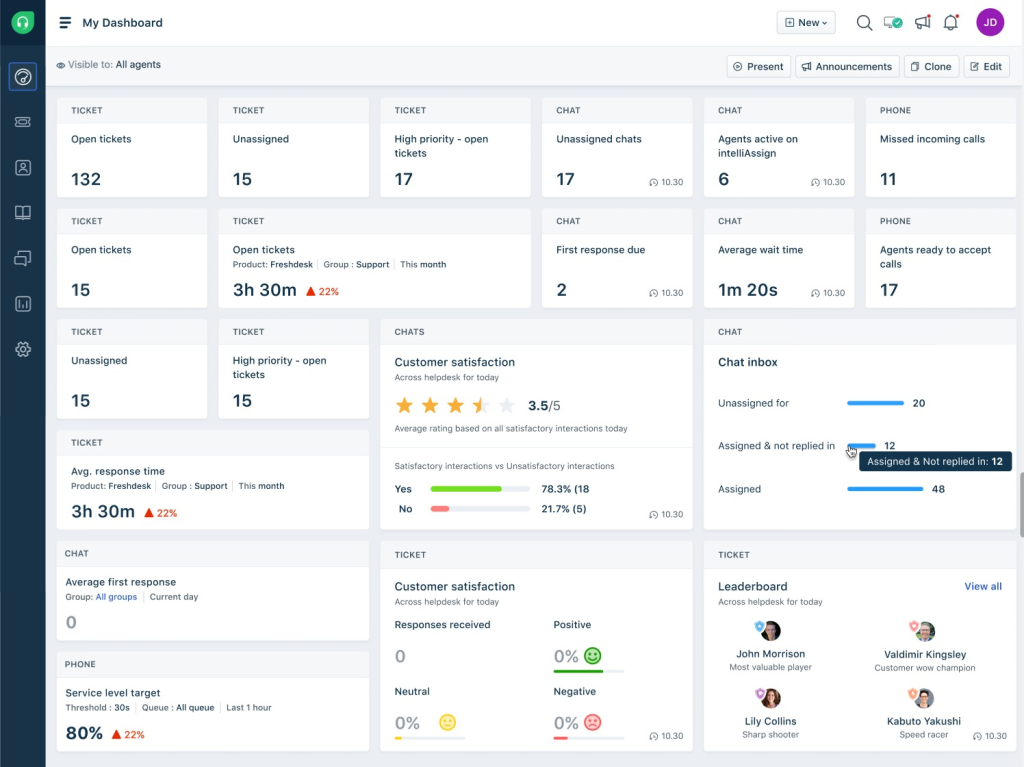
Add Freshsuccess, and that same panel can include subscription details, health scores, and lifecycle data.
CRM fields like segment, MRR, or customer tier can also drive how Freshdesk handles incoming tickets — setting SLAs, adjusting priority, or routing to specialist queues. Ticket events flow the other way too, with repeated high-severity tickets able to update account health or trigger CSM tasks in the CRM.
That combination of mature ticketing, CRM context, and two-way workflows is what makes Freshdesk work as a CRM ticketing option rather than “just” a standalone helpdesk.
Freshdesk is a helpdesk at its core, but it turns into a solid CRM ticketing when you plug it into the wider Freshworks ecosystem, especially with Freshsales (Freshworks CRM) and Freshsuccess.
Freshdesk’s Top CRM Ticketing Features
- Two-Way Sync with Freshsales. Contacts, accounts, and tickets stay in sync across both tools, with flexible field mapping in either direction.
- Tickets Inside CRM Records. Sales reps can see the full support history on any contact or account page in Freshsales — and create new tickets without leaving the CRM.
- Deal ↔ Ticket Automation. Deal stage changes can automatically create tickets in Freshdesk, and key ticket events can trigger deal updates or new records in Freshsales.
- Unified Agent Workspace. Freshdesk Omni brings email, chat, WhatsApp, and social into a single view with CRM context and AI suggestions alongside every ticket.
- Neo Platform Data Layer. When you run multiple Freshworks products, customer data lives on a shared platform — making cross-tool reporting, automation, and customer profiles feel native rather than bolted together.
- Configurable CRM Panels in Tickets. Admins choose which CRM fields appear in the ticket sidebar — health score, renewal date, plan, deal value — so agents have the context they need without a full CRM licence.
Freshdesk Pros and Cons
| Pros | Cons |
|---|---|
| Works smoothly with Freshsales-, so support and sales see the same customer story. | You’re still running two products: agents live in Freshdesk, sales in Freshsales, with two interfaces and two settings to maintain. |
| Unified Agent Workspace (Freshdesk Omni) lets agents handle email, chat, WhatsApp, and social in one place, with CRM context in the sidebar. | Sync runs on a delay (typically every 15 minutes), so data isn’t fully real-time for high-urgency situations. |
Freshdesk Pricing
- Growth – from ~$28/user/month (Freshdesk Growth + Freshsales Growth)
You get ticketing, basic automation, contact & deal info in the ticket sidebar, and a 2-way sync so support and sales see the same customer record (on a short delay). - Pro – from ~$94/user/month (Freshdesk Pro + Freshsales Pro)
Adds stronger routing and SLAs, multiple sales pipelines, AI insights, and the ability to create or link deals from tickets. - Enterprise – from ~$148/user/month (Freshdesk Enterprise + Freshsales Enterprise)
Adds skill-based assignment, sandbox and audit controls, custom CRM modules, territory management, and richer automation.
Freshdesk and Freshsales are billed as two separate products, so you can start on Growth to validate the combo, but most teams aiming for serious CRM-ticketing usually land on Pro, where deal–ticket workflows and custom mapping really open up.
Recommended reading
5. Zendesk + CRM Integrations: Best for high-volume support teams that need rich tickets feeding into an external CRM
Zendesk is very clearly a customer service platform first. It’s retiring its own sales CRM (Zendesk Sell) and now leans fully into pairing Zendesk Support with external CRMs like Salesforce, HubSpot, or Pipedrive instead of trying to do both in one product.
Zendesk Support is where all the ticket detail lives: requester and organization profiles, custom fields, tags, macros used, CSAT scores, and full event logs.
Connectors sync ticket activity to the CRM, so account and contact records appear alongside their respective tickets, recent escalations, and CSAT trends.
In return, CRM data like segment, ARR, owner, and renewal date appears inside the Zendesk sidebar, helping agents understand how important the account is before they reply.

Zendesk Sunshine (Zendesk’s open CRM platform built on AWS) sits underneath as a customer data platform rather than a classic CRM. It pulls in attributes and events from your CRM, billing, and ecommerce tools to enrich support tickets with more context, but it doesn’t replace your sales CRM.
In a CRM ticketing stack, that division of labour is the point: Zendesk handles high-volume, multi-channel workflows (routing, SLAs, queues), while your CRM owns pipeline, forecasting, and revenue. The integrations keep both sides in sync, so support gets to see revenue impact and sales gets to see support history.
Zendesk’s Top CRM Ticketing Features
- Sunshine Unified Customer Profile. Zendesk Sunshine pulls data from your CRM, billing, and ecommerce tools into a single customer profile inside Support, so agents get the full picture without leaving the ticket.
- Deep CRM Integrations for Rich Context. Native integrations with Salesforce, HubSpot, Dynamics, and others surface account owner, ARR, deal stage, renewal date, and health scores directly in the ticket view.
- Organization-Level Account Context. Zendesk’s Organizations feature groups contacts by company and attaches account-level context — pricing tier, ARR, contract status, ticket history — to every ticket from that company automatically.
- CRM-Driven Routing and Automation. Triggers and workflows can route, escalate, or prioritize tickets based on CRM data — enterprise accounts to senior queues, at-risk customers flagged for alerts, VIPs on stricter SLAs.
Zendesk Pros and Cons
| Pros | Cons |
|---|---|
| Sunshine pulls CRM, billing, and ecommerce data into a single customer view inside Zendesk tickets. | Sunshine and the nicest data features sit on higher (Enterprise-style) plans, which can get pricey. |
| Works with lots of CRMs, so you can pick the best sales tool and let Zendesk handle support. | Needs connector setup, field mapping, and ongoing maintenance to stay in sync with your CRM. |
Zendesk Pricing
- Suite Team – from ~$55/agent/month
Baseline omnichannel support with basic CRM integrations. You get email/voice/messaging ticketing, a help center, AI agents, and sidebar apps that surface key CRM fields in the ticket view. - Suite Professional – from ~$115/agent/month
Best starting point for CRM-style ticketing. Adds SLAs, CSAT, skills-based routing, multiple help centers, and Sunshine Team. - Suite Enterprise – from ~$169/agent/month
Built for complex, multi-brand teams. Adds sandboxing, custom roles, dynamic workspaces, and Sunshine Professional, which supports larger data volumes and more advanced automation.
Zendesk is billed per support agent and focuses on service only. You’ll still need a separate CRM (like Salesforce, HubSpot, or Pipedrive) for pipeline, forecasting, and revenue, with integrations and Sunshine keeping both sides in sync.
Recommended reading
6. Pipedrive: Best for sales-led teams that want light ticket-style tracking inside a sales CRM
Pipedrive is fundamentally a sales CRM, but its pipeline model makes it easy for small teams to layer in simple ticket tracking without rolling out a full-fledged helpdesk.
Most teams spin up a separate “Support” or “Customer Requests” pipeline where every incoming customer request becomes a separate card. Teams can then add custom fields for properties like issue type, priority, product area, and target resolution date. Activities then double up as follow-ups or internal tasks on those issues.
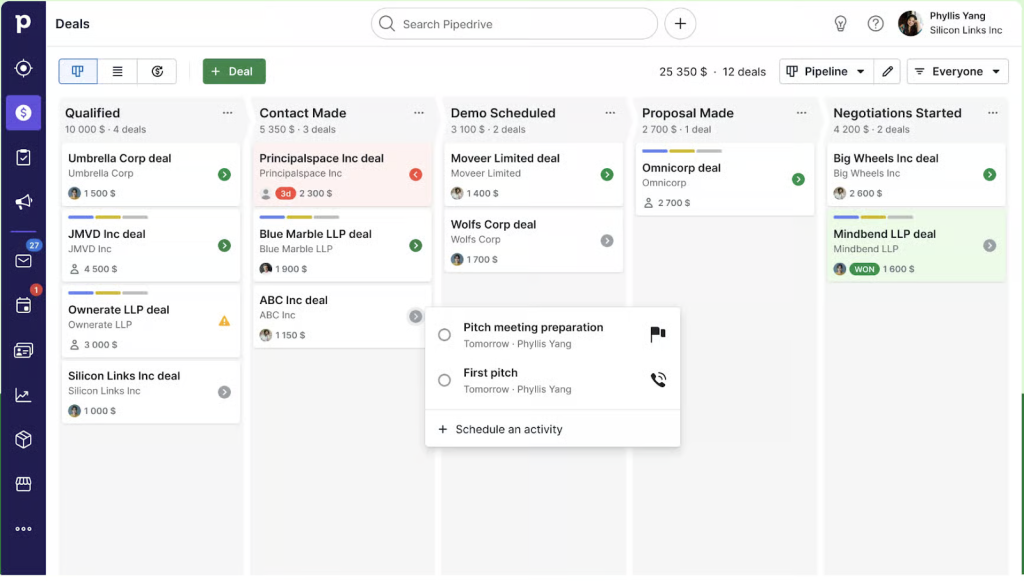
Where it becomes a basic CRM ticketing setup is through integrations. Helpdesk tools like Hiver, Zoho Desk, or Zendesk can push ticket data into Pipedrive, automatically creating or updating cards in that support pipeline and stamping ticket status, last response time, and CSAT onto the linked contact or organization.
That means a customer success manager looking at an account can immediately see “3 open issues, 1 high priority” before they talk about renewal or expansion.
The real ticketing workflows still live in the external helpdesk, but Pipedrive gives sales and leadership a single, CRM-native view of the commercial pipeline plus support load.
Pipedrive’s Top CRM Ticketing Features
- Support Pipelines Using Deals as Tickets. You can set up a dedicated support pipeline where each deal acts as a ticket, moving through stages like New → In Progress → Waiting on Customer → Resolved on a Kanban board.
- Custom Fields for Ticket Details. Custom fields like issue type, priority, product, and root cause can be added to those support deals so you can filter, segment, and report on requests the same way you would on sales deals.
- Basic Routing with Automation. On Professional and above, workflow automation can auto-assign incoming tickets to the right rep based on segment, issue type, or source — lightweight routing without a full helpdesk.
- Native Helpdesk Integrations. Most teams pair Pipedrive with Hiver, Freshdesk, or Zendesk. Tickets sync into Pipedrive as deals or activities, and deal and contact data surfaces in the helpdesk sidebar so sales and support share the same context.
- Shared Customer View for Sales-First Teams. When integrated, Pipedrive shows open ticket counts and statuses on contact and company records — so sales knows if a customer is mid-firefight before calling, and support can see deal stage while handling an issue.
- Sales ↔ Support Automations via Zapier or Make. A won deal can automatically create an onboarding ticket, a critical ticket can flag the deal as at-risk, and a resolved ticket can trigger a follow-up task for the account owner.
Pipedrive Pros and Cons
| Pros | Cons |
|---|---|
| Cost-effective for low-volume support: very small teams can track simple post-sale requests inside Pipedrive without paying for a separate helpdesk. | It’s not a real helpdesk – using deals as tickets means no native SLAs, CSAT, knowledge base, or omnichannel inbox. |
| Works well as the CRM half of a stack when you plug it into helpdesk tools Sales sees ticket status, and support sees deal context. | Many ticketing basics (skills-based routing, ticket merge, parent/child tickets, collision detection) simply don’t exist. |
Pipedrive Pricing
- Lite – from ~$14/user/month
Basic sales CRM with pipelines and custom fields. Best for very low-volume, manual tracking. - Growth – from ~$39/user/month
First tier where CRM-ticketing starts to work. Adds workflow automation, email sync, and more custom fields, so you can auto-assign “support deals” to reps. - Premium – from ~$59/user/month
Best fit if you’re pairing Pipedrive with a real helpdesk. More automations and bundled add-ons make it easier to keep sales and support in sync (e.g., flag deals as “at risk” when critical tickets are created). - Ultimate – from ~$79/user/month
For larger or regulated teams that need extra automation, security, and audit controls.
Pipedrive is a sales CRM first, not a helpdesk. You can track simple tickets using a support pipeline, but most teams treat it as a CRM ticketing layer, pair it with dedicated helpdesk software, and use Pipedrive for visibility, automation, and follow-up.
7. FluentCRM: Best for WordPress-native teams that pair CRM with a helpdesk
FluentCRM is a WordPress tool that stores all your customer information in one place. It doesn’t manage support tickets itself, but it keeps the customer data organized so your ticketing system knows who the person is and what’s happened before.
It focuses on contact records, tags, segments, and email automation, all stored in your own WordPress database.
When you pair it with a helpdesk plugin like Fluent Support or another WP-based support tool, tickets live in the helpdesk, while FluentCRM becomes the system of record for who the customer is, what they’ve bought, and how you follow up.
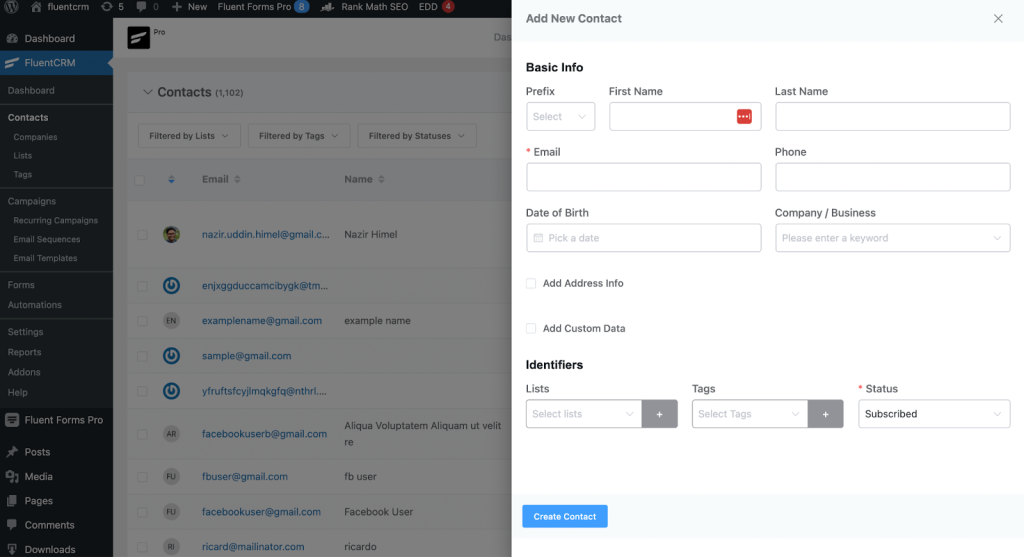
From a CRM ticketing angle, the value is in the event-driven loop between the two. Ticket events (new tickets, repeated issues, low CSAT, high-priority closure) can automatically update tags and custom fields in FluentCRM, drop contacts into specific segments like “at risk” or “needs onboarding help,” and trigger emails or nurture sequences.
At the same time, agents inside the helpdesk can see key FluentCRM data — plan, lifetime value, tags, last campaigns opened — right next to the ticket.
Ultimately, you get a WordPress-native CRM plus a WordPress-native helpdesk that talk to each other. That setup fits teams who care about data ownership, low recurring costs, and keeping everything inside their existing WP stack rather than moving to a cloud CRM + helpdesk combo.
FluentCRM’s Top CRM Ticketing Features
- Native WordPress CRM + Helpdesk: FluentCRM and Fluent Support live in the same WordPress site and share one database. Contacts, tickets, WooCommerce orders, memberships, and course data all sit together with zero sync lag.
- Full Customer Picture Inside Every Ticket: Agents see previous tickets, purchase history, memberships, LMS courses, tags, and lists right in the ticket sidebar.
- Smart, Two-Way Automation: Ticket events can update FluentCRM (add tags, move lists, change status), and FluentCRM automations can open tickets when something goes wrong—like failed payments, refund requests, or onboarding issues.
- Segments and Tags for Priority: FluentCRM lists and tags (e.g., “VIP,” “At Risk,” “New Customer”) show up next to each ticket, making it easy to prioritise replies without digging through the CRM first.
- Workflow Rules That Check CRM Data: Fluent Support workflows can look at CRM lists, tags, ticket fields, and product info to decide what to do next: assign an agent, change priority, close tickets, or trigger follow-up campaigns.
- E-commerce-Friendly Support: With WooCommerce and Easy Digital Downloads connected, agents see exactly what a customer bought and when, so they can jump straight into product-specific help instead of asking them to repeat information.
- Self-Hosted and Under Your Control: Because everything runs as WordPress plugins, you own the data, avoid per-contact pricing, and don’t depend on third-party SaaS limits or policies.
FluentCRM Pros and Cons
| Pros | Cons |
|---|---|
| Strong two-way automation between CRM and tickets (tags, lists, campaigns, and ticket creation) for lean, lifecycle-aware support. | WordPress-only: not a fit if your stack lives outside WordPress or you want a standalone SaaS tool. |
| Very cost-effective, with one-time licence options instead of per-contact pricing as you scale. | Self-hosted setup means you’re responsible for hosting, performance, security, and backups. |
FluentCRM Pricing
- Free
Good for testing the stack on a WordPress site. You get basic contact management, email campaigns, and simple ticket handling for a single support inbox, but limited automation and workflows. - Single Site – from ~$180/year (FluentCRM Pro + Fluent Support Pro)
Best starting point for serious CRM ticketing on one WordPress site. Unlocks visual automations, WooCommerce/LMS integrations, multiple support inboxes, and native CRM ↔ ticket workflows so agents see purchases, tags, and history inside every ticket. - Agency – from ~$348/year (up to 5 sites)
For agencies or multi-brand businesses running several WordPress sites. All Pro features across up to 5 domains, with more support inboxes and workflows so each brand/client can have its own helpdesk while sharing the same CRM stack. - 50 Sites – from ~$628/year
For large agencies or publishers managing lots of WordPress properties. Lets you roll out the same CRM + helpdesk combo across dozens of sites without per-seat or per-contact pricing.
FluentCRM + Fluent Support are self-hosted WordPress plugins, billed per site, not per agent. That makes them extremely cost-effective for WordPress-based teams, with the trade-off that you manage your own hosting, updates, and performance.
8. Lark (Best for collaboration-first teams that want lightweight internal ticketing inside a layered CRM)
Lark is primarily a collaboration super-app– chat, docs, calendar, Base, workflows – that can double up as a ticketing system.
There’s no “cases” or “tickets” object out of the box. Instead, you use Lark’s AI-powered ticketing template and Base (its database app) to turn requests from forms or chatbots into structured records with fields for status, assignee, severity, and whatever customer or account data you care about.
Automations then move those records through states, ping the right channels in chat, and raise alerts when SLA thresholds are at risk.
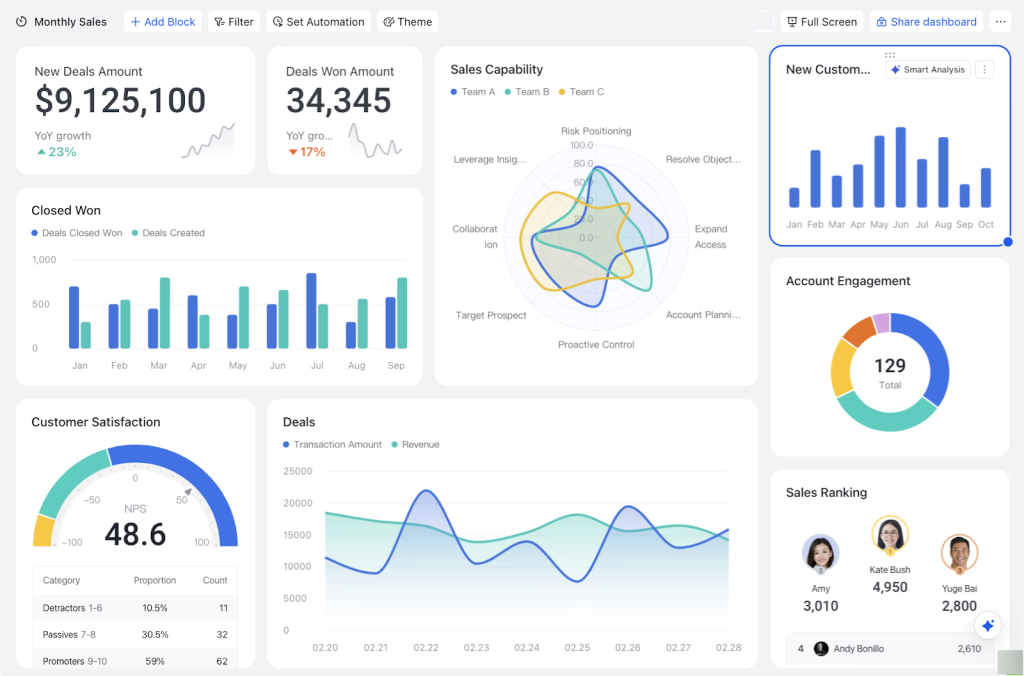
From a CRM ticketing perspective, Lark behaves more like an internal ops hub than a classic customer support tool.
You can add columns for account ID, customer name, plan, CSM, and link those rows to external CRM records or sheets.
AI can help classify requests, summarise updates, and keep stakeholders in the loop, but Lark doesn’t try to manage deals, pipelines, or full customer history by itself.
It’s a good fit for teams that already live in Lark and want a no-code, highly flexible ticket board with light CRM context glued on.
Lark’s Top CRM Ticketing Features
- Ticketing Built on Lark Base. Lark uses Base, its no-code database, alongside AI-powered templates to handle ticketing. Requests are tracked in a table with fields like status, severity, assignee, and SLA, with simple dashboards for queue volume and resolution times.
- Linked CRM and Ticket Views. You can connect a ticketing Base to a CRM Base so each ticket links to the right customer or deal. Support sees deal stage and account value on the ticket; sales sees open tickets and history on the customer record.
- Multi-Channel Intake. Tickets can come in through Lark Forms, chatbots, or directly from Lark Messenger conversations — and submissions automatically create structured records in Base so nothing gets lost in random DMs.
- Automation for Assignment and Alerts. Workflow rules can auto-assign tickets based on severity, category, or customer tier, and send Messenger notifications when SLAs are about to breach or high-priority tickets arrive.
- Works Beside Real Helpdesks. If you already use Zendesk or Freshdesk, Lark can pull those tickets into Base via AnyCross or Zapier — agents keep working in their main helpdesk while managers get unified reporting and collaboration inside Lark.
Lark Pros and Cons
| Pros | Cons |
|---|---|
| CRM and ticket tables can link both ways, so support sees deal/account context and sales sees open tickets on the same customer. | Not a true helpdesk – it’s a customizable database template, so you’re essentially building your own system on top of Base. |
| Very flexible: you can design your own fields, stages, and dashboards to match your exact support + CRM process. | For heavy-duty support operations, it still won’t match the depth of dedicated platforms built for high-volume ticketing. |
Lark Pricing
- Starter – Free
Good for testing Lark’s CRM + ticketing setup. Supports up to ~20 users, with the AI-powered ticketing and CRM Base templates. - Pro – from ~$12/user/month
Best starting point for serious CRM ticketing. Unlocks much higher Base automation limits, richer dashboards, and better integration capacity (e.g., AnyCross/Zapier) so you can auto-assign tickets, trigger escalations, and sync with tools like Freshdesk or Zendesk. - Enterprise – custom pricing
For larger or complex teams that need more automation volume, stronger security, and higher Base limits.
Lark is priced per user, and ticketing runs on customizable Base templates rather than a native helpdesk.
That makes it flexible and collaboration-friendly, but you’ll rely on automations and integrations (and some setup work) to match what traditional helpdesks do out of the box.
Must-Have Features in a CRM Ticketing System
Think about the features that actually make your agents’ lives easier day to day. The best CRM ticketing systems nail four things: they give agents clear context, handle the boring automation, make ownership obvious, and provide insights you can act on.
Here’s a quick overview:
| Dimension | Basic CRM ticketing features | Advanced CRM ticketing features |
|---|---|---|
| Context in tickets | Contact name, email, company, and raw conversation history. | Full customer timeline in one view: tickets, deals, notes, account tier, health, and related issues. |
| Automation & routing | Simple rules based on channel or queue (for example, all emails go to “Support”). | Conditional routing using tier, product, sentiment, or workload, plus automatic reassignment when SLAs are at risk. |
| Ownership & SLAs | Manual assignment and basic “open/closed” statuses. | Clear lifecycle with defined stages, SLA timers, escalation rules, and collision detection so two people avoid the same ticket. |
| Resolution support | Free-text notes and basic search through previous tickets. | Context-aware suggestions for related tickets and articles, plus internal runbooks and structured root-cause fields. |
| Reporting | Simple ticket counts by status or agent. | Reports by account, topic, SLA performance, backlog trends, and impact on retention or satisfaction. |
How to Choose the Right CRM Ticketing System for Your Team

Imagine you’re the person who has to work with this tool every day. New tickets come in. Sales pings you about “that angry customer.” Leadership wants to know why SLAs slipped last week. The right CRM ticketing system makes those moments easier—not just more trackable.
Start with how your team works today
If you are a small team sharing one inbox, you probably need simple queues, a few rules, and clean sync with your CRM. If you already have multiple products, regions, or tiers, you will need separate queues, clear escalation paths, and SLAs you can actually enforce.
An enterprise platform for a tiny team, or a lightweight add-on for a complex setup, both create friction.
Then look at volume and channels
If most requests are low volume and email only, a built-in CRM ticketing module might be enough. If you juggle email, chat, phone, and web forms at scale, you need stronger routing, load balancing, and dashboards that show where things are backing up.
Recommended reading
Next, stress-test how it fits your CRM and workflows
Tickets should either live inside your CRM, or sync to it so cleanly that nobody is copying data by hand. When an agent opens a ticket, they should see who the customer is, what they are worth, and what happened before, all on one screen.
When a leader opens a report, they should see where tickets pile up, which accounts are at risk, and where SLAs are breaking.
If a tool cannot give you that shared picture of “what is happening with this customer” and “where are we failing as a team,” it is not the right CRM ticketing system, no matter how impressive the feature list looks.
Best Practices for Implementing a CRM Ticketing System
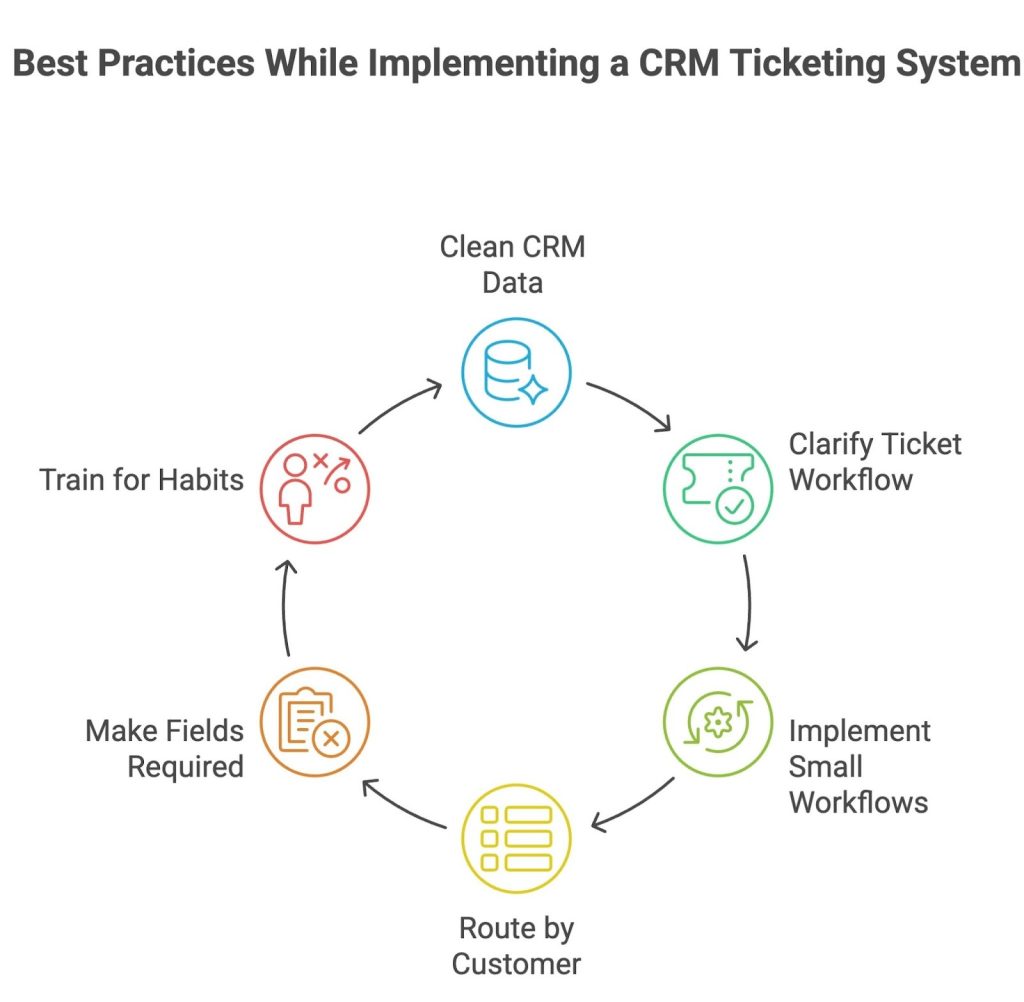
Rolling out CRM ticketing isn’t just about switching tools – it’s about changing how your team logs, routes, and learns from every customer issue. Use these best practices to keep things clean, predictable, and actually helpful for the people who live in the system every day.
1. Fix your CRM data before you add tickets
Clean up duplicates, broken emails, and junk companies first. Standardize basics like domain, lifecycle stage, and account owner. If the data is off, your routing, SLAs, and reports will be off too—and people will stop trusting what they see.
2. Make the “how a ticket moves” pathway clear
Agree on what each status means (New, In Progress, Waiting on Customer, Resolved) and who owns the ticket at each step. Add simple rules like “emails are picked up within an hour, chats within a minute” and put it all in a one-page playbook agents can actually find.
3. Start small: 2–3 workflows plus a safety net
Turn on just a few high-impact automations first:
- route VIP accounts to a senior queue
- auto-tag bugs or billing issues
Always add a fallback rule (anything that doesn’t match → default queue + alert) so no ticket gets stuck unassigned.
4. Route by customer
Don’t treat every ticket the same. Use CRM data—tier, health score, renewal date—to bump critical accounts ahead of low-stakes questions. That way “renewal-due enterprise customer with a login issue” doesn’t sit behind “free user asking how to change avatar.”
5. Make key fields required—and show the impact
Pick a short list of fields that really matter (account, priority, product area, root cause) and make them mandatory. Then in team reviews, show how those fields drive SLA dashboards, churn reports, and product fixes. People fill in fields consistently when they see the payoff.
6. Train for habits, not just “where to click”
When you roll things out, don’t just demo buttons. Walk through real scenarios:
- “Here’s how logging notes changes what sales sees.”
- “Here’s how tags drive our reports and SLAs.”
Reinforce with quick dashboard reviews so the system feels like the source of truth, not another admin chore.
Choosing the right CRM ticketing system
At the end of the day, a CRM ticketing system should do one simple thing: help everyone see the same story about a customer, no matter who picks up the conversation.
The “best” tool is the one that makes that story clearer and keeps your team moving, not the one with the longest feature list.
If you’re a smaller team, that might be a lightweight CRM with a built-in ticketing module and a few smart automations.
If you’re running multiple products, regions, or tiers, you’ll probably lean toward a stronger support platform that plugs cleanly into the CRM you already trust for pipeline and revenue.
Whichever way you go, look for three things:
- tickets and CRM records stay in sync without copy-pasting,
- agents can see value, history, and risk on the same screen as the ticket, and
- leaders can actually prove ROI and figure out bottlenecks from reports
If your goal is CRM-connected support without a lot of operational overhead, Hiver is worth a closer look.
It gives you structured ticketing, automation, and AI, while still keeping your CRM as the source of truth for accounts and revenue—so support, sales, and success stay in step instead of working in parallel.
Try out Hiver with our 7 day free trial, today!
Frequently Asked Questions
1. What’s the difference between a CRM and a ticketing system?
A CRM is built to manage relationships over time – leads, deals, accounts, and all your touchpoints with a customer. A ticketing system is built to handle individual support issues – logging, assigning, and resolving requests with clear statuses and SLAs.
Think of CRM as the long-term customer story, and ticketing as the tool that helps you fix each problem along the way.
2. Do I need a CRM ticketing system if I already use a help desk?
Not always. If your help desk and CRM are tightly integrated and agents can see account details, deal stage, and history without copy-pasting, you may be fine. You should consider a CRM ticketing setup when agents are constantly flipping between tools just to understand who the customer is and what’s happening with the account.
3. Is CRM ticketing the same as ITSM?
No. CRM ticketing is about helping external customers with questions, issues, and requests that affect satisfaction and revenue. ITSM is about internal IT support – incidents, service requests, changes, and infrastructure for employees. Both use “tickets,” but CRM ticketing cares about customers and accounts, while ITSM cares about systems, uptime, and internal SLAs.
4. How do CRM ticketing systems improve customer service?
They put all the important context in front of the agent: who the customer is, what they’ve bought, how valuable they are, and what’s happened before. That means fewer “let me check and get back to you” moments and more first-time, accurate resolutions. They also make routing, SLAs, and reporting smarter, because tickets are tied to real accounts and segments, not just email addresses.
5. Can small teams or startups benefit from CRM ticketing systems?
Absolutely. Small teams often feel tool overload the most, and a CRM ticketing setup lets them track leads and support in one place. You get structure – queues, owners, basic automation – without needing separate systems for sales, service, and follow-ups. As you grow, you already have a clear record of who your customers are, what they asked for, and how well you responded.
6. What are the different ways to set up CRM ticketing?
There are three common approaches. Some businesses use a CRM with built-in ticketing, where sales and support work inside the same system. Others connect a help desk to a CRM, so agents get account and deal context while keeping advanced support workflows. Larger teams sometimes build custom integrations through APIs or middleware for more control.
7. What’s the difference between free and paid CRM ticketing systems?
Free plans usually give you basic email ticketing, limited users, and simple reporting. They’re useful for testing processes and giving small teams structure without upfront cost. Paid plans add the features that actually improve speed and visibility — SLA tracking, workflow automation, custom fields, analytics, and omnichannel support.
8. What are common mistakes teams make with CRM ticketing?
Common mistakes include treating tickets like regular emails instead of structured records, failing to sync sales and support data, and delaying automation even after patterns are clear. The fix is simple: assign clear ownership, connect your data early, and automate repeatable tasks so your system stays organized as you grow.