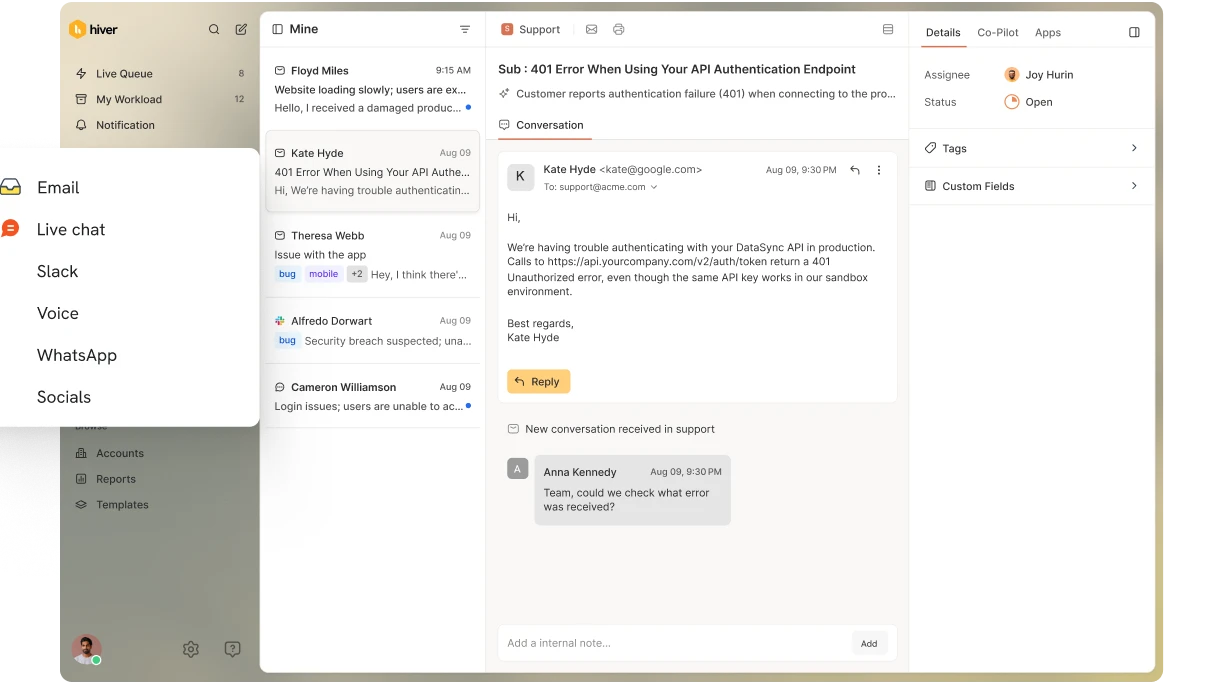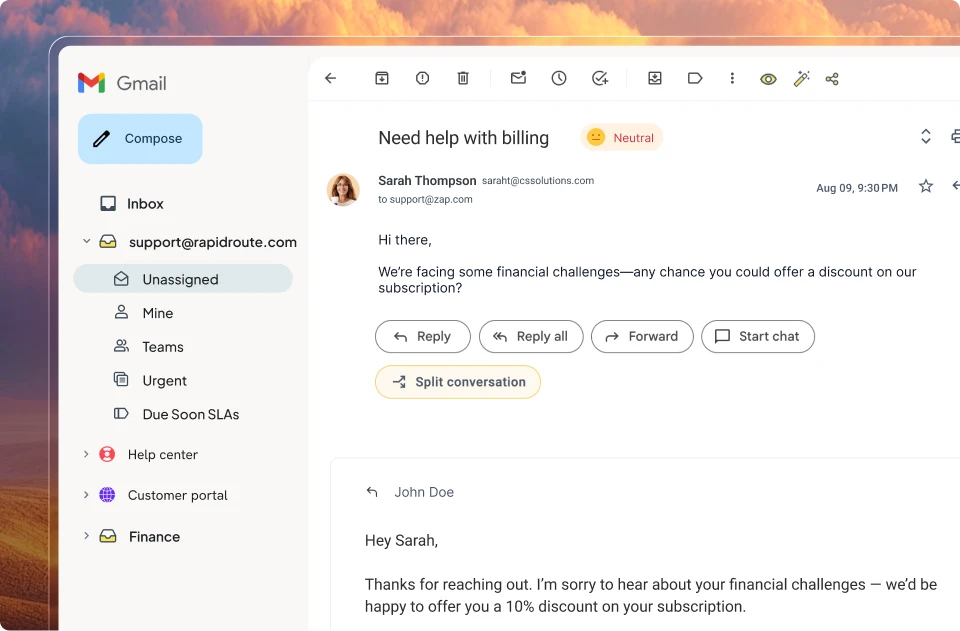







I’ve seen support teams lose hours every week on work that should already be automated. This can be tagging, triaging, assigning, or following up. At scale, this doesn’t just slow responses. It increases errors, burns agent capacity, and makes it harder to justify headcount or tooling decisions.
That’s exactly what helpdesk automation is built to fix. It cuts admin work so teams can focus on issues that actually need human judgment. Today, modern helpdesks use AI to understand intent and sentiment, so routine decisions happen automatically and complex issues reach the right person faster.
In this guide, I’ll cover what helpdesk automation is, how it works, how it differs from service desk automation, 16 automation ideas you can set up today, and the tools to evaluate in 2026.
Let’s get started.
Key takeaways: Helpdesk Automation
If you’re evaluating helpdesk automation, these are the decisions that matter.
- Helpdesk automation removes manual work from the ticket lifecycle. Rules and AI take over routing, tagging, follow-ups, and SLA tracking so agents focus on resolving issues instead of managing tickets. Tools like Hiver and Freshdesk are commonly used for these core automations.
- The fastest wins come from automations that act in real time. Auto-routing, SLA alerts, deflection, collision detection, and auto-closure immediately change how tickets move through the system and reduce response delays.
- The real choice is how much decision-making you want automation to own. Most tools handle basic steps, but fewer can reliably interpret intent, priority, and sentiment at scale without heavy setup or constant tuning.
The full list of 16 tools, detailed comparisons, automation ideas, features, use cases, and implementation steps are covered later in this guide.
What is helpdesk automation?
Helpdesk automation is the use of rules and AI to control how support tickets are classified, routed, prioritized, and followed up without manual intervention. It automates actions like tagging, assignment, SLA tracking, escalations, and responses so tickets move through the system consistently.
Modern helpdesk automation goes beyond basic rules. It uses AI to understand intent, urgency, and sentiment, often requiring businesses to hire AI experts to fine-tune these models allowing the system to make routine decisions on its own while escalating complex issues to human agents.
For example, when a customer emails about a billing issue, automation can identify the intent, assign the ticket to the billing queue, apply the correct priority, and trigger an SLA timer automatically.
Recommended reading
Helpdesk vs service desk automation: What’s the difference?
People often mix up “help desk” and “service desk,” but they serve very different needs, and their automation reflects that.
Here’s how service desk automation compares with help desk automation:
| Aspect | Helpdesk automation | Service desk automation |
|---|---|---|
| Primary users | Customer support teams and external users | Internal IT teams, employees, and multiple departments |
| Scope | Handles customer issues and support requests | Manages IT and business services, incidents, and changes |
| Main focus | Faster ticket handling and resolution | Process control, service reliability, and prevention |
| Complexity | Simpler workflows for small to mid-sized teams | Complex workflows aligned with ITSM frameworks |
| Key components | Ticket routing, tagging, canned replies, SLA alerts, knowledge base | Service catalog, CMDB, workflow engine, approvals, asset management |
| Automation coverage | Assignment, escalation, follow-ups, and deflection | SLA workflows, approvals, incident response, change control |
| Tools and features | Ticketing, help articles, basic reporting, email and chat | Workflow orchestration, analytics, service portals |
| Integration depth | Basic integrations (CRM, chat, email) | Deep integrations across IT, HR, asset, and business systems |
| Metrics tracked | Response time, resolution time, ticket volume, CSAT | SLA compliance, incident reduction, service availability, change success |
| Ideal for | SMBs and customer-facing support teams | Mid-size to large organizations with internal IT operations |
| Strategic role | Tactical, focused on resolving issues quickly | Strategic, focused on standardizing and improving service delivery |
If you support customers, choose helpdesk automation. If you manage internal systems and employee requests, service desk automation is the better fit.
Recommended reading
9 key components and features of an automated helpdesk
Now that you know what helpdesk automation can do, let’s look at how it works under the hood. These features make for a high-performing automated helpdesk, and what you should expect from any tool you choose.
1. Automatically assign tickets to the right agent or team
Auto-assignment rules evaluate incoming tickets and assign ownership instantly based on predefined conditions like keywords, issue type, customer tier, or urgency.
Like Kel Kukregi, the Director of Developer Support at Zapier, discussed in the Experience Matters podcast,
“Use AI to make it easier for your people to care, remove the mundane so they can focus on what matters.”
Helpdesk automation fixes this with auto-assignment rules. You can set conditions based on subject line, keywords, issue type, customer tier, or channel. For example:
- Billing-related tickets go directly to the finance team.
- Tickets from VIP customers get routed to senior agents.
- Anything marked “urgent” is prioritized and escalated.
At Ericsson, an AI-based assignment system now handles nearly 30% of incoming tickets, cutting resolution times by 20% and freeing engineers to focus on complex work.
2. Track SLAs and trigger alerts before deadlines are missed
When handling hundreds of tickets at once, it’s easy to lose track of the time-sensitive ones. That’s how SLA breaches happen. Automation prevents this by keeping a constant eye on your deadlines.
- Start SLA timers with triggers: You’ll need to configure automation rules to start tracking SLAs when a ticket is created or updated. This ensures response and resolution times are measured according to your defined policies.
- Alert agents before a breach: Set up time-based triggers to send alerts if a ticket is at risk of breaching SLAs. For instance, you can notify agents when no action is taken on a high-priority ticket within 30 minutes, and escalate it to a team lead after an hour.
- Apply different SLA rules automatically: You can define different SLA policies for different types of tickets. A technical issue may have a 1-hour response SLA, while a feature request might have a 24-hour window. The system tracks each accordingly, without your team needing to consider it.
That’s how Databricks, a data and AI company, approaches SLA tracking. They use automation to surface at-risk tickets in real time. Their support team can catch issues before SLA breaches happen. This leads to a 40% drop in violations and faster response times for high-value customers.
💡Tip: Start by defining SLA targets for each ticket category (response and resolution times). Then, automation rules will be created to send alerts or escalate tickets that get close to breaching. This one change can dramatically reduce missed deadlines and customer complaints.
3. Tag and categorize incoming tickets automatically
Manually tagging tickets is time-consuming and very easy to get wrong. Once applied, tags automatically trigger downstream actions such as routing, prioritization, and inclusion in reports. That’s where automation helps.
- Apply tags based on keywords or phrases: Automation tools can scan ticket content and apply relevant tags when a ticket is created. For example, if a ticket mentions “invoice,” it’s tagged as Billing. If it includes “can’t log in,” it’s tagged as Login Issue. This tagging happens instantly and consistently.
- Use tags to power routing and reporting: Once a ticket is tagged, it can automatically be routed to the right team or grouped into reports. You can also filter performance data by tag to identify trends, like a spike in refund requests or repeated bugs.
- Combine tags with other rules: Tags can work alongside priority, customer tier, or agent availability to create precise automation flows. For example, a tagged “High Priority” + “Billing” ticket can go straight to a senior finance agent, bypassing the general queue entirely.
In 2023, Microsoft’s team implemented Ticket‑BERT, an AI model built on LLM technology, to auto-label incident tickets in its internal IT system. It cut down manual triage and helped their IT team resolve high-impact issues faster.
💡Tip: List the five most common issues your support team handles. Create automation rules that tag these automatically using keywords. Over time, refine and expand the list to improve routing accuracy and reporting depth.
4. Use AI to classify, prioritize, and route tickets more intelligently
Basic automation follows rules. AI goes further by learning from your data and adapting in real time. Instead of relying on fixed keywords or manual tagging, AI can interpret the intent behind every ticket and take action accordingly.
- AI can automatically understand the intent of each request. It can read the full context of a ticket, not just keywords, and classify it accurately. For example, if a customer writes, “I was charged twice and need a refund,” the system tags it as Billing, marks it High Priority, and routes it to the right team without human input.
- AI uses sentiment analysis to understand how customers feel. If a message is frustrated or escalatory in tone, AI can assign a higher priority level and flag it for quicker handling. This helps your team catch urgent issues before they turn into churn.
- AI classifies intent, detects urgency and sentiment, and assigns priority automatically, reducing the need for manual review. This means better accuracy and less manual intervention as your ticket volume grows.
This is what Craig Stoss, VP of Partnerships and Solutions at Kodif had to say about using automation on our CX Spotlight,
“We use AI to detect sentiment and uncover patterns. AI works best when it’s personal. Use it to create customized experiences, not just canned responses.”
At Clutter, the internal support team set up simple rules to tag and assign employee requests, like labeling emails related to “COVID” and routing them based on region or department.
Combined with shared drafts and templates, this helped them cut response times by 25%, without overhauling their workflow.
💡Tip: Start by activating AI-based classification or tagging in your helpdesk tool. Review the first batch of AI decisions with your team. Fine-tune from there so your workflow gets sharper with use. Tools like Hiver’s AI analyze incoming conversations to suggest tags instantly, assign owners, and prioritize tickets. It’s built to support teams that want speed without losing control.
5. Manage tickets from different channels in one place
Automation ingests messages from email, chat, social, and web forms and converts them into tickets automatically. Without it, these channels become siloed, and your team wastes time switching between tools.
- Automatically convert messages into tickets. With multi-channel integration, every customer message, regardless of where it comes from, is pulled into a single helpdesk view.
- Keep context from across channels. Your team sees the whole history of a conversation, even if it started on email and continued on chat. This reduces duplicate tickets, eliminates manual handoffs, and shortens handling time.
- Route and respond from one place. Instead of switching between platforms, agents can reply to all messages directly from your helpdesk. This speeds up handling time and helps maintain tone, branding, and service consistency.
For example, Estée Lauder rolled out Glassix’s unified messaging in late 2023. Now, customers can message via WhatsApp, Instagram, Facebook Messenger, and email, all funneled into a single agent window. Their team can handle multiple threads simultaneously and deliver faster, more contextual replies, regardless of the channel.
💡Tip: Connect your top support channels (email, chat, social) to your helpdesk. Set rules to auto-convert messages into tickets, tag them by source, and route them to the right team.
6. Send follow-up reminders automatically
When tickets go quiet, on either side, things fall through the cracks. Follow-ups are often forgotten, especially during busy periods. Automation makes sure that doesn’t happen.
- Remind agents to take action: If a ticket hasn’t been updated, the system sends a reminder to the assigned agent. For example, if there’s no activity for 24 hours, a reminder is triggered to check in or follow up with the customer.
- Re-engage customers automatically: Automation can gently remind them if the agent has responded but the customer hasn’t replied. This helps close the loop faster and keeps conversations from going stale.
- Keep resolution timelines on track: You can also set reminders based on resolution SLAs, which is especially useful for complex tickets that require multiple steps or approvals.
In 2023, Auchan Retail implemented DRUID’s AI agent Felix to automate internal ticket follow-ups. It automatically sent timely follow-up reminders to both agents and customers. Over a year, the system resolved over 6,000 tickets and boosted SLA response times by 40%.
💡Tip: Set inactivity rules in your helpdesk: one for agent-side reminders (e.g., no update in 24 hours) and one for customer-side (e.g., no reply in 48 hours). Keep the messaging clear and helpful, not pushy.
7. Automate reporting to track performance
Manually pulling reports every week slows down your team and increases the risk of missing key trends. Automation generates and distributes performance reports on a fixed schedule without manual effort.
- Set reports to be generated and emailed on a regular schedule. This includes key metrics like ticket volume, resolution time, SLA compliance, and customer satisfaction scores.
- Get detailed insights without digging manually. For example, see how many “Billing” tickets came in last week, how fast each agent responded, or which channel brought in the most requests.
- Send reports to managers, team leads, or other departments. This keeps everyone informed and aligned without anyone needing to ask for updates.
For example, Walmart IT built an internal ticket‑assignment bot that auto-routes service requests. It also compiles weekly reports on ticket volume, agent performance, and assignment accuracy.
These automated dashboards helped them spot trends early and boosted IT staff productivity by around 30%
💡Tip: Set up recurring reports for your top 3 KPIs. Start with weekly reports on ticket volume, average resolution time, and SLA breaches. You can adjust frequency and detail as needed.
8. Use canned responses to save time on repetitive replies
Your team answers the same questions most days, such as refund policies, password resets, and order status updates. Canned responses eliminate the need to repeat the same message.
- Automation surfaces approved responses based on ticket type, allowing agents to respond faster without rewriting common answers. This keeps communication fast, clear, and consistent across the team.
- There will be no more inconsistent answers or tone variations. Canned responses ensure customers get the same clear, approved messaging every time.
- Handle high volumes more efficiently. Quick access to ready-made responses during peak periods helps your team keep up without burning out.
At Get It Made, a custom manufacturing company, the team created a library of canned responses in Hiver for common queries like project updates and pricing.
As a result, they reduced response times by 25% and handled 33% more emails, leading to a 250% boost in team efficiency.
💡Tip: Identify the five most frequently asked questions. Write clear, approved replies for each, and add them to your helpdesk’s canned response library. Update them regularly as your policies or product offerings change.
9. Automatically close inactive or resolved tickets
Closing tickets manually can be a waste of time and clutter your queue. Automation helps clean things up by handling closures based on clear rules.
- Close tickets after getting confirmation from the customer. If the issue is resolved, the system automatically closes the ticket without any manual intervention from the agent.
- Close inactive conversations automatically. When a customer doesn’t respond after a set number of days (e.g., 3 or 5), the ticket can be closed with a final message like, “We’re closing this ticket for now, feel free to reopen if you still need help.”
- Keep your queue clean and focused. Automated closure removes noise from your active queue, helping agents focus on what’s actually in progress.
For example, Canva uses auto-closure rules to manage its queue more efficiently. If a customer doesn’t reply within 48 hours after a resolution, the ticket closes automatically. It saves agents from chasing dead threads and keeps the active queue clear.
💡Tip: Start by checking how many tickets stay open for over 5 days without a customer response. Use that as your baseline. Then, configure an auto-close rule at that threshold. Make sure you send a clear message to the customer on how to reopen if necessary.
15 helpdesk automation ideas and workflows you can implement today
Once you understand how automation works, you can set up these practical workflows immediately to reduce manual work and speed up support.
1. Auto-route tickets using keywords or skills: Set rules like “contains: refund, charge, invoice, then send to Finance team” so every new ticket instantly reaches the right owner.
2. AI-powered ticket tagging: Use AI to scan ticket content and apply tags like Billing, Login Issue, or Urgent without manual input.
3. Instant auto-acknowledgment replies: Send a friendly confirmation and set an expected response time the moment a ticket arrives.
4. SLA timers and early-warning alerts: Start SLA timers automatically and trigger alerts when a ticket is close to breaching.
5. Priority-based escalation: Auto-escalate high-impact or high-tier customer issues to senior agents or managers.
6. Chatbots for common questions: Use automation to deflect common questions (password resets, order status, cancellation policies) by resolving them before they reach an agent.
7. Automated ticket closure rules: If a customer doesn’t reply in X days, close the ticket with a polite message and reopen option.
8. Auto-send CSAT after resolution: Trigger a survey automatically when a ticket moves to Closed.
9. Self-service knowledge base suggestions: Automatically shows relevant help articles based on keywords or intent detected in the customer’s message.
10. Canned responses for repetitive queries: Automatically suggest approved response templates based on ticket type, allowing agents to reply faster without rewriting common answers.
11. Follow-up reminders for inactive tickets: Send reminders to agents or customers when there’s no activity for a set duration.
12. Multi-channel ticket unification: Automatically convert chat, email, WhatsApp, and web messages into tickets and route them into a single workflow.
13. Automated workflows for repetitive requests: For approval requests, refunds, onboarding, or password resets, build no-code workflows that run end-to-end.
14. Auto-generated performance reports: Schedule weekly reports to be sent to leads showing ticket volume, SLA compliance, and response times.
15. Collision detection to prevent duplicate work: Alert agents when someone else is already replying to the same ticket to avoid double responses.
Even small automations can make a noticeable difference. Start with a few high-impact automations, and you’ll reduce manual handling immediately while keeping workflows predictable.
How these helpdesk automation ideas play out across industries?
SaaS: Auto-tag feature requests vs bugs, route enterprise customers to a dedicated pod, and trigger in-app messages when tickets are opened.
E-commerce: Use automation to handle “Where is my order?” tickets, refunds, and cancellations, and push order data into replies automatically.
Financial services: Auto-route KYC, loan, and card-related tickets to the right team, enforce stricter SLAs, and log everything for compliance in financial operations.
Healthcare: Automate routing for appointment, insurance, and portal-access issues while keeping escalation rules tight for anything clinical.
B2B: Prioritize key accounts, auto-escalate issues from strategic customers, and share updates with sales/CS automatically via CRM.
Direct Comparison: How the top 16 automated help desk tools stack up
If you’re evaluating helpdesk platforms, focus on how well they automate the repetitive work: routing, tagging, SLA tracking, follow-ups, and AI-assisted replies. Below is a quick comparison to help you shortlist tools faster.
| Tool | Starting price | Key automation features | Best for |
|---|---|---|---|
| Hiver | Free plan available$25/user/month (Growth) | AI-based routing and tagging, SLA automation, sentiment detection, AI Copilot for replies and actions, structured data extraction (order IDs, refunds) | SMBs that want fast rollout, AI-first automation, and omnichannel support without complexity |
| Zendesk | $55/user/month | AI sentiment detection, skill-based routing, SLA automation, AI Copilot, advanced reporting and integrations | Large or complex support teams with high volume and dedicated ops resources |
| HelpDesk | $29/user/month | No-code workflow rules, AI-generated replies and summaries, automated tagging and assignment | Small teams that want simple, no-code automation and a clean UI |
| Freshdesk | Free plan$15/user/month | Rule-based ticket automation, SLA management, Freddy AI suggestions, multichannel intake | Growing teams that want affordable multichannel automation |
| Zoho Desk | Free plan (3 agents)$14/user/month | Zia AI tagging and reply suggestions, Blueprint workflows, SLA automation, CRM-linked routing | Teams already using Zoho who want connected workflows |
| HubSpot Service Hub | Free plan$20/user/month | CRM-driven automation, chatbots, ticket routing, feedback surveys | Teams using HubSpot CRM that want support tightly linked to sales and marketing |
| LiveAgent | Free plan$9/agent/month | Basic ticket automation, auto-tagging, email and chat workflows | Small teams that want a usable free plan with basic automation |
| Gorgias | $10/month (50 tickets) | Order-aware automation, AI intent detection, auto-responses, Shopify actions (refunds, edits) | Ecommerce brands on Shopify, BigCommerce, or Magento |
| Intercom | $29/seat/month | AI bot (Fin), behavior-based automation, proactive messages, AI Copilot | SaaS teams focused on chat-first support and onboarding |
| Helpshift | $150/month | In-app bots, automated mobile workflows, multilingual automation, analytics | Mobile-first apps (gaming, fintech, consumer apps) |
| ProProfs Help Desk | $19.99/user/month | Basic automation rules, AI-assisted replies, built-in knowledge base | Small teams that want simple automation + KB in one tool |
| Kayako | Custom pricing | Customer journey view, context-aware support, article effectiveness tracking | Teams handling long-running, context-heavy support cases |
| Front | $25/month (up to 10 seats) | Inbox-level routing, ownership rules, SLA reminders, collaboration automation | Teams that need clear ownership and coordination in shared inboxes |
| Jira Service Management | Free (3 agents)$20/agent/month | Form-driven automation, incident escalation, SLA pause logic, Jira issue sync | IT and internal support teams with strict process requirements |
| ServiceNow | Custom pricing | Cross-department workflows, low-code automation, approvals, CMDB, audit logs | Large enterprises with compliance-heavy, multi-team workflows |
| HappyFox | Custom pricing | Rule-based ticket automation, SLA alerts, canned actions, built-in KB | Mid-sized teams that want structure without enterprise overhead |
The top 16 automated help desk software in 2026: Deep dives
Let’s discuss them in detail.
1. Hiver (Best for fast-moving teams that want easy-to-use, AI-first helpdesk automation)
When I tested Hiver, I looked at what happened the moment a ticket came in, because that’s where most tools struggle. In Hiver, conversations were classified, assigned, and prioritized immediately instead of sitting in a queue waiting for someone to sort them.
Billing requests went straight to finance. VIP customers were routed correctly. Urgent issues surfaced early instead of being discovered later. The system handled those decisions automatically, which meant the team did not have to keep checking and rechecking the queue just to stay on track.

A G2 reviewer put it perfectly:
“I love the ability to triage emails and route them accordingly… I didn’t have to teach any team members how to use it because it’s so easy and intuitive.”
– Hiver Review, Emily H.
What actually happens under the hood
When I tested Hiver, I focused on what the system does before an agent touches a ticket. That’s where most of the work usually gets stuck.
- Tickets are auto-assigned based on rules, skills, keywords, or customer attributes. Messages mentioning “refund” or “invoice” are sent to the right team without manual triage.
- SLAs start tracking the moment a ticket is created. If response or resolution deadlines are at risk, the system flags or escalates the ticket automatically.
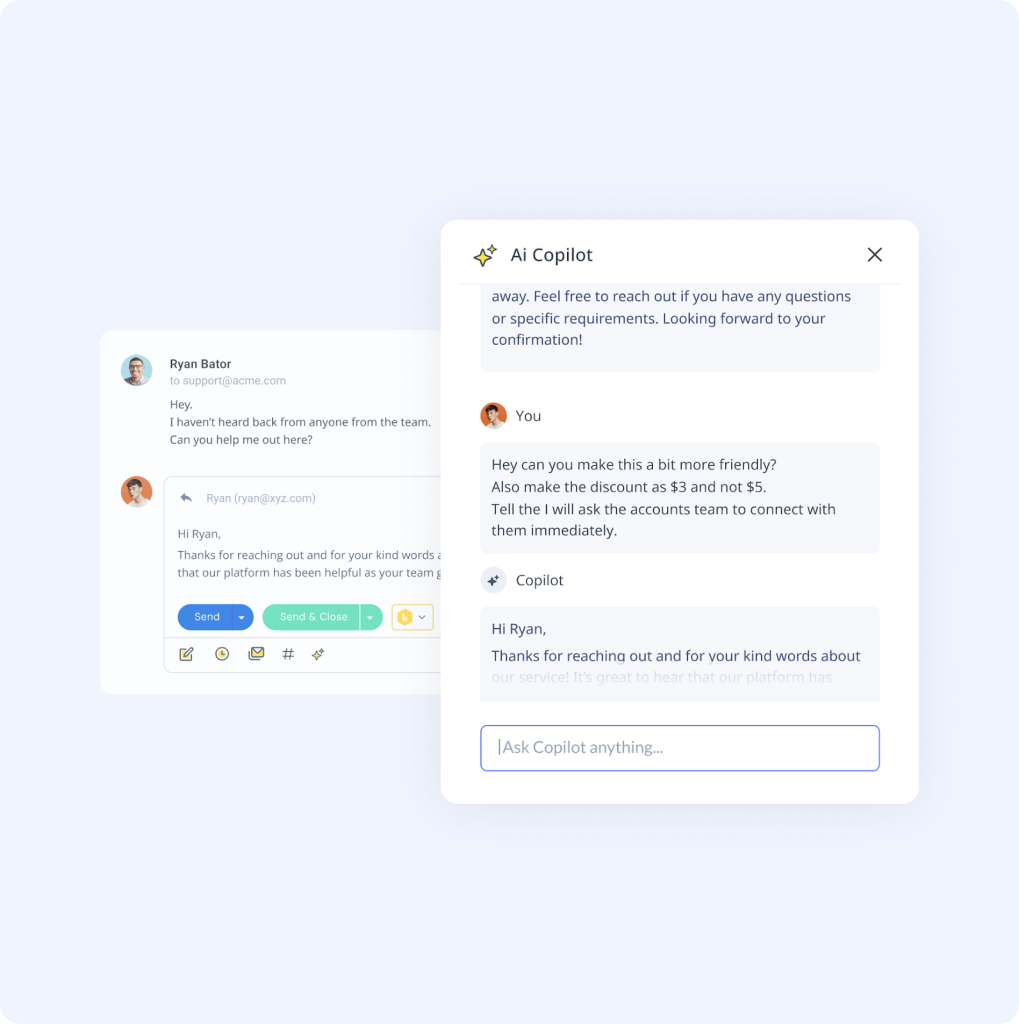
- Hiver’s AI Agents automatically tag conversations, detect sentiment, and flag urgent or negative messages so high-risk tickets are surfaced and prioritized early.
- Key data is extracted from messages. Order IDs, refund references, and request types are pulled from conversations and reused across workflows without copy-paste.
- Hiver’s AI Copilot helps with reply suggestions, predicts tags, highlights priority signals, and recommends actions like reassignment or escalation while the ticket is being handled.
Pro
- Automatically routes and prioritizes incoming tickets using rules and AI.
- Starts and monitors SLA timers without manual tracking.
- Applies consistent tagging and prevents duplicate replies through collision detection.
Con
- Automation does not extend to social media support channels.
2. Zendesk (Best for large or complex support teams that need enterprise-grade automation)
With Zendesk, I focused on how far I could push the automation logic. I layered region-based routing, tiered SLAs, language rules, and escalation paths to see whether the system would hold up under complexity. And let me say, it did.

This is not lightweight automation. Zendesk is designed for environments where workflows are complex, rules are deeply nested, and automation needs to account for language, geography, customer tier, and business hours at scale.
This is what a Capterra user had to say,
Overall, our experience with Zendesk as a support ticketing system has been good. While a bit expensive for the amount of features we use, the integrations and automations available work well with our current client workflow and processes.
– Andrew, CEO in the US
Key features
- Tickets are routed automatically based on topic, urgency, language, skills, and customer attributes, removing manual triage at scale.
- Zendesk AI analyzes ticket content to flag urgency and customer sentiment so high-risk issues surface early.
- AI Copilot generates ticket summaries, suggests replies, and auto-fills fields to reduce repetitive handling.
- SLA timers, breach alerts, and escalations are triggered automatically based on predefined conditions.
- Email, chat, voice, social, and messaging tickets flow through the same automated rules and workflows.
- Performance, SLA compliance, and volume trends are tracked continuously and surfaced through dashboards and scheduled reports.
Pro
- Deep routing and escalation logic for complex, high-volume workflows.
- Strong AI-driven prioritization and sentiment detection.
- Scales well for global or distributed support operations.
Con
- Automation setup can be complex and time-intensive.
3. Helpdesk (Best for small teams that want no-code automation)
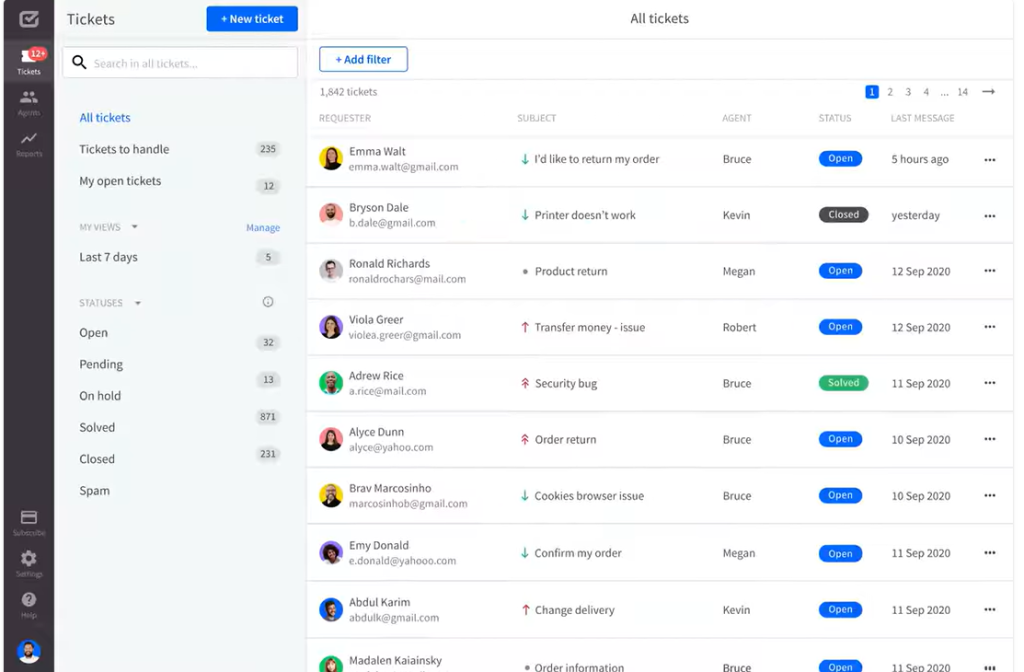
When I looked at HelpDesk, I wanted to see how quickly I could turn repetitive actions into rules. The system is built around condition–action logic. If a ticket contains certain keywords, it gets tagged. If it matches a category, it gets assigned. If it sits too long, it triggers the next step.
You define the rules once and the system applies them consistently. There’s no need to design layered workflows or manage nested dependencies. For smaller teams that need predictable handling without building a complex automation architecture, that simplicity is the point.
A Helpdesk user had to say this,
“HelpDesk is very easy to get started with and is extremely affordable compared to other options.”
— Stephen G.
Key features
- Tickets can be assigned, tagged, closed, or updated automatically using condition-based rules, all configured through a no-code builder.
- Built-in AI can summarize tickets, rewrite responses, or generate replies, reducing repetitive writing for common requests.
- Conversations from LiveChat can be converted into tickets automatically so follow-ups don’t get lost.
- Tickets are organized using tags, categories, and custom fields that trigger routing or prioritization.
- Automation flags high-value customers using filters or tags so their tickets are surfaced and handled faster.
- Key metrics like response time and ticket volume are tracked continuously without manual reporting.
Pro
- No-code rules make basic automation easy to set up and adjust.
- Reliable for assignment, tagging, and closure workflows.
- AI reduces manual effort for drafting and summarizing tickets.
Con
- Automation depth is limited compared to enterprise platforms.
4. Freshdesk (Best for growing teams that need affordable multichannel automation)
Freshdesk makes sense when ticket volume spreads across email, chat, phone, and social, and manual coordination starts slowing things down. I tested it by looking at how consistently it could route, prioritize, and track tickets across channels without constant oversight.

Routing rules applied consistently, SLA timers ran automatically, and escalations followed predefined conditions without manual oversight. It does not aim to model enterprise-level workflow depth, but it offers enough structure to keep growing teams in control as volume increases.
Key features
- Tickets are assigned automatically based on availability, priority, category, or channel. Status updates, tagging, and follow-ups can be triggered.
- Freddy AI analyzes incoming tickets to suggest priorities, surface relevant responses, and reduce repetitive handling.
- Requests from email, chat, phone, and social channels are converted into tickets and routed through the same rule set.
- Response and resolution timers start automatically, with alerts or escalations triggered when thresholds are at risk.
- Ticket trends, resolution times, and agent performance are tracked continuously through dashboards.
Pro
- Covers core automation needs for assignment, tagging, SLAs, and follow-ups.
- AI reduces repetitive ticket handling for common scenarios.
- Handles multichannel intake through a single automation layer.
Con
- AI-powered features like Freddy Copilot, intent detection, and automatic field prediction are limited to higher-tier plans.
Recommended reading
5. Zoho Desk (Best for businesses already using the Zoho ecosystem who want connected workflows)
Zoho Desk feels less like a standalone helpdesk and more like an extension of your CRM engine. I tested it by building rules that depended on customer lifecycle stage, contract value, and account history. Tickets moved differently based on that data, not just keywords or urgency.

Blueprint workflows enforce how a ticket progresses, step by step, with approvals, status changes, and automated transitions built in. Escalations, assignments, and updates can trigger across Zoho apps without someone manually pushing information around.
If your operations already run on Zoho, the automation feels embedded rather than layered on top.
Key features
- Zia analyzes incoming tickets to detect intent, urgency, and tone, applies tags, and drafts responses to reduce manual effort.
- Tickets follow predefined, step-by-step paths with mandatory actions, approvals, or transitions enforced automatically.
- Tickets inherit customer data from Zoho CRM, allowing assignment, prioritization, or escalation based on account status or history.
- Help centers, FAQs, and community forums deflect common requests before tickets are created.
- Ticket actions can trigger updates in other Zoho tools, keeping projects, accounts, and support activity in sync.
- Resolution times, SLA adherence, and CSAT are tracked continuously and surfaced for review.
Pros
- Strong workflow enforcement through Blueprint automation.
- AI handles tagging, prioritization, and draft responses consistently.
- Automation extends beyond support into CRM and internal tools.
Cons
- Less suited for teams that don’t use the Zoho ecosystem.
6. Hubspot Service Hub (Best for support teams that need automation tightly linked to CRM data)
HubSpot Service Hub treats automation as part of the customer journey. I tested how workflows reacted to lifecycle stage, deal value, and past activity inside the CRM. Tickets could be routed, prioritized, or escalated based on revenue impact, not just keywords.
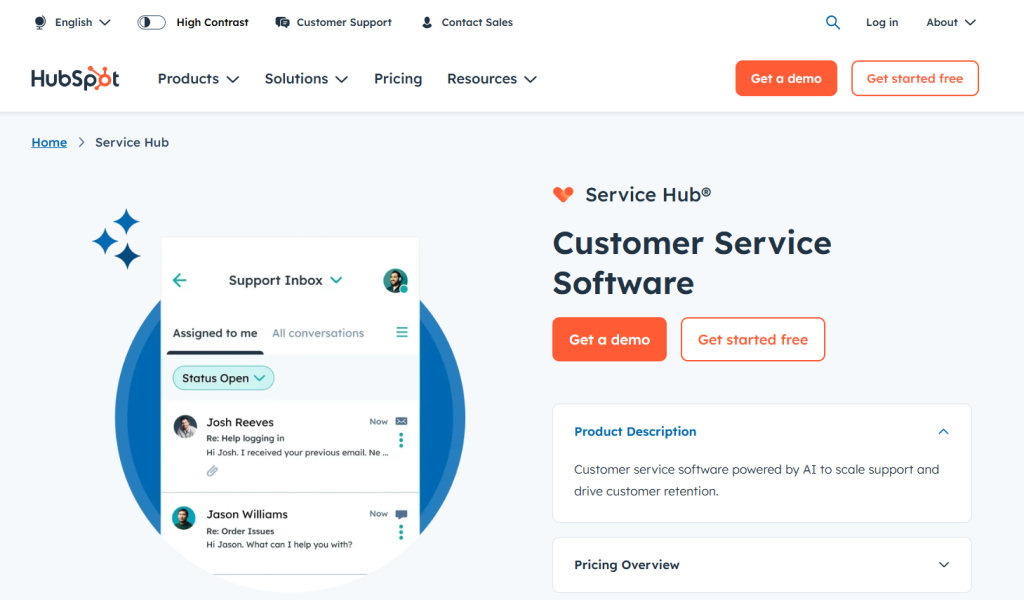
Workflows trigger actions automatically when customer properties change. A high-value account can move to priority handling without an agent noticing. Escalations can notify sales when churn risk signals appear.
For teams that want support automation tied directly to pipeline visibility, this structure keeps decisions aligned with revenue.
Key features
- Tickets are assigned and prioritized automatically based on lifecycle stage, deal value, account type, or customer history pulled from HubSpot CRM.
- Chatbots handle common questions, collect required details, and create tickets automatically when human follow-up is needed.
- Ticket updates can trigger actions in sales or marketing workflows, keeping customer activity synchronized.
- Time-based rules send reminders, escalate stalled tickets, or notify owners when conditions are met.
- Response and resolution timers run automatically, with status changes and alerts triggered by predefined thresholds.
Pro
- Automation decisions are enriched by CRM data, not limited to ticket fields.
- Strong for workflows that span support, sales, and marketing.
- Reliable for lifecycle-based routing, follow-ups, and handoffs.
Con
- Custom workflow automation, advanced ticket routing, and lifecycle-based triggers are available only on higher-tier plans.
- Less flexible for teams that don’t already operate inside HubSpot CRM.
7. LiveAgent (Best for small teams that want a usable free plan with basic automation)
Using LiveAgent I tested how fast I could automate the basics: auto-assigning tickets, tagging incoming messages, sending instant acknowledgments, and triggering simple escalation rules. I did not need to build layered workflows or configure complex dependencies.
The goal here is to cover essential ticket movement early, not to design a multi-level automation system.
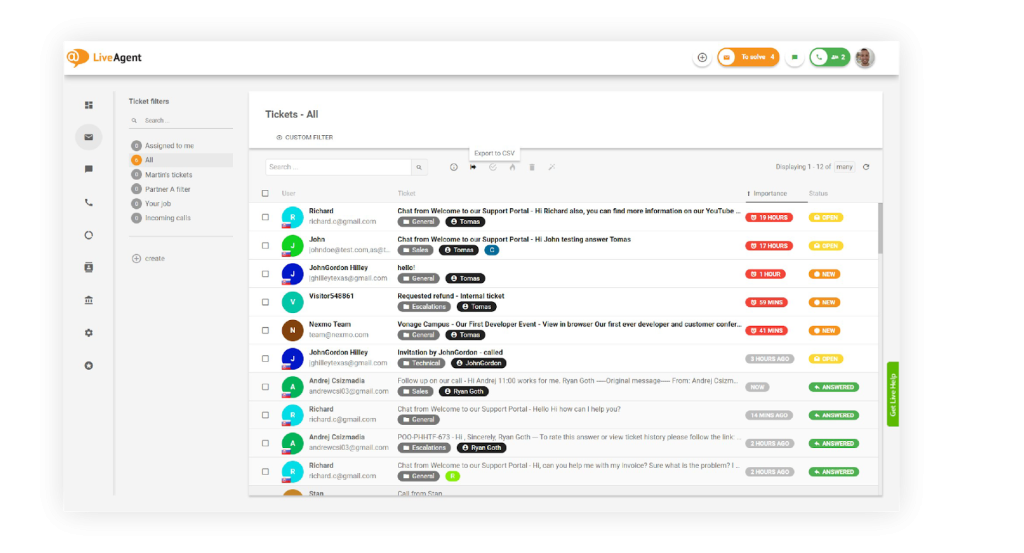
For early-stage teams, the value lies in covering the basics automatically while keeping manual oversight high.
A recurring theme in reviews is how tagging and autoresponders help teams understand why customers are reaching out, even with limited automation depth.
“LiveAgent has been an incredible asset to our business. The CRM system is user-friendly, feature-rich, and has significantly improved the way we manage customer interactions. One standout feature for us is auto-tagging—it enables us to pinpoint exactly what our customers are getting in touch about. This allows us to create highly relevant auto-responder emails and continuously improve our Help Centre to better meet our customers’ needs.”g2.com
— Gemma H., Head of Customer Care, Small-Business (50 or fewer employees)
Key features
- Incoming emails and chats are converted into tickets and tagged based on predefined rules to categorize issues consistently.
- Automated replies can be triggered based on ticket type or source, setting expectations without manual follow-up.
- Tickets can be assigned automatically using simple conditions once upgraded.
- Customer portals, forums, and knowledge bases reduce inbound requests before tickets are created.
- Access controls and authentication rules enforce handling restrictions without manual intervention.
Pro
- Covers core automation needs like tagging and autoresponders for small teams.
- Allows teams to test automation workflows without immediate cost.
- Reliable for email-first support environments.
Cons
- Automation depth is limited on the free plan.
8. Gorgias (Best for ecommerce brands that want store-level automation linked to Shopify/BigCommerce)
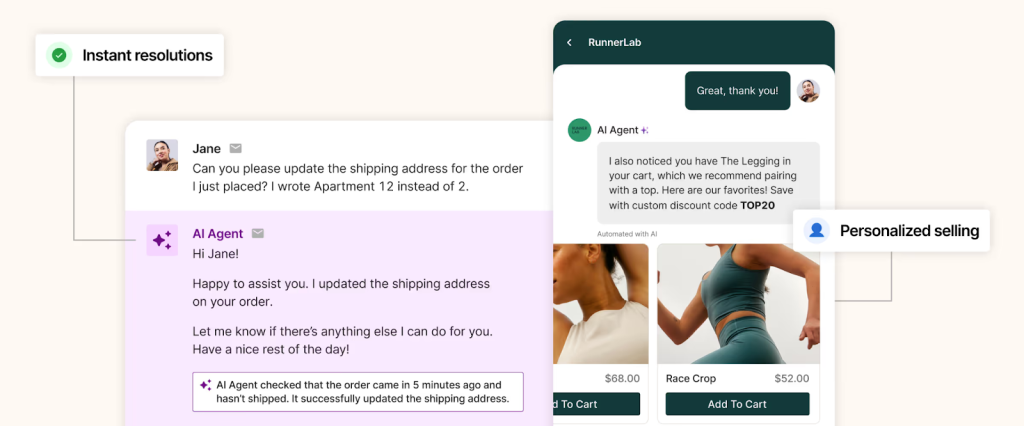
In ecommerce, support is tied to transactions. Gorgias builds automation around that. Routing, tagging, and prioritization can reference live Shopify or BigCommerce data.
Rules can trigger based on order value, fulfillment status, subscription history, or repeat purchase behavior. Agents can process refunds, cancellations, or edits directly from the ticket. Automation here operates at the order level, which reduces back-and-forth and eliminates manual lookups.
Key features
- Incoming messages are analyzed to identify order-related intent (e.g., shipping delays, refunds, cancellations) and tagged or routed automatically.
- Common ecommerce questions like “Where is my order?” or “Can I return this?” trigger automated replies using store data and predefined variables.
- Refunds, cancellations, and discounts can be executed directly from the ticket, reducing handoffs between support and ecommerce systems.
- Customer and order attributes pulled from Shopify, BigCommerce, or Magento influence ticket prioritization and handling.
- Email, live chat, social DMs, SMS, and reviews are converted into tickets and processed through the same automation logic.
Pro
- Strong order-aware automation for high-volume ecommerce requests.
- Reduces ticket volume for repetitive “order status” and refund queries.
- Allows transactional actions to be completed without switching systems.
Con
- Order-driven automation, dynamic macros, and AI-powered intent detection require ongoing tuning to stay accurate as your catalog and policies change.
9. Intercom (Best for SaaS teams that rely on real-time chat, onboarding flows, and AI automation)
Intercom approaches automation a little differently. Instead of optimizing ticket handling, it focuses on resolving issues at the moment a user reaches out. AI agents, proactive messages, and behavior-triggered flows handle common requests before human support is needed.
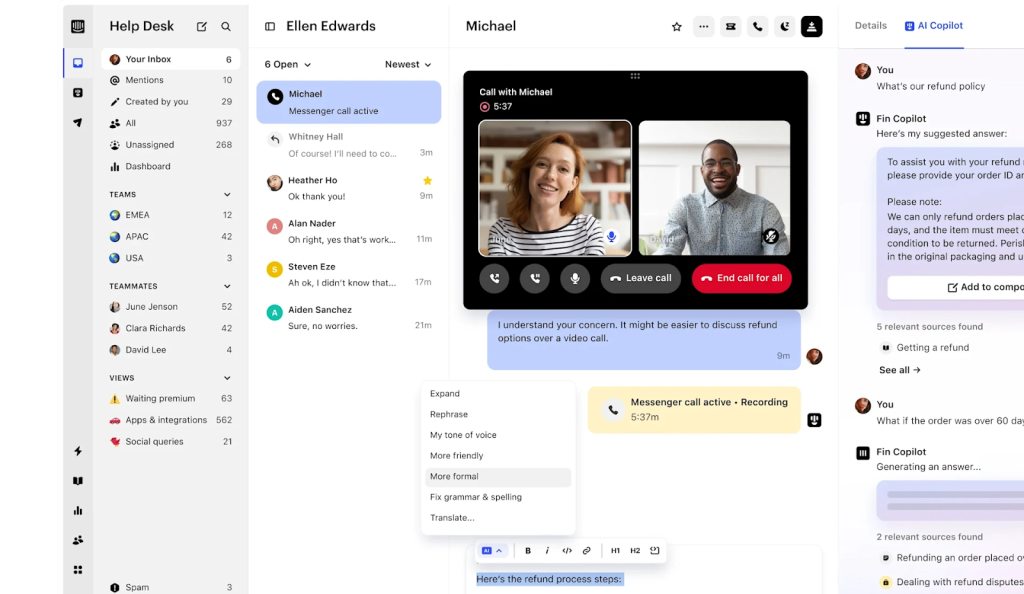
This makes it a strong fit for SaaS teams where a large share of support volume comes from onboarding questions, product usage confusion, or repetitive “how do I” requests.
Here’s what a user had to say:
“Intercom’s unique features and benefits make it more attractive for businesses seeking to improve customer engagement, insights, and support. For me, the time I worked with a client and had to use Intercom, it wasn’t difficult, so highly recommend.”
— Hope S., Customer Support in Wholesale Industry
Key features
- Intercom’s Fin AI Agent resolves up to 50% of customer queries on its own by pulling from existing help content.
- Messages, replies, or campaigns are triggered automatically based on user actions, lifecycle stage, or in-app behavior.
- Conversations start in real time and are either resolved automatically or escalated to agents with context already attached.
- AI Copilot summarizes conversations, suggests replies, and fills in ticket fields to reduce handling time.
- Interactive guides and messages are triggered automatically to help users complete key actions and reduce early support requests.
- Time-sensitive or high-impact conversations are surfaced early to prevent stalled or missed responses.
Pro
- Strong AI-driven deflection for repetitive product questions.
- Automation tied closely to in-app behavior and lifecycle stages
- Reduces ticket creation by resolving issues at the chat layer
Con
- Higher-tier plans are needed for full AI and automation features. These place can get expensive fast.
10. Helpshift (Best for mobile-first companies that need in-app automated support)
Helpshift works inside the app, which changes how automation plays out. Instead of waiting for a ticket to land in a queue, workflows trigger the moment a user runs into an issue. A failed payment, a login problem, an account question. The system responds right there.
The goal is not to route tickets faster. It is to prevent many of them from being created at all. For mobile products handling large volumes of repeat issues, that matters. Automation happens at the point of friction, not after the fact.

Here’s what a user said,
We changed from Zendesk to Helpshift and must admit that it would’ve been the experience to stay given the features and functionalities were very similar at the exception of the really goo chat features that HelpShift includes.
Fabiana H., Learning and Development Associate, Outsourcing/Offshoring
Feature
- Automated responses and self-service flows are triggered directly inside the mobile app, reducing reliance on email-based support.
- Common questions are handled automatically using bots and predefined logic, resolving repetitive queries before they reach agents.
- Support interactions have in-app context such as device type, app version, and user state to improve routing and resolution.
- Automated responses and workflows operate across multiple languages to support global user bases.
- Issues that can’t be resolved automatically are escalated to agents with full context attached.
Pro
- Strong in-app deflection for high-volume mobile support requests.
- Automation is optimized for real-time, mobile-first interactions
- Reduces agent load by resolving repeat issues before escalation
Con
- Automation setup may require engineering involvement.
11. ProProfs Helpdesk (Best for small support teams that want simple automation + built-in KB)
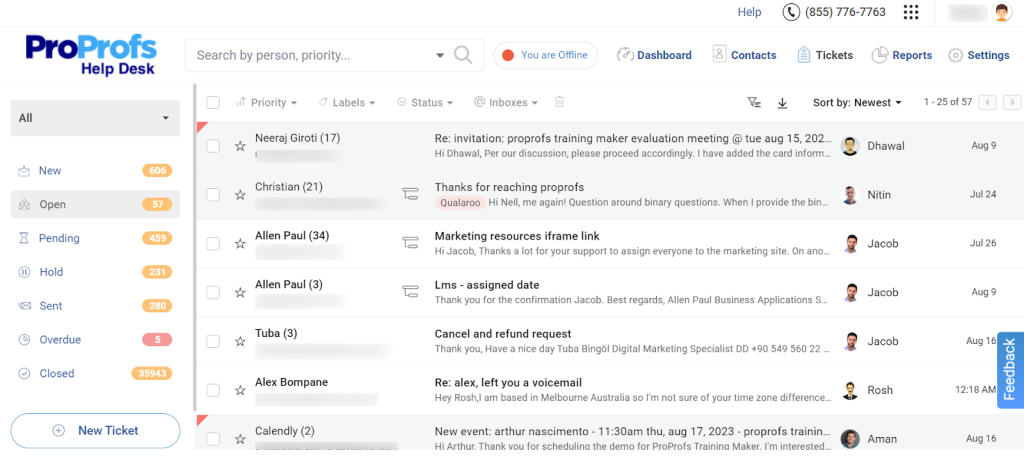
ProProfs Help Desk helps when your team is manually deciding what each ticket is about and who should take it. You can set rules so incoming requests are categorized and assigned automatically. Auto-replies handle common questions immediately instead of waiting for an agent to step in.
The built-in knowledge base also reduces repeat tickets by showing relevant help articles before a request reaches the queue. The automation is not layered or complex. It is designed to handle routine ticket movement reliably so agents can focus on cases that actually require input.
Key feature
- Incoming requests are assigned automatically based on predefined rules, reducing manual triage.
- AI is used to generate canned replies and assist with responding to common questions faster.
- Emails, chat messages, and web form submissions are converted into tickets and processed through the same automation rules.
- Built-in knowledge base articles are surfaced to customers so common questions are resolved without agent involvement.
- Related issues can be linked automatically, helping teams manage repeat or cascading problems under a single thread.
- Resolution times, ticket volume, and customer satisfaction are tracked continuously for review.
Pro
- Covers core automation needs for routing, replies, and self-service.
- Simple rule-based automation suitable for small teams.
- Built-in knowledge base supports ticket deflection without extra tools.
Con
- Lacks advanced automation features such as AI-driven intent detection, revenue-based routing, or multi-layer workflow orchestration found in tools like Zendesk or HubSpot Service Hub.
12. Kayako (Best for teams that need deep customer context and journey-based support automation)
Kayako approaches automation from a different angle. Instead of optimizing individual tickets, it focuses on automating decisions using the customer’s entire history. Every interaction, across chat, email, and self-service, is pulled together and used to guide how tickets are handled.
This works best for teams where understanding who the customer is and what’s already happened matters as much as resolving the current request.

Kayako’s automation is most useful when context reduces repeat work. Agents don’t need to reconstruct past conversations or guess intent. The system surfaces that information automatically, so responses are based on the full journey, not just the last message.
Key features
- Tickets inherit the customer’s full interaction history across channels, allowing routing, prioritization, and responses to be informed automatically by past behavior.
- Customer Journey views surface key milestones and previous touchpoints so agents don’t need to manually search for context.
- The system tracks which help articles resolve issues and where users drop off, helping teams identify content gaps without manual analysis.
- Help content and support workflows operate across languages, allowing consistent handling for global customers.
- Conversations from chat, email, and social channels are unified and processed through the same contextual logic.
Pro
- Automation decisions are enriched by full customer history.
- Reduces repeated questioning and context rebuilding.
- Strong fit for teams prioritizing journey-level consistency.
Con
- Automation is less rule-heavy than enterprise workflow engines.
Recommended reading
13. Front (Best for teams that need clear ownership and simple automation across shared inboxes)
Front is built for a very specific automation problem: coordination. It works best when support issues aren’t caused by ticket volume, but by missed messages, unclear ownership, or duplicate replies as teams grow past a handful of agents.
The automation here focuses on making responsibility explicit the moment a message arrives. Conversations are routed, owned, and tracked automatically so teams don’t rely on manual checks or CC-heavy workflows.
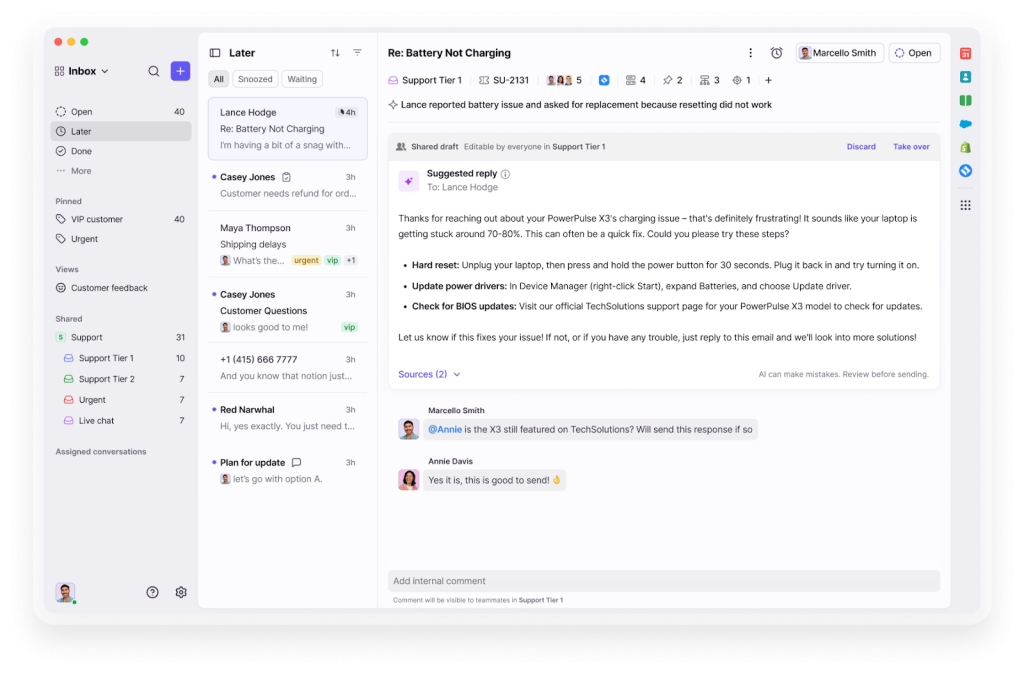
Front performs well when basic automation removes constant, low-level friction. Messages don’t sit unassigned nor do agents respond in parallel. The system makes ownership visible and enforces it early. A G2 reviewer highlighted this impact clearly:
“Additionally, the initial setup of Front for my team was super easy, which made the transition smooth and hassle-free. This compelling ease of use, combined with its robust functionality, contributes significantly to why I would highly recommend Front to a friend or colleague, rating it a 10 out of 10.”
– Anthony G.
That outcome comes from simple, reliable automation rather than complex workflow design.
Key features
- Incoming messages are routed based on inbox, sender, keywords, or customer attributes as soon as they arrive.
- Each conversation has a clear owner, preventing duplicate replies and eliminating guesswork as teams scale.
- Messages are tagged automatically to support categorization and downstream handling.
- Time-based nudges alert agents when replies approach response targets, reducing missed follow-ups.
- CRM data such as account name, plan, or deal stage is attached automatically to conversations so agents don’t need to look it up.
- Email, chat, SMS, and WhatsApp messages are processed through the same assignment and ownership logic.
Pro
- Strong ownership automation prevents missed or duplicate responses.
- Reliable for daily triage without complex workflow setup.
- Effective for small to mid-sized teams managing shared inboxes.
Con
- Not designed for AI-driven ticket deflection at scale.
14. Jira Service Management (Best for IT and internal support teams that need strict, rule-based automation)
Jira Service Management is built for environments where support cannot rely on informal workflows. Its automation enforces structure from the moment a request is submitted. Tickets don’t arrive as free-form emails. They enter through defined request types, with required fields, priorities, and ownership rules applied automatically.
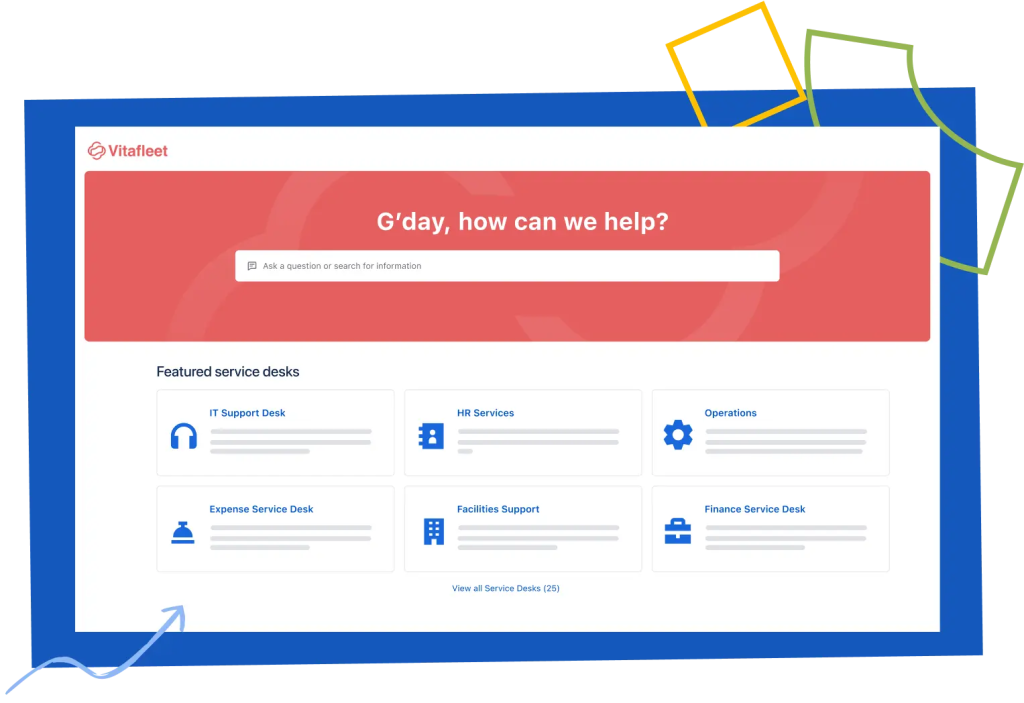
This makes it a strong fit for internal IT, DevOps, and engineering-adjacent teams where access requests, incidents, and infrastructure issues need to follow controlled paths without manual coordination.
Requests in Jira are categorized at intake, routed based on impact and service, and escalated according to predefined incident rules. Critical issues move fast because the system forces them to.
Key features
- Requests are submitted through forms that enforce required information, reducing back-and-forth and incomplete tickets.
- Tickets are assigned automatically based on request type, priority, service, or environment.
- High-severity incidents escalate automatically within defined time windows, often within 15–30 minutes.
- SLA timers start, pause, or resume automatically depending on ticket state, such as waiting on a requester or another team.
- Support tickets can be converted into Jira tickets and kept in sync without manual updates.
- Every approval, escalation, and status change is logged automatically with permissions and traceability.
“Jira offers excellent easy of use, once you get familiar with its interface, and its wide range of features makes it ideal for managing complex projects. The integration with other tools like confluence, works seamlessly, which boosts teams productivity. it’s also highly customizable, allowing teams to adopt workflows easily. The platform is reliable for frequent use, and customer support is generally resposive and helpful during setup or issue resolution.”
– Chirag P.
Pro
- Strong rule enforcement for complex internal workflows.
- Automation scales reliably across high ticket volumes.
Con
- Automation is rigid and can feel heavy for customer-facing support.
15. ServiceNow (Best for large enterprises that need end-to-end, cross-department automation)
ServiceNow is built to automate work that spans multiple teams, systems, and approvals. In large organizations, a single request often triggers a chain of actions like access provisioning, security checks, approvals, and follow-ups. ServiceNow automates that entire chain end to end.
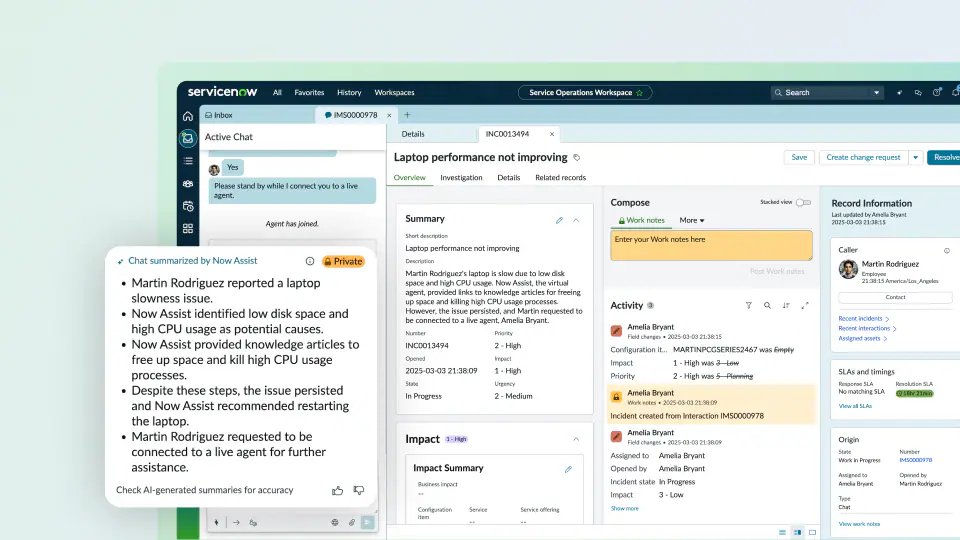
Automation here is process-driven. That means:
- Requests move through predefined workflows.
- Ownership changes automatically.
- Approvals are triggered based on role and policy.
- Escalations fire when timelines slip.
Every step is enforced by the system, not managed manually. ServiceNow is used when automation needs to orchestrate work, not just route tickets. Tasks don’t move forward unless required steps are completed. Nothing bypasses the workflow. This is what keeps large, distributed teams aligned.
Key features
- Requests trigger multi-step workflows across IT, HR, security, and customer service without manual handoffs.
- Approval chains, reassignments, and escalations are executed automatically based on policy and timing rules.
- Complex automation paths can be built and adjusted using visual tools instead of custom development.
- Tasks are routed automatically, with predictive signals used to surface delays or risks early.
- Employees or customers start automated workflows through service catalogs and portals.
- Every action, decision, and status change is logged automatically for compliance and risk management.
‘’What I like best about ServiceNow IT Service Management is its ability to centralize all IT requests in one easy-to-use platform. The automation and workflows reduce manual effort, improve response times, and help teams deliver a more consistent support experience.”
– Aditya M.
Pros
- Automates complex, cross-department workflows at enterprise scale.
- Low-code workflow design lets teams solve complex automation without deep developer reliance.
Cons
- Automation requires significant upfront design and implementation
16. HappyFox (Best for mid-sized teams that want structured automation without enterprise overhead)
HappyFox works well when the queue starts needing constant supervision. Tickets come in half-complete, ownership gets fuzzy, and someone ends up checking SLAs manually just to make sure nothing slips.
With HappyFox, you set the guardrails once. Intake forms collect the right details upfront. Rules assign and categorize tickets automatically. SLA timers track deadlines and raise flags when something needs attention. The system handles the structure so agents can focus on resolving issues instead of sorting them.
For mid-sized teams, that shift matters. Once the rules are in place, the queue runs steadily without someone hovering over it all day.
Key features
- Required fields in ticket forms ensure requests arrive with the information needed to act, reducing back-and-forth.
- Tickets are assigned, prioritized, or escalated automatically based on category, urgency, or source.
- Response and resolution timers run automatically, with alerts triggered before deadlines are missed.
- Canned replies and predefined actions handle repetitive questions consistently across the queue.
- A built-in knowledge base surfaces answers to common issues before tickets are created.
“With minimal configuration you can start your help desk support system. It is easy to maintain, easy to integrate with existing platforms, and also extensible via their powerful API. After an easy implementation and you can start providing customer support almost instantly.
It includes useful features such as canned responses (and actions), smart rules and SLA objectives that can be applied to one or more contact groups, to set up your system to meet your organization needs.
You can define multiple work schedules and apply to different rules.”
– Jorge R.
Pros
- Core automation can be configured quickly and applied consistently
- Automation rules handle routine work consistently across the queue.
Cons
- Automation depth is limited for complex, multi-step workflows
- AI capabilities such as intent detection, sentiment-based prioritization, or predictive routing are minimal.
How to implement help desk automation in 6 simple steps
Before you begin automating, you need a structured approach. These steps guide you through the exact process of setting up automation that works reliably for your team.
1. Audit what the system should handle, not what people do
Start by reviewing 20–30 recent tickets and listing every action that was performed manually. This usually includes tagging, assigning ownership, sending acknowledgments, following up, escalating, or closing tickets.
Any step that happens repeatedly is a signal that the system should own it. This removes guesswork and ensures you automate based on real behavior, not assumptions.
2. Choose a platform that can execute those decisions
Select a help desk that can reliably handle the workflows you identified. At a minimum, the platform must support automatic tagging, assignment, acknowledgments, SLA tracking, escalation rules, canned responses, and auto-closure.
If the system cannot enforce these actions consistently, automation will fail regardless of how well the rules are designed. Platform capability should be your first filter.
3. Start with high-impact, low-risk automations
Begin with automations that are simple and high-volume. This typically includes automatic acknowledgments, keyword-based tagging, team- or skill-based assignment, and SLA reminders.
These rules are easy to validate and immediately remove repetitive work from the queue. They also help teams build trust in the system early.
4. Add structured workflows once the basics are stable
After the core rules run without issues, expand automation to cover more complex scenarios. This includes escalation triggers for urgent tickets, reminders for inactive conversations, and auto-closure for stalled threads.
You can then automate recurring requests such as refunds, onboarding, subscription changes, or password resets by defining workflows that apply tags, assign owners, send the correct response, and escalate when conditions are not met.
5. Monitor how the system behaves in production
Before rolling out any automation, test it on real tickets to confirm that routing, tagging, and escalations behave as expected.
After launch, review performance weekly. Pay attention to which rules trigger most often, where agents override automation, and which workflows slow resolution. Improve one or two rules at a time to keep the system accurate and predictable.
6. Avoid over-automation and undocumented rules
Automation should grow gradually. Adding too many rules at once makes the system hard to reason about and harder to fix.
Every rule should be tested, documented, and understood by the team. When agents know how the system behaves, they are less likely to work around it or break it unintentionally.
Done right, automation becomes a steady, reliable system that doesn’t add complexity to the system.
How does help desk automation work?
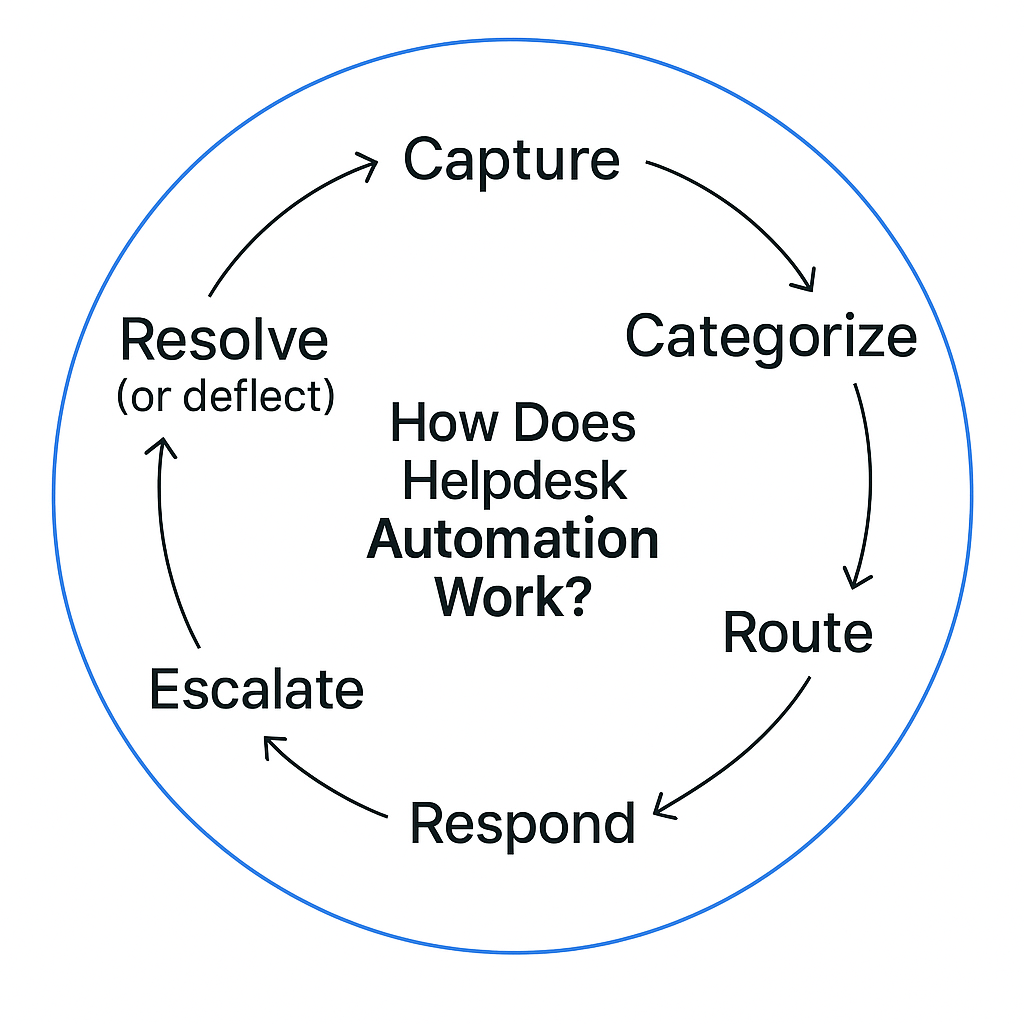
Here’s exactly how an automated helpdesk system handles support requests and how you can set it up:
1. Capture: The system collects requests from all channels: email, chat, and forms into one dashboard.
▶️ Make sure all channels are integrated so nothing falls through the cracks.
2. Categorize: It scans the message for keywords or context to tag the issue, such as “billing” or “login.”
▶️ Set up rules or use AI tagging to automate this step accurately.
3. Route: The ticket is assigned to the right agent based on tags, customer profile, or urgency.
▶️ Route VIPs and high-priority issues to experienced agents automatically.
4. Respond: The system sends an instant acknowledgment with estimated response time.
▶️ Use friendly, pre-written replies to set the right expectations.
5. Escalate: If a ticket sits too long, reminders will go out or escalate automatically.
▶️ This is how you avoid SLA breaches and missed follow-ups.
6. Resolve (or deflect): For common issues like password resets, the system can suggest help articles or auto-resolve without agent involvement.
▶️ To enable this, connect your knowledge base and train your system accordingly.
Once all these steps are in place, automation can transform how your team operates on a day-to-day basis.
For example, Kiwi, a global travel tech company, automated its support pipeline using simple rules. Tickets are tagged based on keywords the team uses, using round-robin logic. Customers receive instant replies with SLA timelines, eliminating the need for manual follow-ups.
This helped the team save over 160 hours per month while consistently meeting SLAs, allowing agents to focus on handling complex travel issues.
David Pinto, Kiwi’s business development, said.
“I can now ensure operational tasks get done on time. Hiver helps my team grow faster.”
Remember: None of this works out of the box.
You’ll need to set up these triggers, conditions, and workflows manually or with some help from AI. But once you’ve done it, your support will run smoother, and your team will have time to focus on what matters: the human conversations.
If done right, this whole workflow runs in the background, so your team can focus on conversations that require a human.
How to measure your helpdesk automation success?
You can only improve automation if you track the right numbers. These metrics show instantly whether your workflows are saving time or creating new problems.
1. Track speed metrics that should improve immediately. Watch your response time, resolution time, SLA compliance, and open-ticket backlog. If automation is set up correctly, all four drop quickly, often within a week.
2. Calculate time saved per agent. Measure how long tasks like tagging, routing, or follow-ups used to take. Subtract the time after automation. This tells you exactly how many hours your team gets back each week.
3. Watch customer experience signals. Monitor CSAT scores, sentiment in replies, and first-response times. Automation should make support feel faster and more predictable for customers.
4. Check automation accuracy. Review mis-tagged or mis-routed tickets. Even a small error rate compounds as volume grows. Fix logic and tighten rules early.
5. Review automation reports weekly. Look at which rules fired the most, which escalations prevented SLA breaches, and where agents overrode the system. Adjust one or two workflows at a time to keep everything stable.
If speed improves, errors drop, and agents report less manual work, your automation is doing exactly what it should.
Common challenges and best practices for helpdesk automation
Helpdesk automation breaks in predictable ways. When it does, teams lose trust and revert to manual work. These are the issues that show up most often, and how to correct them.
- Agents don’t trust the automation. Do not start with bots or auto-replies. Start with routing, tagging, and SLA reminders. Build these rules with agents, not in isolation. Make it clear that automation handles sorting and timing, while agents handle judgment and edge cases.
- Tickets get misrouted or stuck. Pick two or three high-volume tasks and automate only those. Assignment, priority tagging, and SLA alerts usually give the fastest payoff. If a rule cannot be explained in one sentence, it is too complex.
- Automation runs on bad or missing data. Automation depends on accurate data. Connect only the tools support actively uses, such as CRM or billing systems. Use native integrations, test with real tickets, and document which fields are being pulled in and why.
- No one knows if automation is working. Capture baseline metrics first. Track response time, SLA breaches, manual touches per ticket, and time spent on triage. Review these weekly in the first month. If automation does not move these numbers, change it.
- Automated replies go stale. Review templates on a fixed schedule. Update them when policies change and add basic personalization to keep responses relevant.
- SLAs exist but don’t change behavior. Use SLAs to trigger alerts, reassignment, or escalation before deadlines are missed, not just to generate reports.
- Self-service doesn’t reduce tickets. Tie knowledge base articles to routing and replies. Track deflection and update or remove articles that don’t prevent tickets.
- Automation drifts over time. Review rules monthly. Remove unused automation, update conditions, and document changes so the system stays understandable.
When done well, helpdesk automation keeps support focused on problems that require context and decision-making.
Start helpdesk automation before you think you need it
Most teams wait too long to fix their helpdesk problems. Automation is added only after things break, which is a mistake.
Helpdesk automation can be the foundation for scalable, efficient support. Whether you’re a lean team trying to stay organized or a growing one looking to deflect repetitive queries with AI, the right tool lets your team focus on what matters: helping customers.
- Choose a platform that fits how your team already works.
- Test the automation.
- Check the integrations.
- And above all, don’t wait for chaos to force your hand.
Get automation right early, so that your team won’t just survive, they’ll stay sane.
Frequently Asked Questions
1. How do top help desk platforms handle automation?
Top help desk platforms automate routing, tagging, prioritization, and SLA tracking. More advanced tools add AI to detect intent, sentiment, or missing information, but humans still handle exceptions and final decisions.
2. Who offers help desk tools with automation?
Most modern help desks include automation, but depth varies. Basic tools handle simple rules like assignment and canned replies, while advanced platforms support AI-driven routing, SLAs, and cross-system workflows.
3. What is help desk automation?
Help desk automation uses rules and AI to handle repetitive support tasks such as assigning tickets, triggering follow-ups, escalating issues, and deflecting common questions, so agents spend less time on manual work.
4. How do you integrate CRM with help desk automation?
CRM integration lets automation route and prioritize tickets based on customer data like plan, account status, or deal stage. Agents get full context inside the ticket without switching tools.
5. What is self-service–based help desk automation?
Self-service automation resolves common issues before an agent is involved by surfacing help articles, FAQs, or bot responses during ticket creation or live conversations.
6. Which help desk automation tools are best for small teams?
Small teams benefit from tools that automate routing, tagging, and SLAs with minimal setup. The best options are easy to configure, require no technical admin, and deliver value immediately.
7. What metrics measure help desk automation ROI?
ROI is measured through faster response times, fewer SLA breaches, lower manual touches per ticket, higher deflection rates, and stable headcount as ticket volume grows.
8. What are common pitfalls when automating support workflows, and how do you fix them?
Common issues include over-automation, poor data from integrations, and outdated rules. These are fixed by starting small, tightening required data, and reviewing automation regularly.