






Quick Summary: A Gmail shared inbox lets multiple teammates manage one email address like support@company.com from a single view. Gmail offers three native methods: delegated access, Google Groups Collaborative Inbox, and the newer Google Workspace admin setup available on Business Starter, Standard, and Plus plans.
If your team shares an inbox like support@company.com, you know how messy it gets. Emails get answered twice, or sit for a day because everyone assumed someone else had it.
This is a common problem because Gmail is everywhere. More than 60% of small and mid-sized businesses in the US run on it. But Gmail was built for one person checking their own mail, not for a team handling the same address together. So when the volume goes up, things slip. And customers notice, because most people now expect a fast reply.
There are a few ways to fix this inside Gmail, including Google’s own newer option and a few third-party tools. This guide walks through each one and compares them side by side, so you can pick the setup that fits your team.
What is a Gmail Shared Inbox?
A Gmail shared inbox is a single email address, such as support@company.com or info@company.com, that multiple team members can access and manage together using their own logins. Everyone can read incoming messages, assign them to the right person, and reply, without sharing passwords or forwarding threads.
A properly structured shared inbox helps teams:
- Assign emails to the right person instead of forwarding threads and hoping someone picks them up.
- Maintain clear visibility into which conversations are open, in progress, or resolved.
- Prevent two teammates from accidentally replying to the same customer email.
- Manage a shared address like support@ or sales@ in one centralized view, without switching between accounts.
- Keep conversation history intact so context is never lost when someone is out of office.
How Do You Set Up a Shared Inbox in Gmail?
There are four ways teams approach shared inbox access in Gmail. Three are worth setting up. One is a security risk you should skip entirely.
Why Should You Never Share Gmail Login Credentials?
Sharing a username and password with your team is the most common mistake teams make when starting out. Any team member can change settings, delete emails, or send messages without a trace. There is no accountability, no access control, and no audit trail. It is also a compliance liability for any organization handling customer data. Skip it, even for teams of two.
Method 1: How Does Gmail Delegated Access Work?
Gmail delegated access lets you grant specific team members access to one inbox using their own Google logins. No shared passwords. Each delegate can read, reply to, and manage emails while keeping their own credentials. Many busy founders go a step further and hand inbox triage to a virtual executive assistant, who clears, sorts, and replies on their behalf so nothing important slips through.
Best for: Small teams of 2-5 people handling low email volume.
Steps to set up delegated access in Gmail:
- Log in to the Gmail account you want to share (e.g., support@company.com).
- Click the gear icon and select See all settings.
- Open the Accounts and Import tab.
- Scroll to Grant Access to Your Account and click Add another account.
- Enter each team member’s email address and confirm.
- Each delegate receives an invitation email to accept access.
Once accepted, each team member sees the shared address in their Gmail account switcher and can switch into it with one click. If the delegation option does not appear in settings, your Google Workspace admin needs to enable mail delegation in the Admin console first.
Limitation: Delegated access does not support email assignment, conversation status tracking, or collision alerts. Two delegates can open and reply to the same email simultaneously without either one knowing. It works for very small teams with low volume but is not designed for collaborative inbox operations.
Does Google Workspace Have a Native Shared Inbox Feature?
Yes. Google Workspace now includes a native shared inbox creation option directly in the Admin console for Business Starter, Business Standard, and Business Plus plans. This is newer than the standard delegated access flow and works at the admin level rather than requiring each user to configure their own settings.
Steps to create a shared inbox in Google Workspace Admin:
- Sign in to the Google Admin console with an administrator account.
- From the Home page Users section, click Set up a shared email address.
- Enter the email address for the shared inbox (e.g., support@yourorganization.com).
- Click Add new users and add each team member’s details.
- Click Continue. Sign-in instructions are automatically sent to every added user.
- Click Next, review the list, then click Done.
You can also convert an existing delegated account to a shared inbox through this same Admin console flow. If the option does not appear in your console, either your Workspace plan does not yet support it or the feature has not reached your organization’s rollout. Standard delegated access remains the fallback.
Important: The Google Workspace native shared inbox is an admin-managed version of delegated access. It is simpler to set up at scale, but it carries the same operational limitations: no assignment tracking, no collision alerts, no internal notes, and no analytics. Those require a dedicated third-party tool.
Method 2: How Do You Set Up a Google Collaborative Inbox?
A Google Collaborative Inbox uses Google Groups to create a shared email workspace. Instead of giving everyone access to one Gmail account, you create a group where all members can view, assign, and respond to incoming emails together. No account switching required.
Best for: Teams of 5-20 people managing moderate email volume, especially on Google Workspace.

Steps to set up a Google Collaborative Inbox:
1. Visit groups.google.com and sign in.

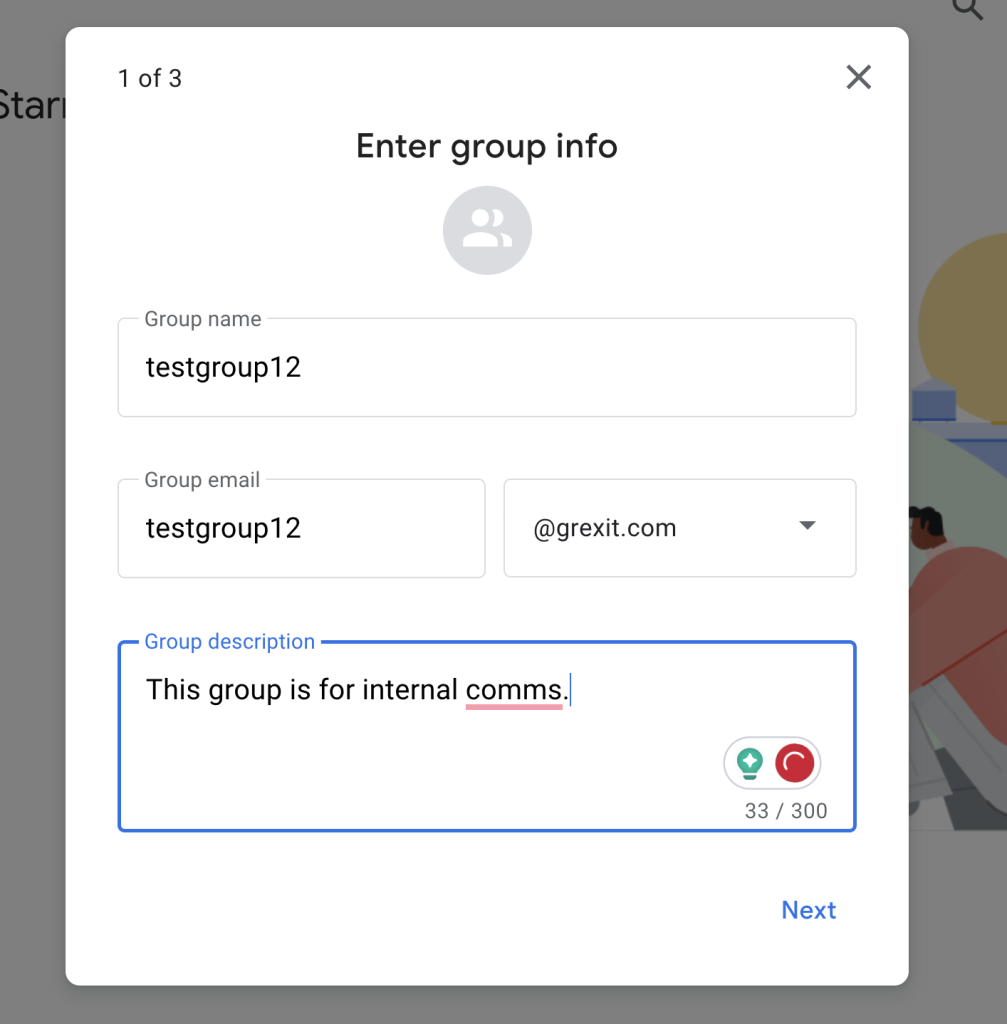
2. Click Create Group and enter a group name, email address, and description.
3. Under Who can post, set it to Anyone on the web so external senders can reach the address.

4. Add team members and assign roles: Member or Manager.
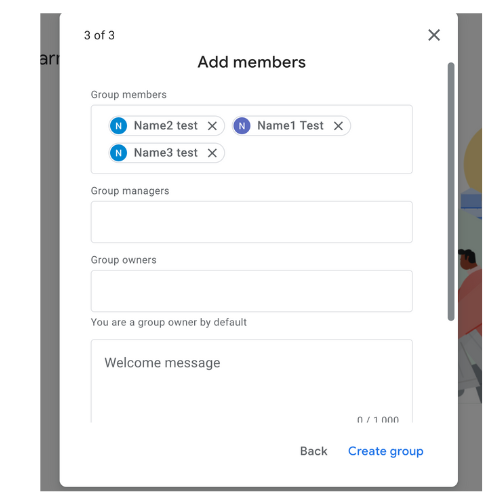
5. Click Create Group.
6. Open Group Settings, select Enable additional Google Groups features, and turn on Collaborative Inbox.
With Collaborative Inbox enabled, your team can assign emails to specific members, mark conversations as Complete, Duplicate, or No Action Needed, and apply labels to organize the queue.
For a detailed walkthrough and comparison with dedicated alternatives, see our full guide on using Google Groups for customer support.
Limitation: Collaborative Inbox has no private thread notes, no real-time collision detection, no analytics dashboard, and a separate interface from Gmail. Members constantly switch between their personal Gmail and the group view. It works for basic shared email management at low cost, but the collaboration ceiling is low for any team handling meaningful volume.
Method 3: What Does a Dedicated Shared Inbox Tool Add to Gmail?
Gmail’s native options give your team shared access to one inbox. What they do not give you is the structure teams need at real scale: clear ownership of conversations, visibility into who is handling what in real time, alerts when two people are about to send duplicate replies, and a way to keep all internal context on the thread rather than scattered across Slack.
Companies using dedicated customer service software resolve tickets up to 35% faster and report higher customer satisfaction scores than teams working from native shared mailboxes alone.
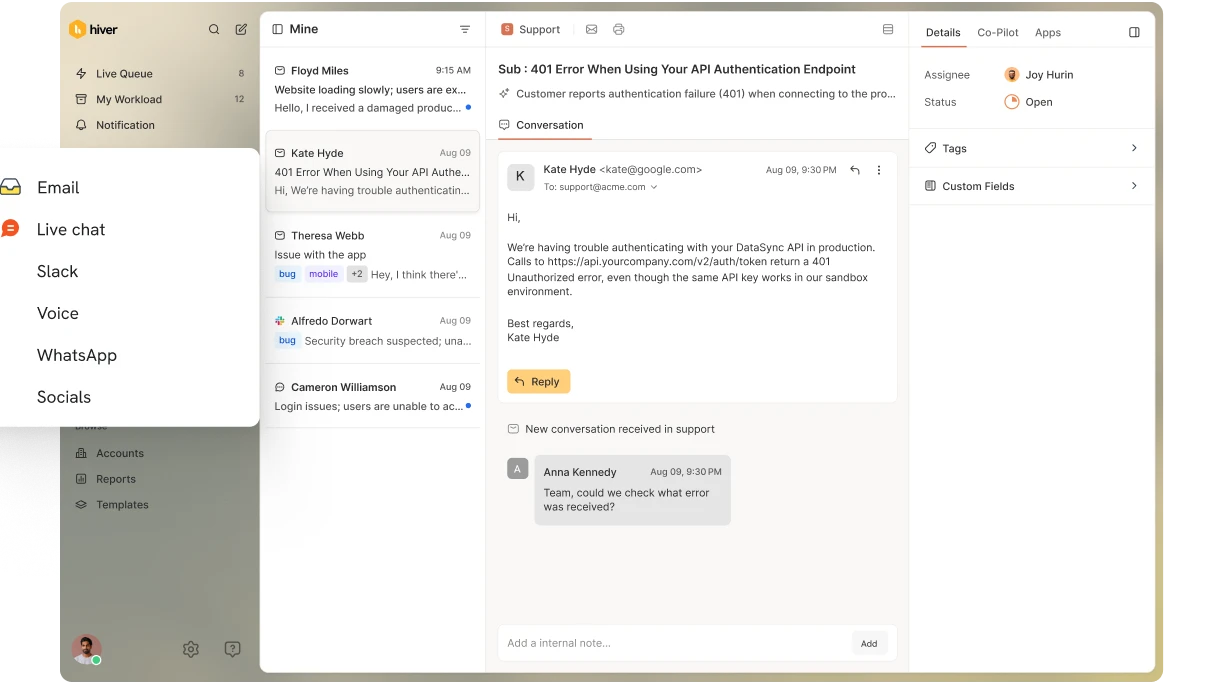
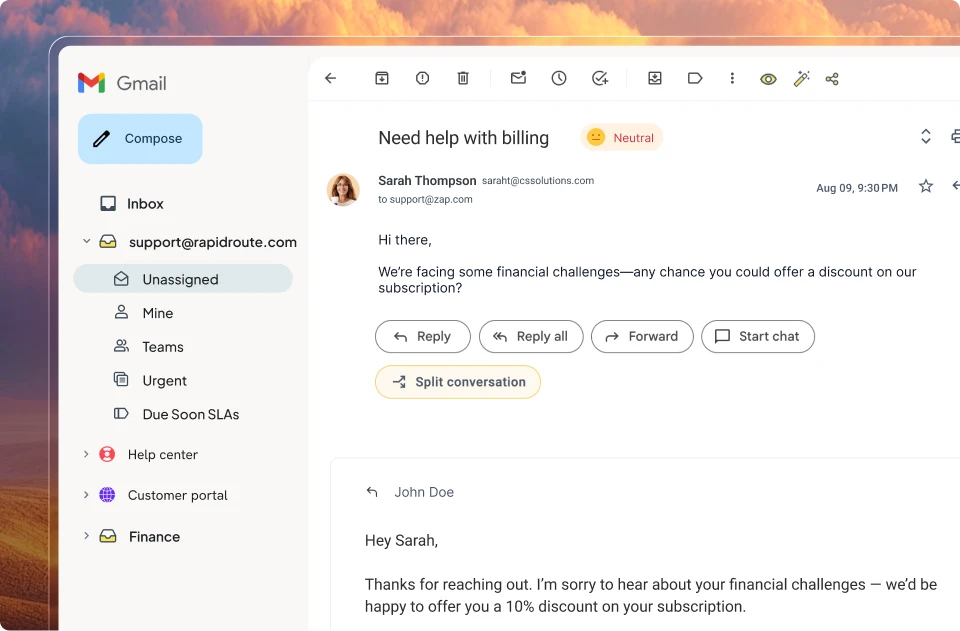
Hiver sits directly inside Gmail. It adds a complete shared inbox layer on top of the email interface your team already uses, so there is no platform to migrate to and no change to how your team reads email.
P.S. Hiver also offers a dedicated omnichannel platform, Hiver Omni, that consolidates all your channels like email, chat, voice, socials, SMS, Slack, and more in one intuitive workspace.
What Hiver adds on top of Gmail:
- Email assignment to the right person, set manually or triggered automatically by rules based on subject, sender, or keywords.
- Collision alerts that flag when a teammate has already opened or is actively replying to a message, preventing duplicate responses.
- Internal notes and @mentions directly on email threads, so context stays attached to the conversation. See our guide to writing effective internal notes in customer support.
- Conversation status tracking (Open, Pending, Closed) visible to the whole team in real time.
- AI Copilot to summarize long threads, suggest replies, and auto-tag incoming emails by topic or sentiment — so agents pick up any conversation with full context instantly.
- Reporting dashboards covering first response time, resolution time, SLA breaches, and volume by tag.
- Native iOS and Android apps with full assignment, reply, and notification support.
Teams can get started with a free trial. Paid plans unlock advanced email automation, deeper AI features, and multi-channel coverage as the team grows.
Which Gmail Shared Inbox Option Should You Choose?
Here is a side-by-side comparison of all three methods:
| Feature | Delegated Access | Google Collaborative Inbox | Shared Inbox Tool (Hiver) |
|---|---|---|---|
| Setup Time | Minutes (Gmail settings) | 15-20 mins (Admin + Groups) | Under 10 minutes |
| Best For | 1-5 users, low volume | 5-20 users, moderate volume | 10+ users, complex workflows |
| Email Assignment | Not supported | Basic (assign to member) | Manual + auto-assign rules |
| Collision Alerts | None | None | Yes — flags duplicate replies |
| Internal Notes | Not supported | Not supported | Yes — attached to every thread |
| Analytics | None | None | First response, SLAs, tag reports |
| AI Features | None | None | AI Copilot, summarizer, auto-tagging |
| Mobile App | Browser only | Via Gmail/Groups app | Native iOS and Android app |
| Security | All delegates: full access | Role-based (Member/Manager) | Per-user access, no shared passwords |
| Scales to Large Teams | Limited | Limited | Yes — roles, permissions, workflows |
How Do You Decide Which Method Is Right for Your Team?
Use delegated access or the Google Workspace native shared inbox if: your team is 2-4 people, email volume is low, and shared access is all you need. No extra cost, minimal setup.
Use Google Collaborative Inbox if: your team is 5-20 people, you want basic assignment and status tracking, you are on Google Workspace, and you have no budget for a third-party tool.
Use a dedicated shared inbox tool like Hiver if: your team handles significant volume, multiple people work the same inbox simultaneously, you need collision prevention and reporting, or you want AI to help with triage, summaries, and response suggestions.
What Are the Limitations of Native Gmail Shared Inbox Options?
Native Gmail options cover shared access. They do not cover shared operations. Here is where both methods consistently fall short:
- No collision detection. Two teammates can reply to the same customer email without either knowing. Gmail and Google Groups have no built-in alert that prevents duplicate replies.
- No internal thread notes. Leaving context for a colleague means using Slack or a separate email. The context never attaches to the conversation where it belongs.
- No SLA or response-time tracking. There is no built-in way to see average first response time, resolution time, or which emails have been sitting unanswered longest. Given that 66% of customers say valuing their time is the most important thing a company can do, this gap has real business consequences.
- No automation based on email content. Gmail filters route emails by rule, but they cannot assign conversations based on keywords, auto-close thank-you replies, or trigger actions based on detected sentiment.
- No AI assistance. Neither delegated access nor Collaborative Inbox includes thread summarization, suggested replies, or auto-tagging. For a full comparison of tools that do, see our guide to the best shared inbox software in 2026.
Stat: The average professional spends 28% of their workweek managing email. For a 5-person support team, that is more than one full-time role consumed by inbox management alone, before accounting for duplicate replies, missed messages, or manual triage.
What Are the Best Practices for Running a Shared Gmail Inbox?
The method you choose determines what is possible. The habits your team builds determine whether the inbox stays manageable over time.
1. Should You Automate Email Routing and Assignment?
Yes, from day one. Manual triage at any scale creates bottlenecks and misrouted emails. Set up rules to automatically route and assign based on sender, subject keywords, or incoming address. For example, billing@ routes to finance automatically; emails containing “urgent” get assigned immediately; enterprise account emails go to a senior agent. Review rules monthly to keep them accurate as workflows evolve.
2. How Should You Organize Labels, Tags, and Status Fields?
Consistent naming matters more than which specific labels you choose. If three team members use three different conventions, reporting becomes meaningless and email management becomes a search problem. Agree on a shared taxonomy before your first week of use and document it somewhere the whole team can access.

3. How Do You Keep Internal Communication Attached to the Thread?
If your team routes internal discussion to Slack or separate email chains, context fragments across tools. The best shared inbox setups keep all notes, questions, and handoff context on the conversation itself. Internal notes with @mentions make this natural without requiring anyone to change how they read email.
4. Who Should Have Access and Admin Control?
Decide upfront who can modify routing rules, delete conversations, or integrate external tools. In delegated access setups, all delegates have full access by default. In Google Groups, use the Manager role to limit who can change group-level settings. In Hiver, per-user roles give granular control over what each teammate can see and change.
5. Why Do Response Templates Matter in a Shared Inbox?
A library of approved response templates for high-frequency scenarios is the fastest way to keep quality consistent across agents. Templates reduce variation in tone, cut onboarding time, and speed up replies to repetitive queries. Pair templates with Gmail automation rules to suggest or insert the right template automatically based on email content.
Gmail Handles Email. A Shared Inbox Setup Handles the Work Behind It.
Managing a shared inbox in Gmail works at any team size if you match the method to the workflow. Delegated access and the Google Workspace native shared inbox handle shared access for small teams. Google Collaborative Inbox adds basic structure for mid-size teams without extra cost. A dedicated tool like Hiver covers the full operational layer, including assignment, collision prevention, AI assistance, and reporting, when volume and complexity make the native options insufficient.
For teams managing complex cross-channel support, Hiver offers a free trial. Paid plans start at $25/user/month. See full pricing.
Frequently Asked Questions (FAQs)
1. What is a Gmail shared inbox?
A Gmail shared inbox is a single email address, like support@company.com, that multiple team members can access and manage together using their own logins. It lets a team assign, reply to, and track emails from one shared address without forwarding threads or sharing passwords.
2. What is the difference between a Gmail shared inbox and a regular Gmail account?
A regular Gmail account is tied to one person. A shared inbox gives an entire team access to one email address, with tools to assign conversations, track status, and prevent duplicate replies. Gmail does not natively support all of these features, which is why most teams add a dedicated tool on top.
3. How do I share a Gmail inbox with my team without sharing the password?
Use Gmail delegated access, the Google Workspace admin shared inbox setup, or a Google Collaborative Inbox via Google Groups. All three let team members access a shared Gmail address through their own individual Google logins. No shared credentials are needed.
4. How do I prevent two people from replying to the same email in a shared inbox?
Native Gmail and Google Groups do not have collision detection. Two teammates can open and reply to the same email without knowing. Dedicated shared inbox tools like Hiver add real-time collision alerts that notify agents when a teammate is already working on a conversation.
5. How many people can access a shared Gmail inbox at the same time?
With Google Workspace delegated access, up to 1,000 delegates can be added to one Gmail account, though Google recommends no more than 40 active simultaneously to avoid performance issues. Shared inbox tools like Hiver have no such limit and are designed for concurrent team access.
6. Can small teams use Gmail as a shared inbox for free?
Yes. Gmail delegated access and Google Collaborative Inbox are both free to use with a Google Workspace account. They cover basic shared access and assignment. Hiver also offers a free plan that includes one shared inbox, basic assignment, and email support for teams that want more structure without paying immediately.
7. Can Gmail shared inbox show who replied to an email?
With delegated access, Gmail shows that an email was “sent by” a delegate but does not give teams a centralized view of who handled what. Google Collaborative Inbox tracks assignments to members. Dedicated tools like Hiver show full activity history per conversation, including who replied, when, and what internal notes were left.
8. Can you use Hiver for free as a Gmail shared inbox?
Yes. Hiver’s free plan includes one shared inbox, email assignment, and basic support. It runs inside Gmail, so there is no separate platform to learn. Paid plans add automation, reporting, AI Copilot, SLA tracking, and multi-channel support.
9. What are the most common problems with Gmail shared inboxes?
The four most common are: duplicate replies when two agents respond to the same email, missed emails when no one is sure who is responsible, no visibility for managers into what is open or resolved, and context getting lost because internal discussion happens outside the thread. All four are structural limitations of Gmail’s native options.
10. How do you track response time in a Gmail shared inbox?
Gmail itself does not track response time. Google Collaborative Inbox has no analytics. To track first response time, resolution time, and SLA compliance on a shared Gmail inbox, you need a dedicated tool. Hiver includes reporting dashboards that show these metrics across the team and by individual agent.