




Email remains the world’s top customer support channel, yet only 15% of customers feel that brands deliver truly personalised service. The only way to fix that gap is to understand how your team is actually performing.
That’s where Gmail analytics tools come in. They show you response times, workloads, CSAT, and bottlenecks so you can make clear improvements instead of guessing. And because Gmail doesn’t offer these insights natively, this guide breaks down the best Gmail analytics tools to use in 2025 and the key metrics every team should track for a better customer experience.
Quick Summary
Gmail lacks built-in analytics, making it difficult for support teams to track their performance. Gmail analytics provides insight into campaign performance, team efficiency, and audience behavior by tracking key metrics, including open rates, bounce rates, and first-response times. This article reviews the top Gmail analytics tools for 2025, including Hiver, Email Analytics, and Gmelius, showing how they help businesses personalise customer support.
Why Trust Us?
We’ve worked with dozens of teams that rely on Gmail for day-to-day support, operations, and internal workflows. That gives us a clear view of the blind spots Gmail creates. It offers no visibility into response times, uneven workloads, and limited ways to measure team performance.
The insights in this guide come from reviewing these real-world setups, testing out some Gmail analytics tools ourselves, and studying how teams use data to improve speed and service quality. Everything here is based on practical experience with what actually works inside Gmail, and not assumptions.
What is Gmail Analytics?
Gmail analytics tracks how your team uses Gmail so you can measure response speed, workload distribution, and customer satisfaction. It goes beyond Gmail’s default stats to show:
- Whether your team is meeting SLAs and CSAT goals
- How many emails does your team send and receive each day
- How fast agents respond to customer queries
In short, Gmail analytics shows how your inbox performs as a support channel. Instead of guessing why some threads drag on or go unanswered, you can pinpoint delays and areas to improve.
Benefits of Gmail Analytics
Gmail analytics provide actionable insights that help teams maximise their efforts, time, and budgets. Here’s why you need them:
- Track Customer Satisfaction: Track sentiment and feedback trends to spot service gaps early
- Measure Campaign Performance: Analyse strengths, weaknesses, opportunities, and threats for email campaigns.
- Campaign Optimisation: Use insights to refine strategies and enhance future outcomes
- Decision-Making: Base marketing moves on data insights for a higher ROI.
- Audience Engagement: Segment audiences by behavior and personalise communication to boost engagement.
- Team Efficiency: Monitor workload, identify skill gaps, and distribute tasks fairly
Key Metrics to Track With Your Gmail Analytics Tool
Your chosen Gmail Analytics Tool can provide numerous metrics that offer valuable insights into email performance. Let’s explore some of these important metrics and what they tell you about your email performance.
1. Open rates
The open rate metric is essentially the percentage of recipients who have opened an email out of all the emails sent. It shows exactly how your email is received in a recipient’s inbox at first glance.
Businesses frequently analyze the success of an email marketing campaign by first examining its open rates.
A variety of factors could contribute to the low open rate. For instance:
- Subject Line: This is potentially the most crucial factor. If the email’s subject line is not captivating or relevant to the recipient, they may choose to ignore the entire email and not open it.
- Sender Reputation: If past emails from the sender have been identified as spam or not engaging, recipients may disregard future emails.
- Timing: The timing of sending an email can impact how many people open it. Email open rates can increase by sending emails recipients are most engaged.
- Email Preview: The brief text seen prior in the inbox dashboard, opening an email, could impact the recipient’s choice to either open or ignore it.
2. Click-Through Rates (CTR)
The Click-Through Rate (CTR) is the percentage of users who click on a certain link in the email out of the total number of users who saw the email. It directly shows how successful the email is at encouraging recipients to take action.
Click-through rate (CTR) is an important indicator that evaluates your customers’ active participation. There are various factors that impact CTR:
- Relevance of Content: If the content is relevant to the recipient’s needs or interests, they are more likely to click on embedded links.
- Quality of Call-to-Action (CTA): This plays a crucial role in improving (CTR). The call-to-action, whether it says “Learn More,” “Shop Now,” or “Get Started,” must be clear and enticing.
- Email Design: A visually appealing email featuring strategically placed links can boost click-through rates. CTR might be negatively impacted if the links are hidden within a block or the mail has a complex design that’s not intuitive.
- Credibility: Emails that are perceived as authentic and trustworthy are more likely to have increased click-through rates. Recipients may be wary of clicking on links in emails that appear to be suspicious or spam.
3. Bounce rates
Bounce rate is the percentage of emails that do not make it to the recipient’s inbox successfully. There are two main types of bounces:
- Soft Bounces: These happen due to temporary problems with email delivery, like a full mailbox or server outage.
- Hard Bounces: They occur when there is a permanent failure in delivering an email. They are typically caused by invalid email addresses or a domain that blocks the incoming mail.
Bounce rates are critical email marketing metrics for several reasons:
- Email List Health: A high bounce rate signify outdated or inaccurate email addresses within the list. Regularly cleaning and updating the email list can reduce hard bounces.
- Sender Reputation: Email service providers monitor bounce rates, and a consistently high bounce rate can harm the sender’s reputation. This can lead to emails being more frequently flagged as spam or even blocked.
- Lost Opportunities: Every bounced email represents a missed opportunity to connect with a potential customer or engage an existing one.
- Cost Implications: Many email marketing platforms charge based on the number of emails sent. Bounced emails represent a cost without any potential return on investment.
4. First Contact Resolution (FCR)
First Contact Resolution (FCR), is the rate at which your customer support team resolves customer queries within the first point of contact with your customers. This is a metric that gauges the efficiency of your customer support team.
A high FCR rate can help in many ways:
- Customer Satisfaction: When issues are resolved quickly without the need of back-and-forth communication, your customers are likely to be more satisfied with your service. Clients value quick and efficient resolutions, resulting in more confidence in the brand.
- Operational Efficiency: A high resolution rate indicates that the support team is well-trained has the all necessary resources to handle common issues.
- Brand Reputation: In the age of social media and online reviews, a brand’s reputation can be significantly influenced by its customer support efficiency. A good resolution rate has the potential to generate good reviews and recommendations from customers, enhancing the brand’s reputation.
5. First Response Time
First Response Time (FRT) captures the duration between a customer’s initial email query and the moment the support team sends their first response. FRT measures the proactiveness and responsiveness of your support team.
Measuring FRT of your support team is important for many reasons:
- Setting Expectations: The first response often sets the tone for the entire support interaction. A swift initial response can reassure customers that their concern is acknowledged and being addressed, even if a complete solution might take longer.
- Brand Perception: In today’s digital age, where customers expect quick solutions, the speed of the first response can significantly influence a brand’s perception. Brands that are seen as responsive and attentive are more likely to earn customer trust and loyalty.
- Competitive Advantage: In industries where multiple companies offer similar products or services, a faster FRT can be a differentiating factor, giving one brand an edge over competitors.
- Operational Insights: Monitoring FRT can provide insights into operational efficiency. For instance, longer FRTs during specific hours might indicate the need to hire more support agents during peak times.
6. Escalation rate
The Escalation rate measures the number of times a customer’s problem, which is first addressed by frontline or first-tier support, needs an interventiont from the higher ups or management. This may happen because the problem is complex, requires specific expertise, or when regular solutions do not solve the customer’s issue.
The effects of a high Escalation rate could mean a number of this:
- Operational effficiency: Every escalation means that more time and resources spent on a single issue. Frequent escalations can increase the work load of the higher-ups or management, diverting them from other critical tasks.
- Customer experience: Although some escalations are unavoidable, but frequent escalations can result to longer resolution times. This could test a customer’s patience and possibly result in dissatisfaction. An efficient support process typically includes addressing problems at the lowest level as soon as possible.
- Training and knowledge Gaps: High escalation rate may indicate deficiencies in training or resources among frontline support. It can indicate specific topics or issues that require more in-depth training sessions.
Recommended reading
DIY Ways to Measure Gmail Analytics
If you have some technical knowledge and want to manually analyze Gmail data, here are three options to explore.
1. Gmail + Google Sheets/Apps Script
Google Apps Script enables you to extract data directly from your Gmail account and import it into Google Sheets for processing.
How it works:
- Use the GmailApp service in Google App Script to connect directly to your Gmail account
- Retrieve email data, filtering by labels, search terms, and other criteria
- Export data to Google Sheets and use standard formulas (like SUM, COUNTIF, etc) to calculate applicable metrics
- Use pivot tables, graphs, and charts to organise and visualise findings
Limitations:
- Slow processing speed
- No real-time data
- Daily quotas on Apps Script
2. Gmail API
Using the Gmail API involves pulling data from users’ inboxes and processing it for useful insights.
How it works:
- Create a project in Google Cloud and turn on the Gmail API
- Sign in and permit the app to read your Gmail data.
- Once connected, you can carry out several actions such as:
- Pull a list of your emails
- View message details (like sender, subject, and date)
- Check email labels or categories
- Export your data to Google Sheets and use formulas to measure metrics, such as response times or workload patterns.
Limitations:
- Complex setup
- Raw data requiring manual calculations
- Cost at scale
3. Google Workspace Admin Console
The Google Workspace Admin Console provides built-in reporting and analytics, so organizations using Google Workspace can search and analyze Gmail log events.
How it works:
- Sign in to the Google Admin console as an administrator
- Go to Menu > Security > Security center > Investigation tool.
- Click on Data source and select Gmail log events.
- Create search conditions that analyze specific activity, like:
- Total emails sent/received per user or domain
- Storage usage per user
- Click Search to see the results.
Limitations:
- Requires a paid Workspace subscription
- Email retention limit
While DIY methods work for simple analyses, they require technical skill and constant upkeep, which isn’t sustainable for most teams. Hiver offers a plug-and-play solution that seamlessly connects to Gmail accounts and automatically tracks key metrics.
P.S. Hiver also offers a dedicated omnichannel platform, Hiver Omni, that works with Gmail and Outlook and consolidates all your channels like chat, voice, socials, SMS, Slack, and more in one intuitive workspace.
Top Gmail Analytics Tools to try out in 2025
In this section, we’ll explore some of the powerful Gmail Analytics tools to try out. We’ll discuss the features and pricing of these tools so that you can make the best choice for your business.
| Tool | Features | Starting price |
|---|---|---|
| Hiver | – Seamless Gmail Integration – Team Performance Metrics – Response Time Analysis – Email Volume Tracking – Shared Inbox – AI functionalities | $25/user/month. Has a free plan as well. |
| Email Analytics | – Email Traffic Analysis – Comprehensive Email Metrics – Top Senders & Recipients Identification | $14/user/month |
| Gmelius | -Helpdesk Integration -Advanced Tracking & Reporting -Email Templates | $10/user/month |
| Right Inbox | – Email Tracking – Reminders – CRM Integration | $7.95 per month/user |
| DragApp | – Kanban Boards for Email organization – Shared Inboxes – Basic Email Tracking features | $8/user/month |
| MailTracker by Hunter | – Real-time Email Open Alerts – A/B Testing Functionality – Spam Alerts – Unopened Email Reminders | $20/user/month |
1. Hiver
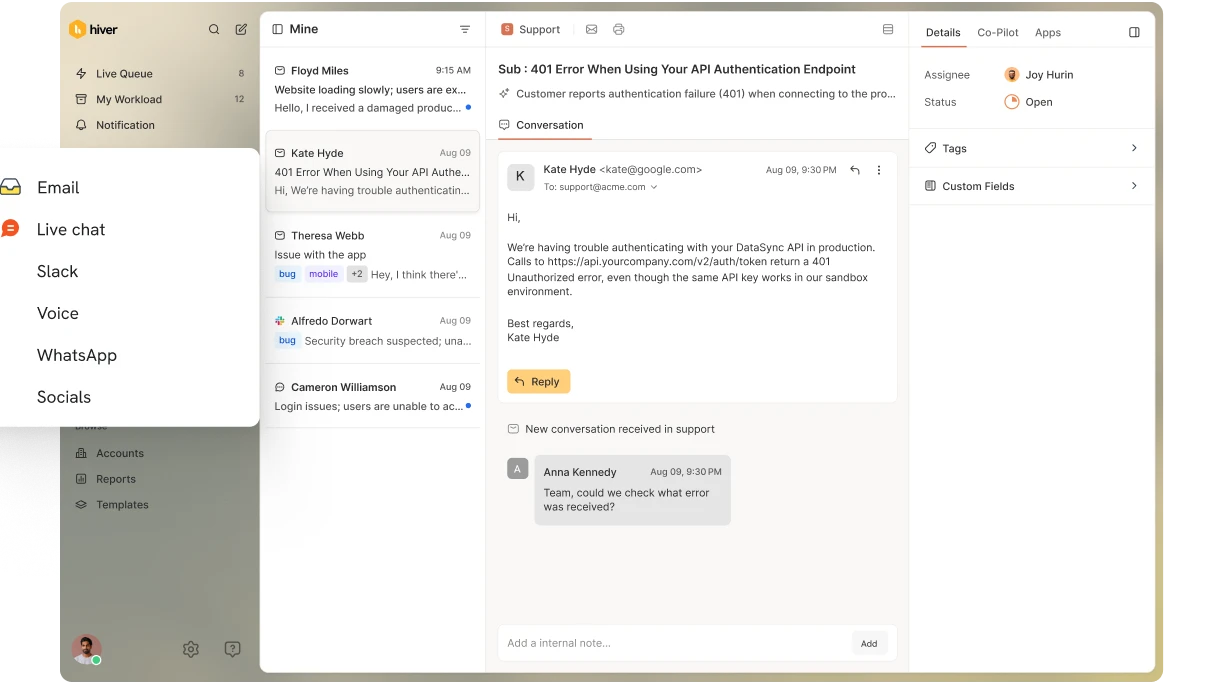
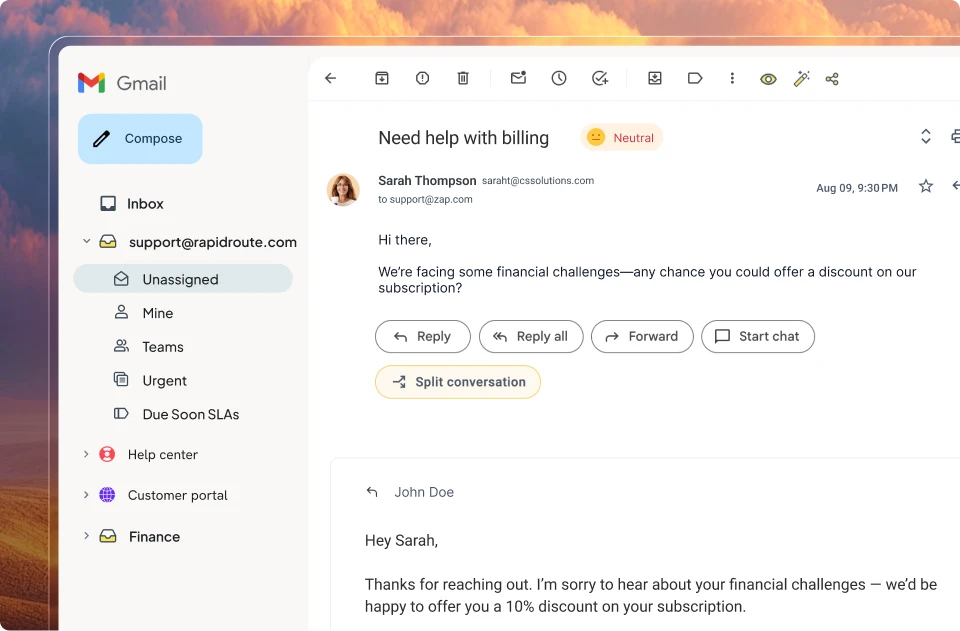
Hiver is a modern AI-powered omnichannel helpdesk. Hiver in Gmail lets your team manage customer emails directly inside Gmail.
P.S. Hiver also offers a dedicated omnichannel platform, Hiver Omni, that works with Gmail and Outlook and consolidates all your channels like chat, voice, socials, SMS, Slack, and more in one intuitive workspace.
An important feature is the Analytics Dashboard, where you can track metrics like first response time, resolution time, and CSAT across all channels. You can also create custom reports to track team performance, SLA compliance, or any specific metric that matters to your business.
Getting started is simple: install Hiver from the Chrome Web Store, add your team, and start collaborating. As your team handles conversations, the dashboard updates in real time, showing response trends, workload distribution, and areas that need attention.
Key features
- Seamless setup with Gmail: Hiver installs as a Chrome extension and integrates directly with Gmail. Setup takes less than 15 minutes, and your team can start using it immediately without any training.
- Performance tracking for teams: Managers can monitor key metrics like first response time and average resolution time for each agent. This helps identify top performers and spot agents who need support or workflow training to improve speed or accuracy.
- Email volume tracking: See how many emails are sent and received each day. Use these insights to balance workloads and prevent agent burnout.
- CSAT reporting: Access real-time CSAT data with a clear breakdown of satisfied and dissatisfied customers directly in your dashboard.
- Custom reports: Create tailored reports to track specific metrics across inboxes. For example, you can monitor resolution time for emails tagged as “priority.”

Pricing:
- Free plan: Free forever
- Growth plan: priced at $25/month/user, billed annually.
- Pro plan: priced at $45/month/user, billed annually.
- Elite plan: priced at $75/month/user, billed annually.
2. Email Analytics
Email Analytics is an effective Gmail analytics tool that measures and improves email response time. It has some really useful features that provides businesses with valuable insights of their daily email interactions.
It seamlessly integrates with your Gmail inbox, eliminating the need of downloading or learning a new software.

Key features:
- Email Traffic Analysis: Gain insight into the number of emails sent and received by your team on various days of the week. This can help identify the peak email activity days and potentially underutilized days.
- Comprehensive set of email metrics: View the quantity of emails your team sends and receives each hour and every day, the customers/leads they communicate with, and even the volume of spam they get.
- Top Senders & Recipients: Identify who communicates most frequently with your team. Get an insight on which customers or connections are the most involved and examine the average time it takes to respond to each recipient.
Pricing:
- Pro: $17.1/user/month, billed annually
3. Gmelius
Gmelius is a Gmail based tool that transforms Gmail into a collaborative workspace. It offers a comprehensive suite of features that enhance team collaboration, improve employee productivity, and provide valuable insights into email performance.

Key features:
- Helpdesk integration: Gmelius enables teams to make customer interactions more efficient by converting Gmail into a collaborative helpdesk system.
- Advanced tracking and reporting: provides thorough analytics on email performance, such as open rates, click-through rates, response times, and additional metrics. You also have the option to generate personalized reports according to the goals of your team.
- Email templates:With Gmelius, users can conveniently create and store email templates for sending consistent and professional emails within a few clicks.
Pricing:
- Growth: $24/user/month, billed annually
- Pro: $36/user/month, billed annually
Recommended reading
4. Right Inbox
Right Inbox is a popular Gmail- based productivity tool that offers some really powerful analytics features alongside its other functionalities like email automation and scheduling. It is a versatile tool to manage business emails.

Key features:
- Email Tracking: Monitor when, how many times, and by whom your emails are opened, as well as track link clicks within the email.
- Reminders: You can set automatic follow-up reminders to ensure you never miss out on important email conversations.
- CRM Integration: Integrate Right Inbox with popular CRM tools to streamline your sales and customer relationship management processes.
Pricing
- Limited Plan: This allows email tracking for up to 5 emails per month
- Professional Plan: Priced at $7.95 per month, billed annually. This plan allows unlimited email tracking.
- Team Plan: Priced at $16.95 per month, billed annually. This plan offers advanced email analysis features along with email tracking.
5. DragApp
DragApp is not just an email productivity tool; it is a versatile platform that enables teams to work together within the Gmail interface, organize tasks, and streamline their workflow. While it doesn’t boast of the granular analytics offered by other email tracking tools, DragApp offers a fair idea on your team performance and email engagement.

Key features:
- Kanban Boards: Drag introduces the concept of Kanban boards to Gmail, enabling users to visualize their emails and tasks in a structured manner.
- Shared Inboxes: Teams can manage shared emails like support@ or sales@ directly from Gmail, streamlining communication and ensuring timely responses.
- Email Tracking: Monitor when your emails are opened, providing insights into recipient engagement.
Pricing:
- Starter Plan: Priced at $12/user/month, billed yearly
- Plus Plan: Priced at $18/user/month, billed yearly
- Pro Plan: Priced at $24/user/month, billed yearly
Recommended reading
6. MailTracker by Hunter
Mailtracker by Hunter is a specialized email tracking platform designed for Gmail users. It offers real-time insights into email interactions, empowering users to make timely follow-ups and optimize their email strategies.
Integrated seamlessly with Gmail, Mailtracker ensures that users have a clear understanding of their email performance.

Key features:
- Real-time alerts: Receive instant notifications when your email is opened, ensuring you’re always in the loop about your email interactions.
- A/B testing functionality: Test different email elements to identify what resonates best with your audience, optimizing your campaigns for better results.
- Spam alerts: Monitor if your emails are being opened correctly and ensure they aren’t landing in spam folders.
- Open rates: Understand which email subjects resonate with recipients, potentially increasing your open rate by up to 20%.
- Reminders for unopened emails: Receive reminders if an email hasn’t been opened within 48 hours of being sent out.
Pricing:
- Free plan: Forever free
- Growth plan: Priced at $20/user/month, billed annually
- Enterprize Plan: custom pricing
How To Set Up A Gmail Analytics Tool: A Step-by-Step Guide
The success of your business depends on how effective your email communication is. To know if those emails are driving responses, resolving issues, and meeting SLAs, you need to track and analyze performance.
If you use Gmail, here’s how to set up a Gmail analytics tool to measure and improve performance.
Step 1: Pick the Right Gmail Analytics Tool
The right tool determines how deep and accurate your insights will be. Gmail doesn’t provide analytics by default, so you need a tool that fills this gap effectively.
We’re using Hiver as an example as it integrates seamlessly with Gmail.

How to do it:
- Choose a tool that integrates seamlessly with Gmail, such as Hiver, EmailAnalytics, or Gmail Meter.
- Compare tools by analytics depth, dashboard flexibility, automation, pricing, and reporting options.
- Choose one that tracks key metrics like response time, resolution time, SLA compliance, and agent productivity.
- Ensure it fits your main use case — support analytics, sales tracking, or marketing performance.
Step 2: Integrate the Tool with Gmail
Integrating your email activity to the analytics system, allows you to track real-time tracking and reporting.
How to do it:
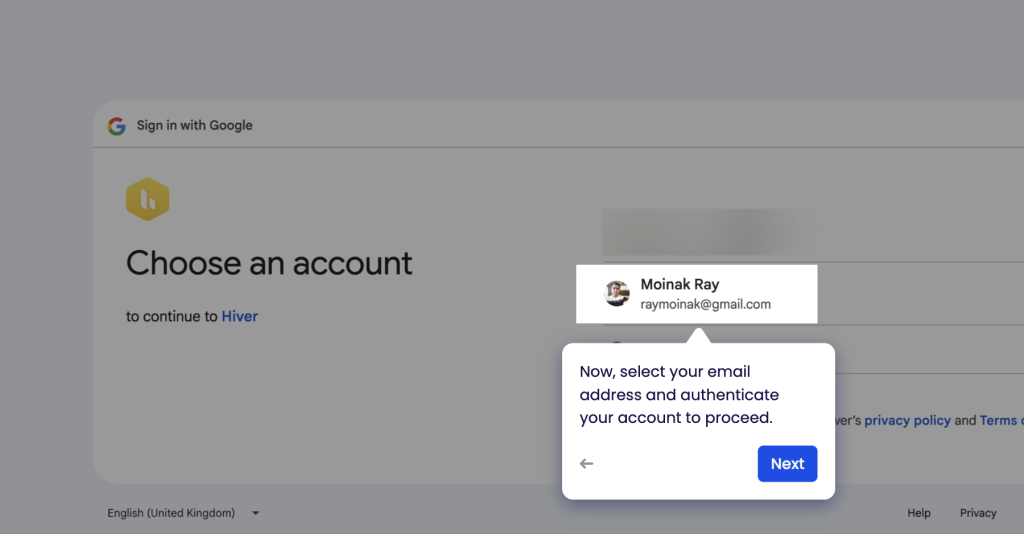
- Go to the Google Workspace Marketplace, search for Hiver, and click Install.
- Grant access permissions when prompted so Hiver can sync with your Gmail inbox.
- Add all team members to the shared workspace to ensure every inbox is connected for unified reporting.
Recommended reading
Step 3: Define & Prioritize Key Metrics
Clear metrics give your analytics direction and ensure your data aligns with business goals.
How to do it:
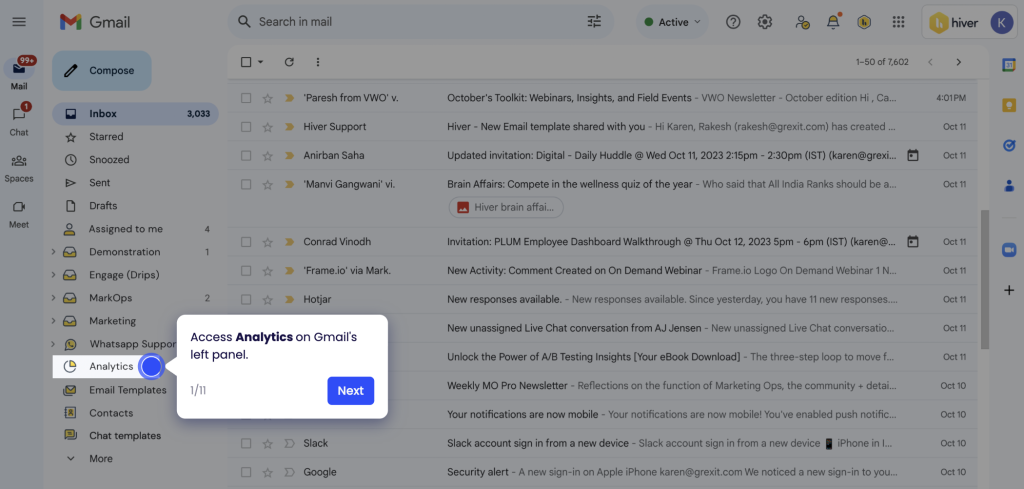
- In Hiver, go to the Analytics Dashboard and review available metrics.
- For CX teams, prioritize first response time, average resolution time, and CSAT.
- For sales, focus on open rates, follow-up speed, and conversion replies.
- Track 5–6 metrics that align directly with your goals and workflows.
Step 4: Enable Tracking Mechanisms
Tracking elements ensure that your analytics tool can capture engagement accurately. Without it, you’ll miss visibility into engagement or response patterns.

How to do it:
- Use Hiver’s shared inbox and analytics module to automatically track responses, assignments, and SLA breaches.
- If you send bulk or campaign emails, add UTM parameters to links for detailed tracking.
- Send a few test emails to confirm metrics like opens and response times are being logged correctly.
Step 5: Customize Your Anaytics Dashboard
A customized dashboard keeps your focus on what matters most and avoids distraction from irrelevant data.
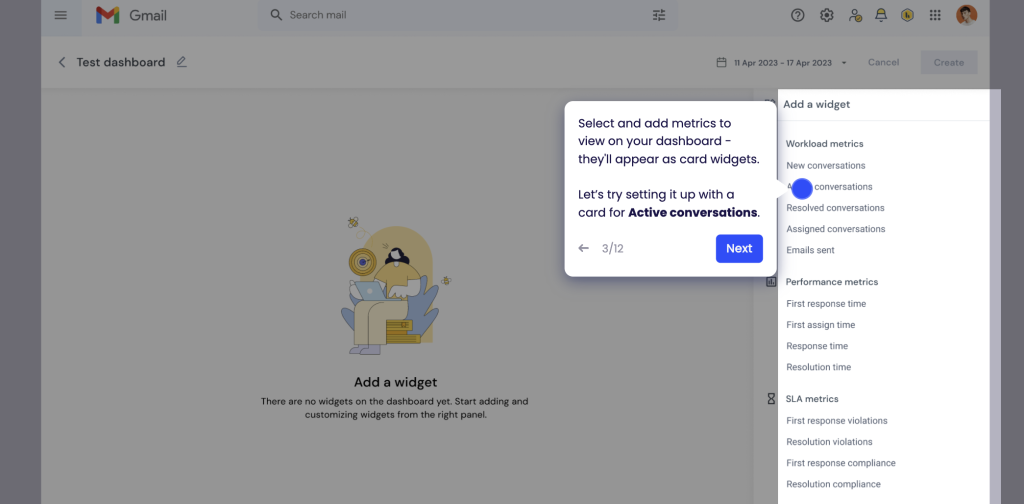
How to do it:
- Open Hiver’s Analytics Dashboard and pin key widgets like response trends, email volume per agent, and CSAT breakdowns.
- Hide metrics you don’t need to reduce clutter.
- Set up weekly or monthly automated reports so managers receive regular performance updates.
Recommended reading
How to Use Customer Service Data For Strategy Creation and Growth
Step 6: Test Before Going Live
Testing ensures data accuracy and prevents errors before full rollout.

How to do it:
- Run a pilot with a small group in your team.
- Send and resolve sample emails to verify metrics like response time and resolution rate.
- Fix missing data or permissions before expanding access to the full team.
Step 7: Monitor and Refine Regularly
Ongoing monitoring helps you identify issues early and continuously improve your team’s performance.

How to do it:
- Review Hiver’s dashboard weekly to identify response delays, SLA breaches, or workload imbalances.
- Adjust workflows, assignments, or templates based on insights.
- Compare performance monthly to track progress against team benchmarks.
Step 8: Stay Updated
Email analytics tools evolve quickly, and staying updated helps you get the most value out of your setup.
How to do it:
- Keep Hiver updated to access new analytics reports, performance insights, and dashboard enhancements as they’re released.
- Check for new dashboard views or automation options quarterly.
- Train teams to use analytics in performance reviews and planning sessions to drive continuous improvement.
Key Metrics to Track With Your Gmail Analytics Tool
Your chosen Gmail Analytics Tool can provide numerous metrics that offer valuable insights into email performance. Let’s explore some of these important metrics and what they tell you about your email performance.
1. Open rates
The open rate metric is essentially the percentage of recipients who have opened an email out of all the emails sent. It shows exactly how your email is received in a recipient’s inbox at first glance.
Businesses frequently analyze the success of an email marketing campaign by first examining its open rates.
A variety of factors could contribute to the low open rate. For instance:
- Subject Line: This is potentially the most crucial factor. If the email’s subject line is not captivating or relevant to the recipient, they may choose to ignore the entire email and not open it.
- Sender Reputation: If past emails from the sender have been identified as spam or not engaging, recipients may disregard future emails.
- Timing: The timing of sending an email can impact how many people open it. Email open rates can increase by sending emails recipients are most engaged.
- Email Preview: The brief text seen prior in the inbox dashboard, opening an email, could impact the recipient’s choice to either open or ignore it.
2. Click-Through Rates (CTR)
The Click-Through Rate (CTR) is the percentage of users who click on a certain link in the email out of the total number of users who saw the email. It directly shows how successful the email is at encouraging recipients to take action.
Click-through rate (CTR) is an important indicator that evaluates your customers’ active participation. There are various factors that impact CTR:
- Relevance of Content: If the content is relevant to the recipient’s needs or interests, they are more likely to click on embedded links.
- Quality of Call-to-Action (CTA): This plays a crucial role in improving (CTR). The call-to-action, whether it says “Learn More,” “Shop Now,” or “Get Started,” must be clear and enticing.
- Email Design: A visually appealing email featuring strategically placed links can boost click-through rates. CTR might be negatively impacted if the links are hidden within a block or the mail has a complex design that’s not intuitive.
- Credibility: Emails that are perceived as authentic and trustworthy are more likely to have increased click-through rates. Recipients may be wary of clicking on links in emails that appear to be suspicious or spam.
3. Bounce rates
Bounce rate is the percentage of emails that do not make it to the recipient’s inbox successfully. There are two main types of bounces:
- Soft Bounces: These happen due to temporary problems with email delivery, like a full mailbox or server outage.
- Hard Bounces: They occur when there is a permanent failure in delivering an email. They are typically caused by invalid email addresses or a domain that blocks the incoming mail.
Bounce rates are critical email marketing metrics for several reasons:
- Email List Health: A high bounce rate signify outdated or inaccurate email addresses within the list. Regularly cleaning and updating the email list can reduce hard bounces.
- Sender Reputation: Email service providers monitor bounce rates, and a consistently high bounce rate can harm the sender’s reputation. This can lead to emails being more frequently flagged as spam or even blocked.
- Lost Opportunities: Every bounced email represents a missed opportunity to connect with a potential customer or engage an existing one.
- Cost Implications: Many email marketing platforms charge based on the number of emails sent. Bounced emails represent a cost without any potential return on investment.
4. First Contact Resolution (FCR)
First Contact Resolution (FCR), is the rate at which your customer support team resolves customer queries within the first point of contact with your customers. This is a metric that gauges the efficiency of your customer support team.
A high FCR rate can help in many ways:
- Customer Satisfaction: When issues are resolved quickly without the need of back-and-forth communication, your customers are likely to be more satisfied with your service. Clients value quick and efficient resolutions, resulting in more confidence in the brand.
- Operational Efficiency: A high resolution rate indicates that the support team is well-trained has the all necessary resources to handle common issues.
- Brand Reputation: In the age of social media and online reviews, a brand’s reputation can be significantly influenced by its customer support efficiency. A good resolution rate has the potential to generate good reviews and recommendations from customers, enhancing the brand’s reputation.
5. First Response Time
First Response Time (FRT) captures the duration between a customer’s initial email query and the moment the support team sends their first response. FRT measures the proactiveness and responsiveness of your support team.
Measuring FRT of your support team is important for many reasons:
- Setting Expectations: The first response often sets the tone for the entire support interaction. A swift initial response can reassure customers that their concern is acknowledged and being addressed, even if a complete solution might take longer.
- Brand Perception: In today’s digital age, where customers expect quick solutions, the speed of the first response can significantly influence a brand’s perception. Brands that are seen as responsive and attentive are more likely to earn customer trust and loyalty.
- Competitive Advantage: In industries where multiple companies offer similar products or services, a faster FRT can be a differentiating factor, giving one brand an edge over competitors.
- Operational Insights: Monitoring FRT can provide insights into operational efficiency. For instance, longer FRTs during specific hours might indicate the need to hire more support agents during peak times.
6. Escalation rate
The Escalation rate measures the number of times a customer’s problem, which is first addressed by frontline or first-tier support, needs an interventiont from the higher ups or management. This may happen because the problem is complex, requires specific expertise, or when regular solutions do not solve the customer’s issue.
The effects of a high Escalation rate could mean a number of this:
- Operational effficiency: Every escalation means that more time and resources spent on a single issue. Frequent escalations can increase the work load of the higher-ups or management, diverting them from other critical tasks.
- Customer experience: Although some escalations are unavoidable, but frequent escalations can result to longer resolution times. This could test a customer’s patience and possibly result in dissatisfaction. An efficient support process typically includes addressing problems at the lowest level as soon as possible.
- Training and knowledge Gaps: High escalation rate may indicate deficiencies in training or resources among frontline support. It can indicate specific topics or issues that require more in-depth training sessions.
Recommended reading
Common Challenges and Solutions in Your Gmail Analytics Tool
Gmail Analytics has become an indispensable tool for businesses that aim to optimize their email strategies. However, like any technology, users might encounter challenges while using these tools.
Here’ are some of the common issues and their solutions:
1. Data overload
Challenge: With so many metrics to keep track of, businesses can sometimes feel overwhelmed. They can struggle to find out which data points are truly relevant and which aren’t.
Solution: Start by defining clear objectives for your email campaigns. Once you know what you aim to achieve, focus on those specific metrics that align with those goals. For instance, if your goal is to enhance customer engagement, metrics like open rates and click-through rates are important to track.
2. Inaccurate data interpretation
Challenge: Misinterpreting data can lead to misguided strategies. For example, a high email open rate might seem positive, but if these email campaigns also show high unsubscribe rate, there’s an underlying issue.
Solution: Always analyze metrics in conjunction. Look for patterns and correlations between different data points to get a holistic understanding of your email performance.
3. Privacy concerns
Challenge: With increasing emphasis on data privacy, some email recipients might use tools that block tracking pixels, leading to inaccurate tracking data.
Solution: While it’s challenging to bypass such tools, businesses can focus on delivering value-packed content, ensuring even if tracking is blocked, the email serves its purpose. Additionally, always ensure compliance with email authentication protocols and data protection regulations.
4. Inconsistent data across tools
Challenge: If a business uses multiple analytics tools, there might be inconsistencies in the data reported.
Solution: Stick to one primary tool for Gmail analytics to ensure consistency. If multiple tools are necessary, regularly cross-check and calibrate them to ensure they’re aligned.
5. Not tracking the right metrics
Challenge: Businesses might focus on vanity metrics that don’t necessarily align with their objectives. For instance, tracking only open rates without considering conversion rates can lead to misinformation on your email performance.
Solution: Regularly review and refine your analytics strategy. Ensure that the metrics you’re tracking directly correlate with your business goals. For example, if lead generation is the aim, focus on metrics like click-through rates to specific product pages or sign-up forms.
Bring analytics to your Gmail account
A lot of teams – especially customer-facing ones – use Gmail for managing communication. But one of the biggest drawbacks of this approach is that you can’t track analytics. You can’t measure how your support team is doing in resolving queries.
That’s where you need extensions or add-ons to enhance Gmail. Hiver is one of them.
Hiver not only helps your team understand how they perform in responding to and resolving emails but also provides insights into how they improve the quality of support. By offering a comprehensive analytics dashboard right inside your Gmail inbox, it makes it extremely easy for your team to stay on top of important metrics.
Do you want to bring analytics capabilities to your Gmail inbox? Start a free trial.
Frequently Asked Questions (FAQs)
Why should I use Gmail analytics?
Because email is the most used channel for communication in businesses! By understanding how your emails are doing, you can make them better for your next campaign. You can write more engaging subject lines, craft content people actually want to read, and ultimately get better results from your email marketing efforts. You can also make improvements in your customer service operations based on these metrics.
How do I set up a Gmail Analytics tool?
Easy! Most of them connect to your Gmail account through a plungin. Once you add the plug in, you’re all set. You can then customize your dashboard to see the metrics that matter most to you. The blog post has a step-by-step guide to help you out.
How often should I check my Gmail Analytics data?
It depends on your specific needs and goals. However, it’s generally recommended to check your analytics data at least weekly to monitor trends and identify any issues.
Can I use Gmail Analytics to track email performance for multiple Gmail accounts?
Yes, most Gmail Analytics tools allow you to track multiple accounts. This is especially useful for businesses with multiple teams or departments using Gmail.
How can I integrate Gmail Analytics with other marketing tools?
Many Gmail Analytics tools integrate with other marketing platforms like CRM systems, marketing automation tools, and social media platforms. This can provide a more comprehensive view of your marketing efforts.