Skip to content





Live chat is one of the fastest ways to improve customer satisfaction and increase conversions, but only if it’s done right.
Many teams add chat to their website, expecting instant results. Instead, they end up with slow replies, overloaded agents, and inconsistent customer experiences.
The difference isn’t the tool. It’s how you use it.
In this guide, you’ll learn 18 proven live chat best practices to improve response times, boost CSAT, and convert high-intent visitors.
We’ll also discuss how Hiver helps you apply these best practices consistently across your support operations.
Table of Contents
- 18 live chat best practices you can start using today
- 1. Aim for a 30-second First Response Time (FRT)
- 2. Use real-time typing preview (“Ghost Text”) to respond faster
- 3. Use AI conversation summaries for cleaner handoffs
- 4. Use AI conversation triage and tagging to reduce manual sorting
- 5. Set up proactive chat triggers on high-intent pages
- 6. Use visual cues to reduce perceived wait time
- 7. Set clear operating hours and automatic away status
- 8. Personalize greetings using CRM data
- 9. Use canned responses as a framework
- 10. Use intelligent routing to connect customers with the right support expert
- 11. Use co-browsing to resolve complex issues faster
- 12. Send post-chat surveys immediately after this conversation
- 13. Optimize for a mobile-first chat experience
- 14. Enable email-to-chat continuity
- 15. Use internal comments for real-time collaboration
- 16. Use visual replies in live chat to reduce back and forth
- 17. Use pre-chat surveys to route and research faster
- 18. Master the warm handoff between bot and human
- How Hiver helps you implement these live chat best practices
- Frequently asked questions (FAQs)
18 live chat best practices you can start using today
Support teams frequently search for live chat best practices that lead to measurable performance improvements. The answer lies in how you manage response times, routing, and conversation quality.
Below, we break down 18 live chat support best practices you can apply immediately to strengthen performance.
1. Aim for a 30-second First Response Time (FRT)
Speed directly impacts satisfaction in live chat. According to research, CSAT peaks at 84.7% when the first response happens within 5–10 seconds. The longer the wait, the faster satisfaction drops.
Set a clear benchmark: respond within 30 seconds, even during busy hours. If the full answer takes longer, send an immediate acknowledgment: “Hi! I’m pulling up your details now — this will take about a minute.”
- Use automated instant greetings. Trigger a message as soon as a customer starts typing. It reassures them that someone is available.
- Watch your peak hours. Use chat reports to identify traffic spikes and adjust staffing so the queue doesn’t build up.
- Limit chat concurrency. If agents handle too many chats at once, response time suffers. Start with 2–3 chats per agent and adjust based on performance.
- Track First Response Time daily. If your average crosses 30–40 seconds, investigate routing or staffing gaps.
Recommended reading
First Response Time explained for delivering faster customer support
2. Use real-time typing preview (“Ghost Text”) to respond faster
One of the most effective live chat best practices for reducing response time is using real-time typing preview, often called “ghost text.”
This feature lets agents see what a customer is typing before they press send.
Used correctly, it helps your team prepare answers in advance, lower Average Handle Time (AHT), and maintain fast first responses.
- Spot intent early. If a customer starts typing “How do I return my…”, immediately pull up your return policy and open their recent order in your CRM before the message is sent.
- Prepare, don’t pre-send. Load the correct help article, macro, or saved reply into the chat box so you can send it as soon as their message arrives.
- Wait until the customer finishes typing. Even if you already know the answer, don’t respond while they’re still typing. Let their full message come through, then pause 1–2 seconds before replying.
3. Use AI conversation summaries for cleaner handoffs
Transfers often slow things down because the next agent has to scroll through the entire chat to understand what happened.
AI-generated conversation summaries solve this by creating a short internal recap of the issue, what’s been tried, and the current status.
This reduces repetition and improves first-contact resolution after escalation.
- Enable auto-summaries on transfer. Configure your chat tool to generate a private internal note whenever a chat moves from a bot to a human or from Tier 1 to Tier 2 support.
- Include issue + actions taken. Ensure your summaries include sentiment analysis. A summary like “Customer is frustrated due to a 3-day shipping delay; has already tried clearing cache” allows the next agent to jump in with the right level of empathy immediately.
- Use summaries for CRM notes. Don’t let your agents spend 5 minutes after every chat writing notes. Use AI to draft the closing summary for your CRM records, freeing your team to move to the next customer in the queue.
- Review summaries for patterns. Use these AI-generated logs to quickly spot patterns in complex issues. If you see the same “unresolved” summary appearing frequently, it’s a sign you need a new help center article or a product fix.
4. Use AI conversation triage and tagging to reduce manual sorting
As chat volume increases, manually reading and categorizing every message slows your team down. Automated triage helps by tagging conversations as soon as they enter the queue.
Instead of agents deciding where a chat belongs, the system categorizes it based on intent and routes it automatically.
- Set up intent-based tagging. Configure your chat tool to detect keywords like “refund,” “invoice,” or “login error” and apply tags such as Billing or Technical Support instantly.
- Route based on urgency. Use sentiment detection or trigger rules to prioritize chats that include urgent language like “charged twice” or “account locked.”
- Use tags for reporting. Review tag trends monthly. If a large percentage of chats fall under “Password Reset,” it may signal a product or UX issue that needs fixing.
- Sync tags with your CRM. Ensure tags like “Interested in Upgrade” or “Enterprise Lead” update the customer profile automatically for sales follow-up.
5. Set up proactive chat triggers on high-intent pages
Proactive chat is the digital equivalent of a helpful store assistant asking, “Can I help you find something?”.
The goal is to be helpful, not annoying. If you trigger a pop-up the second someone lands on your homepage, they will close it.
If you trigger it when they’ve spent 60 seconds on your pricing page, you’re solving a problem.
- Target the “Pricing” and “Checkout” pages. These are your high-value areas. Set a trigger for when a visitor spends more than 45 seconds on these pages or shows exit intent (moving their mouse toward the close button).
- Use contextual messages. Don’t just say “Hello.” Match the message to the page. Instead, say: “Need help choosing the right plan for your team?” or “Have a question about shipping before you finish?”
- Identify returning visitors. Set a trigger for visitors who have been to your site more than 3 times. Use a “Welcome back!” message to make the experience feel personalized and high-touch.
- Avoid popup fatigue. Ensure a visitor only sees one proactive invitation per session. If they close it once, don’t show it again on a different page.
6. Use visual cues to reduce perceived wait time
Even short delays can feel long in a chat window. Simple visual cues, like typing indicators and read receipts, reassure customers that their message has been seen and is being handled.
These small signals keep visitors engaged, reduce frustration, and lower the chances of chat abandonment.
- Enable “agent is typing” bubbles. This is the most critical cue. It tells the customer to stay on the tab because an answer is coming. It creates a social obligation for them to wait since they see you are putting in the effort.
- Use delivered and read statuses. Just like WhatsApp or iMessage, these labels remove the mystery. If a customer sees their message is “Read,” they know they have your attention. If it only says “Delivered,” they understand you might be handling another task.
- Show agent names and real photos. Ditch the generic support bot avatar. Seeing a photo of “Sarah” or “James” makes the interaction feel like a 1-on-1 human meeting, which naturally increases customer patience.
7. Set clear operating hours and automatic away status
If your live chat shows online but no one replies, trust drops immediately.
One of the most overlooked live chat best practices is making your availability accurate at all times. Your chat widget should automatically reflect whether your team is available, busy, or offline.
- Sync chat with business hours. Automatically switch the widget to “Offline” or “Email us” outside working hours. This prevents customers from waiting for a reply that won’t come.
- Set maximum queue limits. If agents are handling too many conversations, switch the widget to “Busy” mode. This protects response times for customers already in line.
- Offer a clear alternative. Instead of “We’re offline,” say: “We’re offline right now, but we’ll reply by 9 AM tomorrow. You can also check our Help Center for quick answers.”
- Set response expectations upfront. Add a note like “Usually replies in under 5 minutes” to set realistic expectations before a customer starts typing.
Recommended reading
8. Personalize greetings using CRM data
Generic greetings like “How can I help you today?” feel cold and transactional.
By connecting your chat tool to your CRM (Customer Relationship Management) software, you can greet customers by name and reference their history the moment they click the widget.
- Use the welcome back greeting. If a returning customer logs in, skip the introduction. Use a script like: “Hi [Name], welcome back! Are you looking for help with your [Last Product Purchased]?”
- Display customer history to agents. Ensure your chat dashboard shows the agent the customer’s last 3 tickets and their current subscription tier. This prevents the customer from having to repeat their story.
- Segment by customer value. Use CRM data to route “VIP” or “Enterprise” customers to your senior agents immediately. You can set a trigger so that high-value accounts never have to wait in a standard queue.
- Use local context. If your CRM shows their location, a quick “Hope you’re having a good morning in [City]!” adds a layer of authenticity that makes the chat feel human rather than automated.
9. Use canned responses as a framework
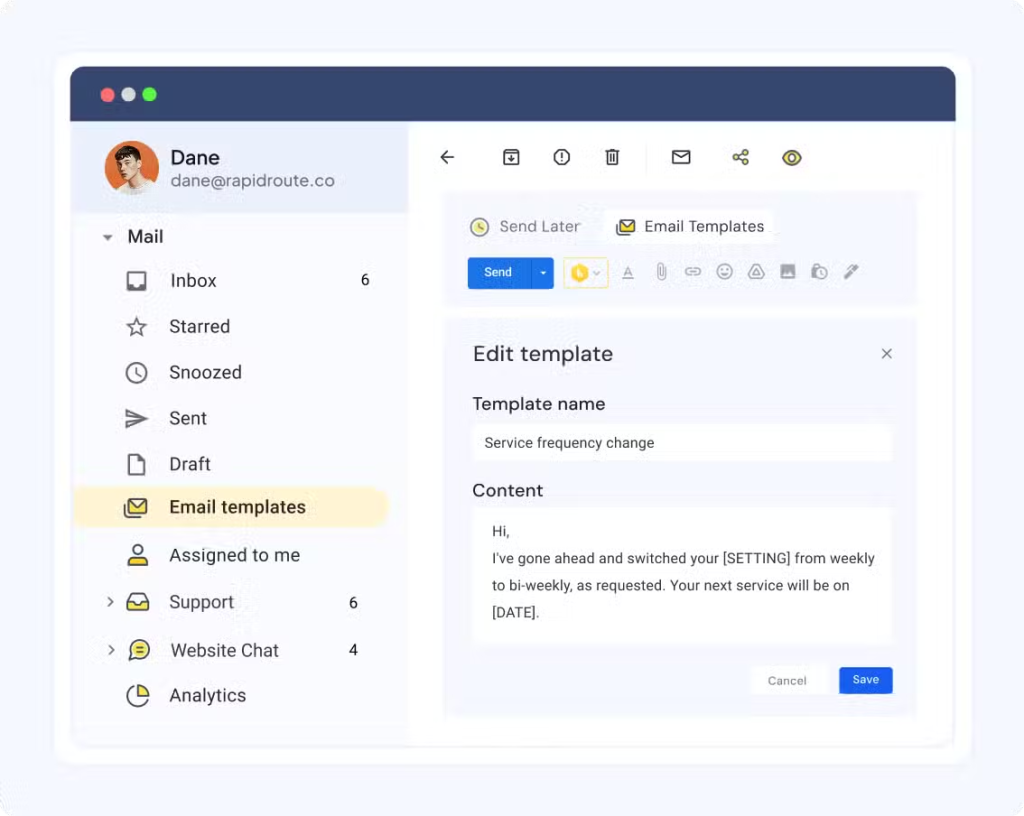
Canned responses help agents reply faster, but sending them word-for-word can make conversations feel automated. The goal is to use templates for structure while adding a human touch.
- Add a custom opening or closing line. Always start and end a canned response with a manual sentence. Example: “I can definitely help you with that refund, [Name]! [Insert Canned Policy Text]. I’ve just sent that over to our finance team for you; is there anything else I can do today?”
- Organize by intent. Group your templates by category (Billing, Tech Support, Greeting) so agents can find them in a few seconds. Use keyboard shortcuts like /refund or /shipping to pull them up instantly.
- Regularly audit for jargon. Review your templates every month. If they sound too formal, simplify them.
10. Use intelligent routing to connect customers with the right support expert
Multiple transfers frustrate customers and lower CSAT. Intelligent routing ensures the first agent who picks up the chat is the one best equipped to solve the issue.
- Use pre-chat surveys. Ask one simple, multiple-choice question before the chat starts: “What can we help you with today? (Billing, Tech Support, Sales).” Use the answer to route the chat to the specific department.
- Route by page URL. If a customer starts a chat on your technical documentation page, route them to a Tier 2 technician instead of a generalist. If they are on the pricing page, send them to Sales.
- Prioritize based on account status. Use tags to identify “Pro” or “Enterprise” users. These should bypass general queues and go directly to your high-priority support pod.
11. Use co-browsing to resolve complex issues faster
Sometimes, describing a technical problem over text is impossible. Co-browsing (collaborative browsing) allows your agents to securely view and even interact with the customer’s browser tab in real-time.
Unlike traditional screen sharing, co-browsing requires no downloads and keeps sensitive data (like passwords or credit card numbers) masked from the agent’s view.
- Show, don’t tell: If a customer is struggling with a complex form or a technical setting, don’t send a long list of instructions. Ask: “Would it be helpful if I join you on the page to show you exactly where to click?”
- Use annotations: Use highlighter tools within the co-browse session to point to specific buttons. This teaches the customer how to do it themselves next time, reducing future support tickets.
- Prioritize privacy: Always explain that you can only see the specific tab they have open and that you cannot access their desktop or other private files. This builds the trust needed for them to accept the session.
- Guide high-value purchases: If a customer is hesitating on a high-ticket checkout page, use co-browsing to walk them through the final steps. This experience can significantly reduce cart abandonment.
12. Send post-chat surveys immediately after this conversation
If you want to improve live chat performance, you need consistent feedback. The best time to collect it is right after the chat ends, while the experience is still fresh.
Delaying feedback reduces response rates and accuracy. A quick rating at the end of the conversation gives you reliable CSAT data without disrupting the customer.
- Keep it to one question. Don’t send a long form. Use a simple “Was this conversation helpful?” with a “Thumbs Up/Down” or a 1–5 star rating.
- Ask for details only when needed. If a customer leaves a low rating (1 or 2 stars), trigger a follow-up box that asks: “We’re sorry! What could we have done better?” This gives you specific, actionable feedback to fix the issue.
- Automate follow-ups for negative feedback. Set an alert so that if a VIP customer leaves a 1-star rating, a manager is notified immediately to reach out and make it right.
- Share the wins: Post your daily or weekly CSAT scores in a public team channel (like Slack or Teams). Celebrating high scores keeps your agents motivated to maintain that 30-second response time.
13. Optimize for a mobile-first chat experience
Most website visitors now come from mobile devices. If your chat widget covers important buttons, takes too long to load, or feels hard to type into on a small screen, visitors are likely to leave before starting a conversation.
- Keep the chat bubble small and unobtrusive. The chat icon should be easy to find but shouldn’t cover your “Buy Now” button or important text. Use a simple, recognizable icon (like a speech bubble) in the bottom right corner.
- Trigger the right keyboard automatically. Ensure your chat tool automatically triggers the correct keyboard (e.g., the numeric keypad for phone numbers or the “@” keyboard for emails) to save the customer time.
- Ensure full-screen expansion works smoothly. When a customer clicks the chat bubble on a phone, the chat window should expand to fill the screen comfortably but allow for an easy “close” or “minimize” swipe.
- Avoid sending heavy files by default. Don’t send high-resolution images or large PDFs over mobile chat unless requested. They eat up data and load slowly, which kills the instant feel of the conversation.
14. Enable email-to-chat continuity
Customers don’t always finish a conversation in one sitting. They close tabs, switch devices, or lose connection.
If the chat disappears when that happens, it creates frustration. Chat-to-email continuity ensures the conversation continues even after the browser window closes.
- Collect email at the start of the chat. Use a pre-chat field to collect the customer’s email address. Tell them: “In case we get disconnected, we’ll send our replies to your inbox.”
- Send automatic chat transcripts. Give customers the option to have a copy of the chat emailed to them once the session ends. This is a huge win for trust and transparency.
- Allow email replies to reopen the conversation. Ensure your system can process an email reply and post it back into the agent’s chat dashboard. This keeps the entire history in one place for your team.
- Remember returning visitors. If the customer returns to your site later that day, the chat widget should remember them and show their previous messages immediately. Nothing kills a conversion faster than having to explain a problem for the second time.
15. Use internal comments for real-time collaboration
When an agent hits a wall with a tough technical question, they shouldn’t have to put the customer on hold or transfer them blindly.
Most modern chat tools, including Hiver, Zendesk, Intercom, LiveChat, and REVE Chat, allow for internal comments. These are private notes that only your team can see within the active chat window.
- Tag for instant help. Use @mentions to bring in a specialist. Instead of saying, “Let me ask my manager,” the agent can simply tag the manager internally to get the answer in seconds while staying in the flow of the conversation.
- Keep the history clean. Use internal notes to summarize what has been done so far. If an agent needs to hand over the chat at the end of their shift, the next person can read the notes and pick up exactly where they left off.
- Coach in real-time. Managers can use internal comments to give advice to new hires during a live chat. This helps train staff without the customer ever knowing the agent was getting a helping hand.
16. Use visual replies in live chat to reduce back and forth
In live chat, long text instructions slow things down. Instead of sending multiple messages explaining what to do, use screenshots or short GIFs directly in the chat window.
Visual replies are especially effective for navigation issues, form errors, and account settings.
- Use annotated screenshots for quick guidance. Don’t just send a raw image. Use a tool like Cleanshot X or Skitch to draw a big red arrow or circle around the exact button the customer needs to click.
- Create short GIFs for repetitive tasks. Instead of typing five steps on how to reset a password, use a tool like GIPHY Capture or Recordit to create a 5-second looping GIF. It’s easier for the customer to follow and it stays right in the chat window.
- Use short video clips for complex fixes. If a solution requires a deep dive, record a 30-second “mini-demo” using Loom or Vidyard. You can drop the link directly into the chat, allowing the customer to watch your screen in real-time.
17. Use pre-chat surveys to route and research faster
Pre-chat surveys aren’t just for collecting emails.
When designed properly, they help agents start the conversation with context instead of spending the first few minutes gathering basic details.
The goal is simple: reduce back-and-forth and route the chat correctly from the start.
- Limit it to essential fields. To avoid scaring away customers, limit your survey to three essential fields: Name, Email (for follow-up), and Reason for Contact (a dropdown menu).
- Collect order numbers for e-commerce. If you are in retail, make the “Order Number” a field. This allows your agent to immediately see the shipping status or billing history in your CRM (like Salesforce or Zendesk) without asking the customer to go find it.
- Skip forms for logged-in customers. If your system recognizes a logged-in “Enterprise” or “Pro” user, bypass the survey entirely. They’ve already given you their data; reward their loyalty with an instant, frictionless connection to a human.
18. Master the warm handoff between bot and human
The transition from chatbot to human agent is where many live chat experiences break down. If the customer has to repeat their issue, trust drops immediately. A proper warm handoff ensures the agent joins the conversation with full context and continues it smoothly.
- Pass the full conversation history. Make sure your agent dashboard (in tools like Intercom, Zendesk, or Botpress) automatically displays the entire conversation history. The agent should never start with “How can I help you?”; they should start with “I see you’re having trouble with [Issue]—let’s fix that.”
- Use a clear transition message. Use a transition message to manage expectations. Bot: “I’m connecting you with a human expert who can handle this technical request. One moment while I bring James into the chat.”
- Escalate based on sentiment. Don’t wait for the bot to fail. Set triggers to escalate to a human immediately if the AI detects frustration, anger, or keywords like “unacceptable” or “speak to a person.”
- Share wait time transparently. If all agents are busy, the bot should provide a specific queue position: “You’re #2 in line. A human agent will be with you in about 2 minutes.” This transparency prevents the customer from rage-quitting the chat.
How Hiver helps you implement these live chat best practices
Applying live chat best practices consistently requires more than a chat widget. You need automation, routing, context, analytics, and AI working together, without adding operational complexity.
Hiver is a modern AI customer service platform built for fast-moving teams. It helps you deliver real-time support across chat, email, voice, and other channels from one intuitive workspace.

- Faster responses with AI Answers: AI delivers instant, accurate replies to common questions, helping you reduce first response time without increasing workload.
- Seamless bot-to-human handoffs: When escalation is needed, full conversation history and context are passed automatically so customers never repeat themselves.
- Intelligent routing and automation: Chats are auto-assigned based on intent, priority, or customer segment, ensuring the right agent handles the issue from the start.
- AI-assisted reply suggestions: Context-aware recommendations help agents respond quickly while maintaining quality and consistency.
- Built-in analytics and CSAT tracking: Automatic post-chat surveys and real-time performance reports give clear visibility into response times and service quality.
Unlike legacy helpdesks that lock advanced routing, AI, and analytics behind expensive add-ons, Hiver combines automation, AI, and multi-channel support in one unified system.
Teams can go live quickly and start improving CSAT and response times without long implementation cycles or hidden costs.
Frequently asked questions (FAQs)
1. What are the most important live chat best practices?
The most important live chat best practices focus on speed, context, and continuity.
-Respond within 30 seconds. Fast first replies improve CSAT and reduce drop-offs.
-Use proactive chat on high-intent pages. Trigger chat on pricing or checkout pages instead of waiting for customers to ask for help.
-Maintain conversation continuity. Customers should be able to switch devices or return later without losing chat history.
When speed and context work together, conversations move faster and feel more helpful.
2. Where should I place a live chat widget on my website?
The bottom-right corner is the most common and effective placement. It matches how users naturally scan pages and keeps the widget visible without blocking content. Best practices for placement:
-Keep it visible on high-value pages like Pricing, Checkout, and Contact.
-Make it fixed while scrolling, but small enough not to cover key buttons.
-Avoid aggressive pop-ups on page load.
The goal is visibility without interruption.
3. What are best practices for using canned responses in live chat?
Canned responses should save time, not remove personality.
-Use templates for structure, but personalize key lines.
-Keep responses short and easy to read, especially on mobile.
-Avoid formal or robotic language.
4. How can I make live chat conversations feel more human?
Human conversations build trust and improve satisfaction.
-Use real agent names and photos instead of generic labels.
-Match the customer’s tone — professional if they are formal, relaxed if they are casual.
-Acknowledge frustration before jumping to the solution.
For example: “I understand how frustrating that can be. Let’s fix it.” Empathy reduces tension and keeps the conversation productive.
5. How can businesses use live chat to increase conversions?
Live chat isn’t only for support, it also helps close sales.
-Trigger chat on pricing or checkout pages when users hesitate.
-Offer plan comparisons or clarify features in real time.
-Use bots to qualify leads and pass serious buyers to sales.
Helping customers at the right moment can prevent abandonment and increase revenue.
6. What security and privacy best practices apply to live chat?
Customers share personal information in chat, so privacy matters.
-Collect only the information you actually need.
-Use encrypted chat tools to protect data in transit and storage.
-Ensure your provider complies with regulations like GDPR and maintains strong security standards.
Clear privacy practices build trust and protect your brand.