



Some of the best updates we ship don’t start with a roadmap.
They start with a customer saying, “We love this, but there’s one thing…”
Closing those gaps is an ongoing part of how we build Hiver. This month, that meant improving how your support tools connect with the rest of your stack and making it easier for customers to find answers in your knowledge base.
From triggering external APIs in automations to AI-powered answers in your Help Center, here’s everything we shipped in February.
🚀 New: API Actions in Automations — Connect Hiver to Any Tool
Available in: Hiver in Gmail (Elite plan)
We’ve now made it possible to trigger actions in external tools directly from Hiver Automations using the API actions block.
This means your support workflows can now communicate with CRMs, project management tools, spreadsheets, internal systems, and more without relying on native integrations.

Instead of copying information from emails into other tools or building multiple workaround automations, you can now push data to a CRM, create tasks in ClickUp, Slack or Telegram- the moment an automation runs.
Why You’ll Love It
- Connect Hiver with any API-enabled tool: Send requests to external services directly from an automation workflow. This allows Hiver to interact with CRMs, project management tools, internal systems, and more.
- Automate cross-tool workflows: Create tasks in tools like ClickUp, Asana, or Jira, send notifications to Slack or Telegram, or log customer conversations into Google Sheets or databases.
- Pass real conversation data into your workflows: Automation variables such as subject line, tags, assignee, and custom fields can be included in API requests to trigger precise actions in other systems.
- Flexible authentication options: Authenticate using API Key, Bearer Token, Basic Auth, or connected apps through OAuth.

- Test before activating: Preview API responses and validate your integration inside the automation builder before going live.
⚒️A Few Things You Can Build Right Away
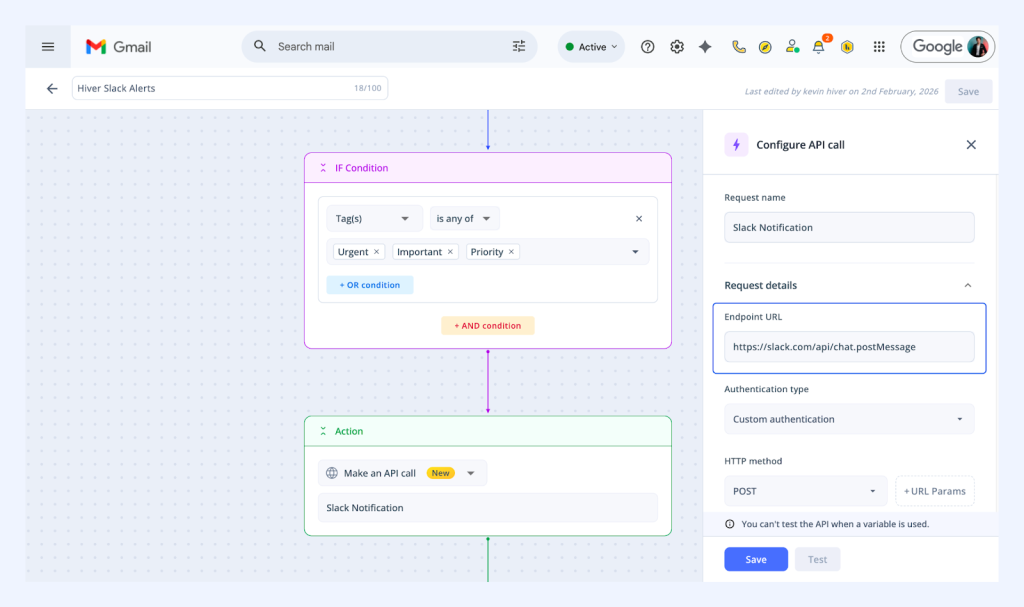
- Push a notification to a Telegram or Slack channel when a high-priority ticket comes in.
- Auto-create a ClickUp task when a specific tag is applied.
- Log incoming emails with feature requests into a Google Sheet.
- Create or update HubSpot contacts when new conversations arrive.
Previously, these workflows required workarounds like manual copying, Zapier, or waiting for a native integration. Now, a single automation rule can trigger actions across tools automatically.
✍️Why It Matters
For support leaders and admins, this expands what Hiver Automations can do.
Instead of keeping workflows limited to Hiver, automations can now trigger actions across the rest of your support stack.
Conversations in Hiver can automatically create tasks, update records, or notify other teams without agents needing to move information between tools. This removes a lot of the operational friction that support teams deal with every day.
Available via: Admin Panel → Automations → Actions → Make an API call
🚀 Knowledge Base Refresh: Better Readability and Navigation
Available in: Hiver in Gmail
Support teams rely on knowledge bases to help customers find answers quickly.
But as help centers grow, long articles and cluttered layouts can make it harder for readers to scan content and jump to the information they actually need.
So, we’ve redesigned the Hiver Knowledge Base to fix that.
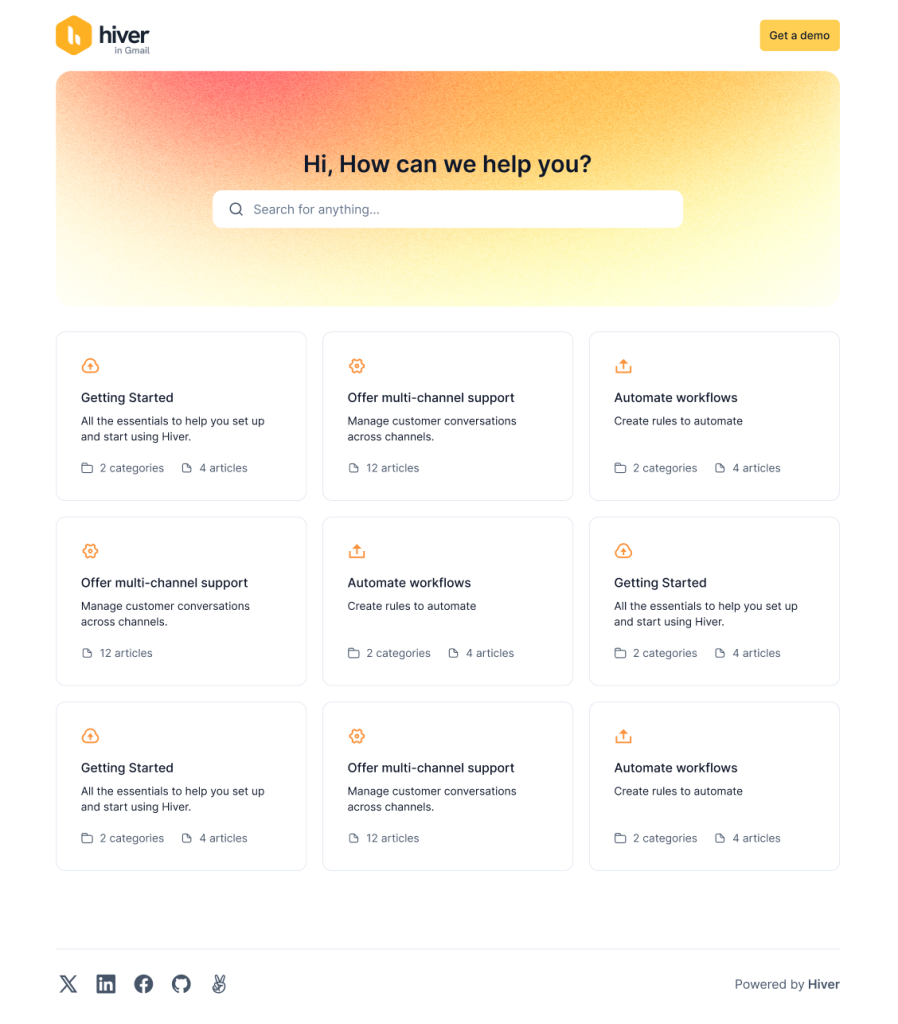
This refresh focuses on improving readability, navigation, and overall usability so customers can find answers faster and move through articles more easily.
What’s Changed
- Floating Table of Contents: A sticky sidebar table of contents now auto-generates from article headers and follows readers as they scroll. This makes it easy to jump between sections without losing context.
- Cleaner typography and spacing: We’ve updated the font and improved line spacing across all articles to reduce visual noise and make long-form content easier to read.
- Optimized article width: Article content is now width-constrained and center-aligned to prevent the “long line” effect on wide screens, helping readers stay focused while scanning.

- Article helpfulness feedback: Every article now ends with a simple “Was this article helpful?” prompt, allowing teams to capture direct feedback on which content is working and where improvements are needed.
✍️ Why It Matters
A knowledge base is only effective if customers can quickly find and understand the answers they need.
With improved navigation, clearer layouts, and better readability, customers can move through articles more easily and locate the right information.
For support teams, this means stronger self-service adoption, better insight into which articles are actually helping users, and fewer tickets created for questions that customers could solve on their own.
Recommended reading
🚀 New: Shared Drafts on Compose — Collaborate on Outbound Emails, Natively
Available in: Hiver in Gmail
Shared Drafts now supports collaboration on new outbound emails, not just replies within existing conversations.
Teams can now create a shared draft from scratch, invite teammates to collaborate, and work together on the message before it’s sent.
Drafts include familiar email fields like subject, recipients, and rich-text editing, making it easy for teams to co-write and review important emails in one place.
Once shared, collaborators can edit the draft, see who else is working on it, and finalize the message together before sending.
Previously
Shared Drafts were limited to replying within existing email threads.
If teams needed to collaborate on a brand-new outbound email — like an escalation response, announcement, or proposal — they often drafted the message in external tools and pasted it back into Hiver later.
With this update, we wanted to eliminate that extra context switching and make it easier for teams to collaborate on new emails directly inside Hiver.
✍️What’s New
- Create shared drafts from scratch: Start a new collaborative email directly from the Shared Drafts workspace and invite teammates to contribute before sending.

- Familiar email editing experience: Draft messages with rich text formatting, attachments, and a clean editor that feels just like composing a regular email.
- Real-time collaboration: Share drafts with teammates, see who’s currently editing, and work together without accidentally overwriting each other’s changes.
- Clickable hyperlinks: Insert clean, readable links using Cmd + K (Mac) or Ctrl + K (Windows) instead of pasting long URLs into the email.
- Smart contact suggestions: Start typing in the To, CC, or BCC fields and relevant contacts appear automatically, making it faster to add recipients.
- Notifications and draft activity: Teammates get notified when a draft is shared or updated, with unread indicators to help them jump back into the conversation.
🪜 Why It Matters
Some emails need a second pair of eyes before they go out. Think escalation responses, proposals, or any message where clarity and tone really matter.
With Shared Drafts on Compose, teams can work on those emails together without leaving Hiver. One person can start the draft, others can jump in to review or refine it, and everyone stays on the same page before the message is sent.
Everything happens in one place, so teams can review and send the email with more clarity and confidence.
Available via: Shared Drafts → Create Shared Draft (Gmail sidebar)
🚀 New: Quick App Access — View CRM and Task Data Without Leaving the Conversation
Available in: Hiver in Gmail
We’ve introduced Quick App Access to make it easier for agents to pull up customer records and tasks while responding to emails.
Support teams told us they often need information from other tools while handling conversations. That could mean opening a CRM to check a customer’s account, or jumping into a project tool to track an escalation.
But finding that information usually requires switching tabs, searching for the right record, and then returning to the conversation.
Now, Quick App Access brings that context directly into the inbox.
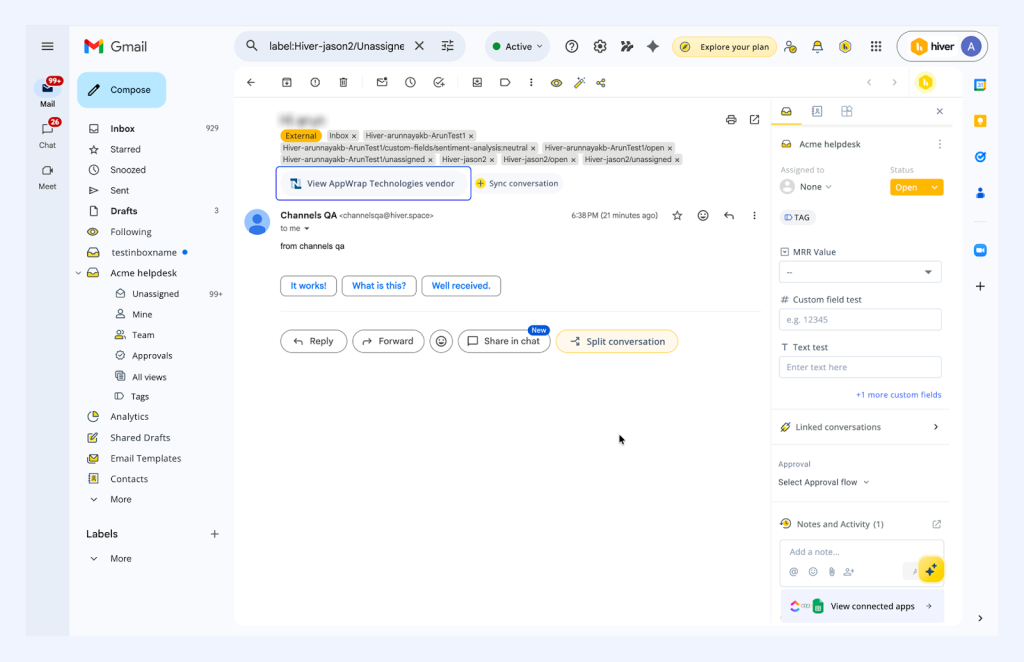
A small shortcut appears at the top of the conversation, allowing agents to instantly open the relevant CRM profile or linked task.
The Apps panel then loads the data automatically, so agents can review details or take action without leaving the conversation.
✍️ What’s New

- Simple to enable: Admins can turn on Quick App Access from Admin Panel → Apps → Visibility by enabling Smart Previews and Quick Access for the integration.
- Instant CRM profile access: When a conversation matches a customer record, a “View Customer Profile” button appears at the top of the conversation. Clicking it opens the Apps panel with the record already loaded.
- Create CRM records quickly: If no matching record exists, agents see an “Add to CRM” option to create a contact or account directly from the conversation.
- Quick access to project tickets: When a conversation is linked to a task or issue in tools like ClickUp, Jira, Asana, or Trello, a “View Task” button appears so agents can jump to the associated ticket instantly.
- Create tasks without leaving the inbox: If no ticket is linked yet, agents can click “Add to [Tool]” to create a task directly from the conversation.
🪜 Why It Matters
Support teams rely on multiple tools to manage customer data, escalations, and internal workflows.
Quick App Access brings that context closer to the conversation. Instead of switching between tabs to find records or create tasks, agents can access the information they need instantly while replying to customers.
Currently supported apps: NetSuite, Salesforce, Shopify, ClickUp, and Asana.
🚀 Enhanced: AI QA Insights — Domain View and Tag Level Filtering
Available in: Hiver in Gmail
We’ve enhanced AI QA Insights to give support leaders a clearer view of how their team is performing.
Previously, QA reports focused mostly on agent-level scores, which made it harder to spot patterns across different customers, ticket types, or workflows. Internal emails and test conversations could also skew the results.
With these updates, AI QA makes it easier to explore your data, uncover trends, and focus on the conversations that truly reflect customer support quality.
✍️ What’s New
- Customer (Domain) View: See how support quality varies across different customer domains. Track average QA scores, sentiment trends, and drill down into conversations for deeper analysis.
- Advanced Filtering: Filter QA reports by tags, users, time range, or score to quickly analyze quality trends across different ticket types or workflows.
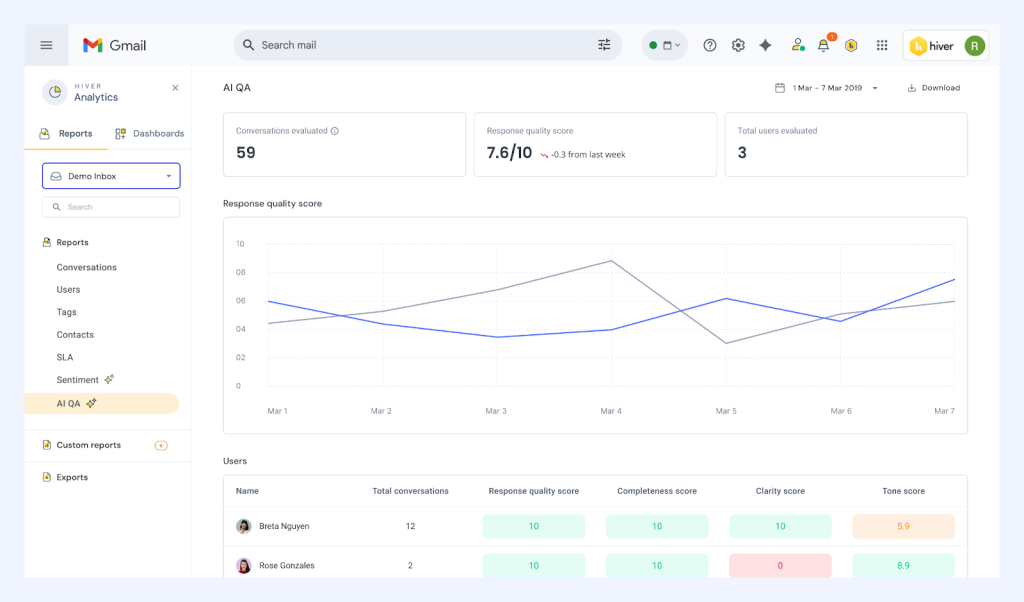
- Cleaner QA Data with Domain Exclusions: Exclude internal domains, test accounts, or partner emails so QA reports reflect only real customer conversations.
- AI QA Report Cards: Get AI-generated summaries for agents or customer domains, highlighting score trends, performance breakdowns, and the top areas that need improvement.
✍️ Why It Matters
QA scores alone don’t tell the full story.
With better filtering, domain-level insights, and cleaner data, teams can quickly spot quality trends, identify recurring issues, and turn QA insights into meaningful coaching for agents.
🚀 Enhanced: AI Tasks — Test Prompts, Add Guardrails, Improve Accuracy
Available in: Hiver in Gmail
We’ve upgraded AI Tasks to make building automations simpler and more reliable.
Previously, setting up AI-powered workflows often meant a bit of trial and error. Prompts needed multiple tweaks, and there wasn’t an easy way to test outputs or add guardrails before turning an automation on.
With these updates, teams can test prompts, refine instructions, and add simple rules upfront — making AI automations easier to set up and far more predictable.
✍️ What’s New
- Prompt Testing Playground: Test AI Tasks against historical emails before enabling the automation. See extracted variables, confidence scores, and reasoning so you can refine prompts before going live.
- One-Click Prompt Improvements: The new Improve Prompt option rewrites unclear instructions into structured, reliable prompts with better extraction logic and formatting.
- Guardrails for More Reliable Outputs: Add simple rules like “Priority must be low, medium, or high” or “Return null if confidence is below 0.75” to reduce hallucinations and enforce structured outputs.
- Knowledge-Aware AI Tasks: AI Tasks can now reference documents already stored in Hiver — such as SOPs, FAQs, or policy docs — to produce more accurate extractions based on your organization’s context.
🪜 Why It Matters
Setting up AI-powered automations shouldn’t rely on trial and error.
With prompt testing, built-in guardrails, and the ability to reference your existing SOPs and knowledge documents, teams can create AI Tasks that extract information more accurately and behave more predictably.
The result is automations that work the way you expect — right from the start.
🚀 Coming Soon: AI-powered Search for Your Knowledge Base
Available in: Hiver in Gmail
We’re rolling out AI-powered Search to make it easier for customers to find answers in your knowledge base. Instead of returning a list of articles based on keywords, the system reads relevant content and surfaces a clear, synthesized answer directly in the search results.
We’ll share more details about how this works and what teams can do with it in next month’s product updates.
📣 On Demand Webinar: The AI Trust Gap in Customer Support

AI is becoming a bigger part of everyday support workflows. It helps teams respond faster, automate routine tasks, and scale operations.
But many leaders are still asking the same question:
Can AI safely represent your brand in customer conversations?
In our recent survey of 700+ support leaders, 9 out of 10 said they’re still uncomfortable letting AI directly represent their brand.
In this discussion, CX leaders from Top Hat, Rebuy, and SupportNinja share how they’re navigating that challenge and where they draw the line between AI and human judgment.
In the recording, you’ll hear about:
- Why support teams hesitate to trust AI with customer conversations
- Where AI works best in real support workflows
- How teams are adopting AI without compromising brand trust
👉 Watch the on-demand recording: The AI Trust Gap in Customer Support