Skip to content



Writing emails often takes longer than expected, especially when you are trying to sound clear, professional, and human at the same time. Gmail’s AI features, powered by Gemini, help you draft emails from prompts, rewrite unclear lines, and summarize long paragraphs without starting from scratch.
If you spend most of your day in Gmail handling customer or team conversations, AI can remove a lot of repetitive work. And when multiple people use Gmail, collaborative tools like Hiver help teams stay aligned while using AI inside the same inbox.
In this guide, we explain how to use AI in Gmail, from turning on the feature to generating and editing email drafts with ease.
Table of Contents
- How to Use AI in Gmail (Desktop)
- “Help Me Write” Not Showing? Try This
- How to Use AI in Gmail on iPhone or Android
- How to Handle Team Emails When Gmail AI Falls Short (With Hiver)
- Benefits of Gmail’s AI Features for Everyday Users
- Making the Most of AI in Gmail
- Frequently Asked Questions
Before You Start: Check Availability
AI features in Gmail are not identical for everyone. Some Gemini features are available only on desktopAccess depends on account type and rollout statusWorkspace admins may control feature availability.
If you do not see Help me write yet, the feature may still be rolling out to your account.
How to Use AI in Gmail (Desktop)
Here’s a simple step-by-step guide on how to use AI in Gmail:
Step 1: Open Gmail
Sign in to Gmail using a web browser. Most AI features appear on desktop first.
Step 2: Start a New Draft
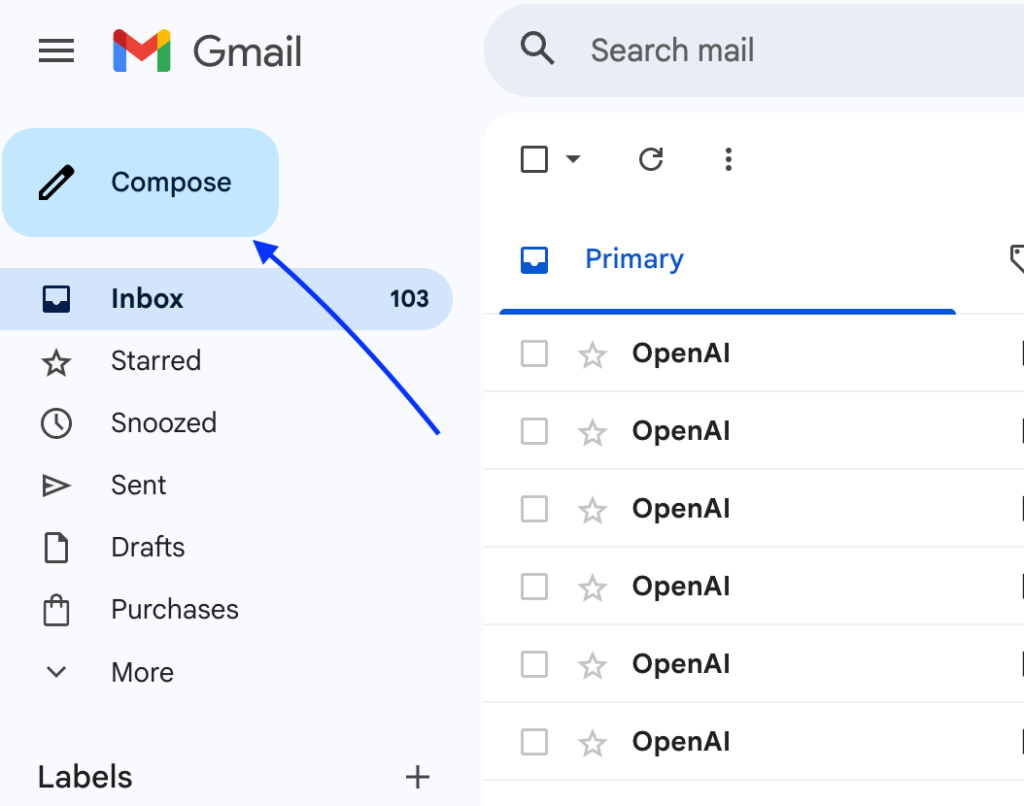
Click Compose or open an email you want to reply to. A draft window opens in the lower-right corner.
Step 3: Open “Help me write”
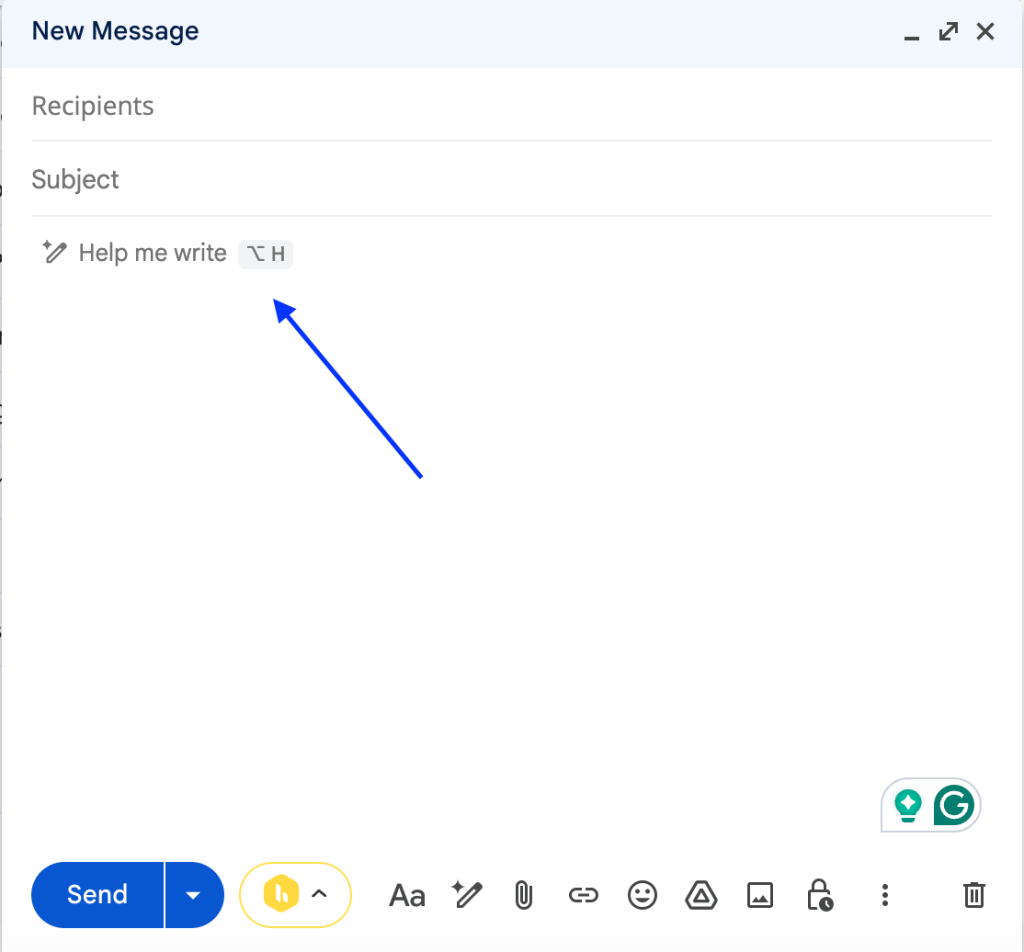
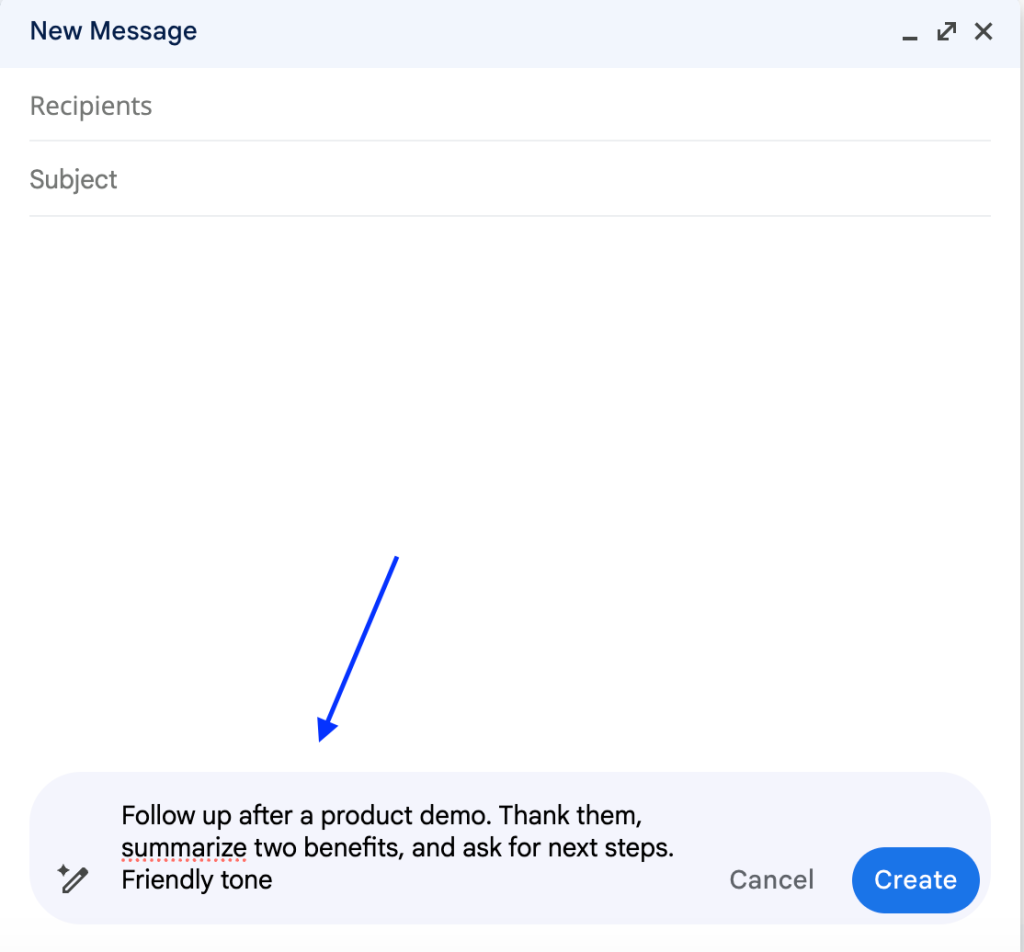
Click the Help me write option, shown as a sparkle or pencil icon. A prompt box appears.
Step 4: Enter a Clear Prompt
Describe what you want to write. Include the purpose, recipient, tone, and key points.
Example prompt: “Follow up after a product demo. Thank them, summarize two benefits, and ask for next steps. Friendly tone.”
Step 5: Generate the Draft
Click Create or Create draft. Gmail generates a complete email based on your prompt.

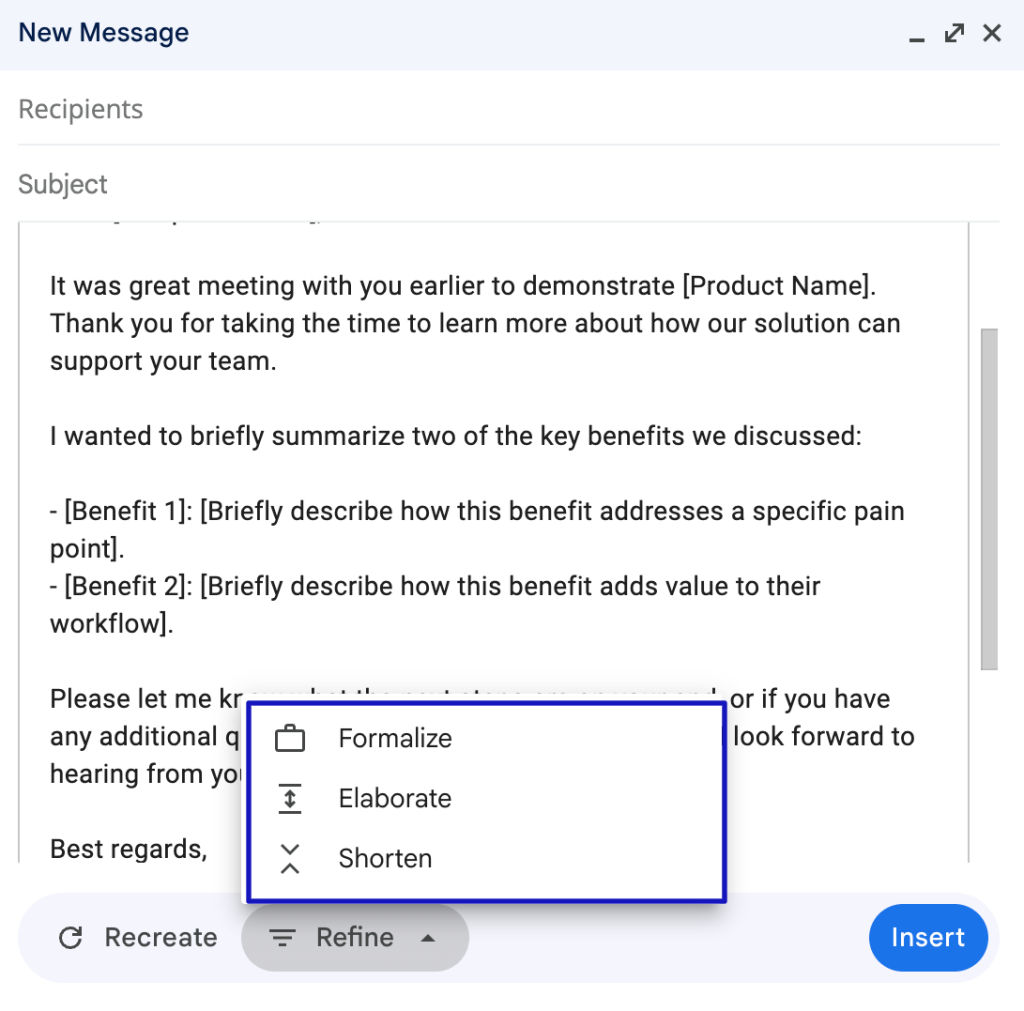
Step 6: Refine the Message
Use built-in options like Shorten, Elaborate, Formalize, or Rewrite to adjust tone and length.
Step 7: Personalize And Review
Add names, dates, links, and attachments. Read through the message to ensure it sounds natural.
Step 8: Insert And Send
Click Insert if needed, then click Send or schedule the email.
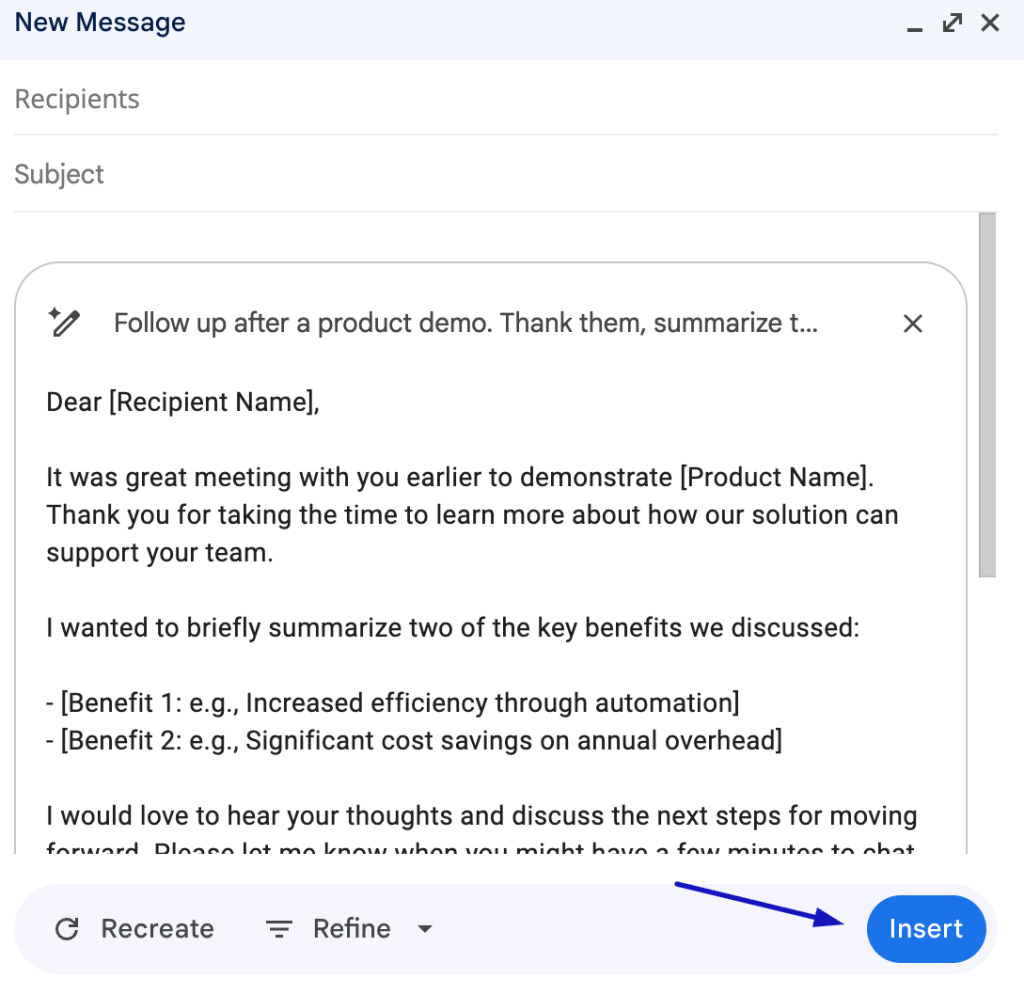
You’ve now used AI in Gmail to write an email faster without sacrificing clarity.
“Help Me Write” Not Showing? Try This
If you do not see Help me write in Gmail, try the following:
- Refresh Gmail or sign out and back in
- Open Gmail in an incognito window
- Disable browser extensions that modify Gmail
- Check whether your Workspace admin controls AI features
- Try again later if the feature is still rolling out
How to Use AI in Gmail on iPhone or Android
- Open the Gmail app and start composing or replying to an email
- Look for AI-related options within the compose view
- If you don’t see any AI features, switch to desktop Gmail or check whether your account supports Gemini-powered tools
Availability can vary based on plan, region, and account settings
How to Handle Team Emails When Gmail AI Falls Short (With Hiver)
Using AI in Gmail helps you write, edit, and refine messages quickly. With Hiver, you can collaborate, automate, and share your inbox with your team.
Below are the steps to use AI in Gmail, along with how teams can use Hiver to coordinate replies and stay aligned.
Step 1: Sign in to Gmail
Open Gmail in your browser and sign in to your account. Install the Hiver extension, and your Gmail interface includes Hiver’s shared inbox and AI features directly on the same screen, eliminating the need for separate tabs or apps.

Step 2: Draft a Reply
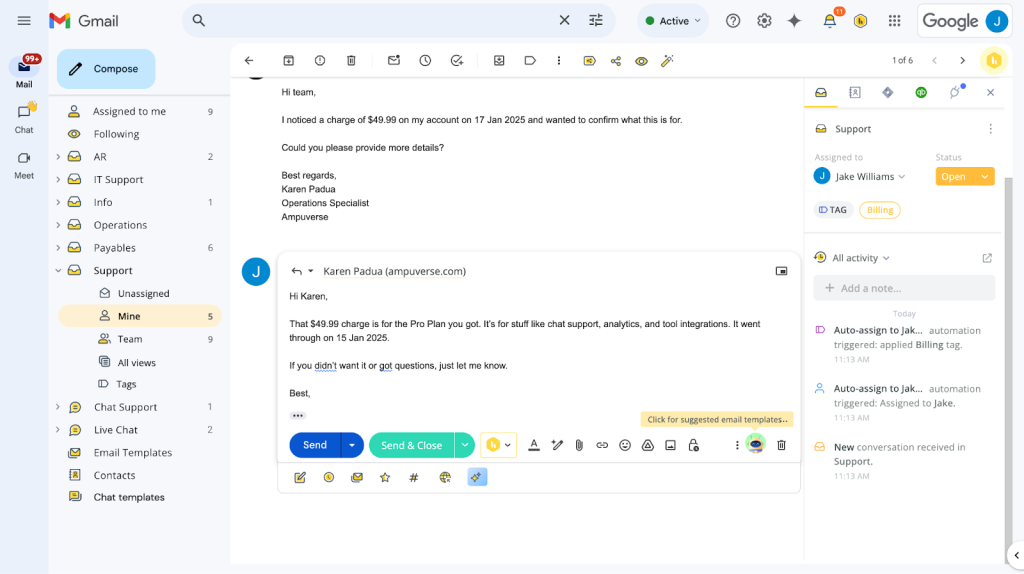
Click “Draft a reply” to open a blank message window. Hiver works within this same window. It gives your team access to shared notes, assignments, and AI-powered suggestions alongside the draft.
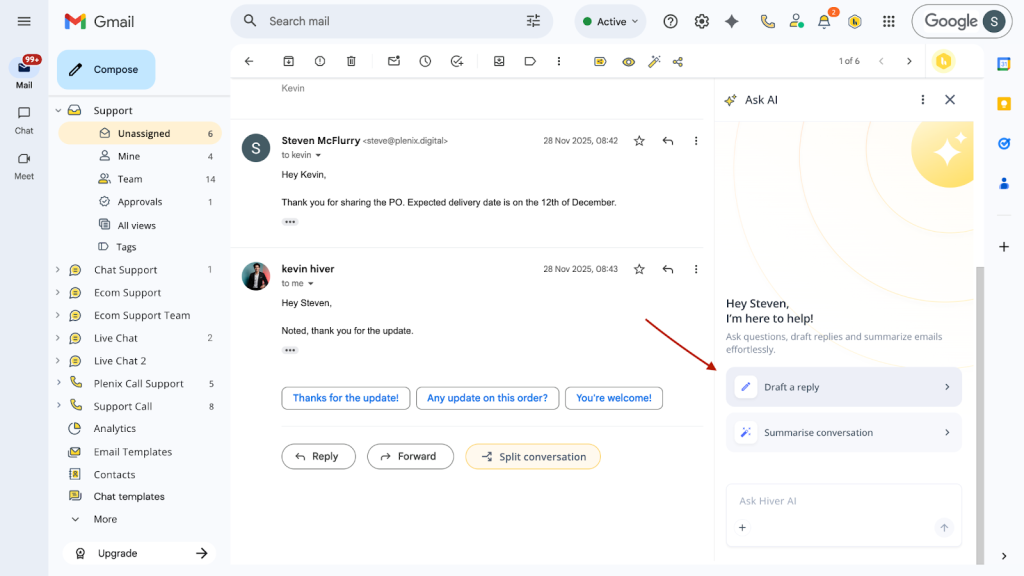
Choose what you want to reply to from the options

Step 3: Open “Help me write”
Click the sparkle icon or select Help me write from the toolbar. A prompt box appears.
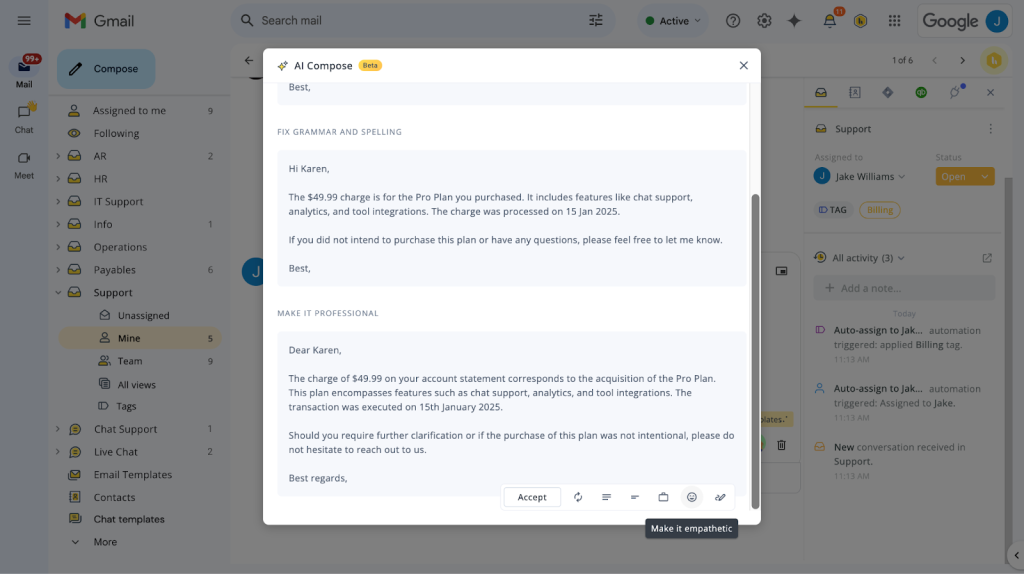
Hiver complements this with its own AI tools, such as AI Compose, to generate quick, context-aware replies for shared inbox conversations.

Step 4: Describe What You Need
Type your prompt, specifying purpose, tone, and key details.
When using Gmail through Hiver, you can feed the AI relevant context from the shared inbox, ensuring replies match the ongoing customer conversation and team notes.
Step 5: Generate the Draft
Click Create or Create draft. Gmail generates a draft based on your prompt.
Hiver’s AI Compose automatically aligns responses with shared email threads, preventing repetitive or duplicate replies from multiple agents.
Step 6: Refine And Edit
Use Gmail’s AI editing options, Shorten, Elaborate, or Formalize, to fine-tune your message.
Hiver adds another layer: its AI Summarizer quickly condenses long email threads so you can respond accurately without rereading everything.

Step 7: Insert or Replace Content
Once satisfied, click Insert to move your AI-generated text into the email body.

Step 8: Review Before Sending
Check for accuracy, tone, and attachments. Click Send when ready.
If you’re using Hiver, teammates can view drafts or leave private notes before sending, ensuring every AI-aided reply maintains quality and consistency.
Step 9: Track Responses
Gmail notifies you when you receive a reply. Hiver builds on this by letting your team track conversations, tag emails, and measure AI response efficiency, all within the Gmail interface.
Recommended reading – Gmail Template Extensions
Benefits of Gmail’s AI Features for Everyday Users
AI in Gmail simplifies writing and organizing your inbox, allowing you to focus on the messages that matter most. Here are some of its main benefits:
1. Writing and replying faster
Smart Compose suggests complete sentences as you type, adapting to your usual writing tone. Smart Reply provides short, ready-to-send responses such as “Got it” or “Sounds good.”
2. Organizing and prioritizing emails
AI sorts incoming mail into categories like Primary, Social, and Promotions, and highlights urgent messages through Priority Inbox. Sorting the mail keeps your inbox clear, allowing you to focus on what needs attention first.
3. Security and spam detection
Gmail’s filters analyze every message for phishing, unsafe links, and spam indicators. These checks safeguard your account against scams, malware, and malicious attachments.
4. Smart reminders and follow-ups
Gmail automatically nudges you when a message hasn’t been answered or an action is due. It’s a quiet prompt that keeps conversations and commitments from slipping through the cracks.
Making the Most of AI in Gmail
AI in Gmail takes the effort out of email writing. Once you learn how to use it, everyday communication becomes smoother and more efficient.
Whether you’re replying to clients or sending updates, the feature helps you stay organized and confident with every message.
Teams that spend their day in Gmail don’t need another platform to manage customer conversations. Hiver extends Gmail’s capabilities by adding shared inboxes, notes, and AI-powered replies, all in the same familiar view.
See how it changes teamwork inside your inbox. Start a free trial to explore how Hiver simplifies every part of your email workflow.
Frequently Asked Questions
1. Can Gmail’s AI write replies automatically?
Yes. Help me write can generate full drafts from prompts. Always review and edit before sending.
2. Does AI in Gmail work on mobile?
Mobile access depends on account type and rollout status. Desktop support usually arrives first.
3. Can you use Gemini in Gmail for free?
Availability depends on your account and plan. Some features may require specific Workspace or AI-enabled plans.
4. Can teams collaborate on AI-generated emails?
Gmail alone does not support shared ownership. Hiver enables collaboration, notes, and tracking inside Gmail.