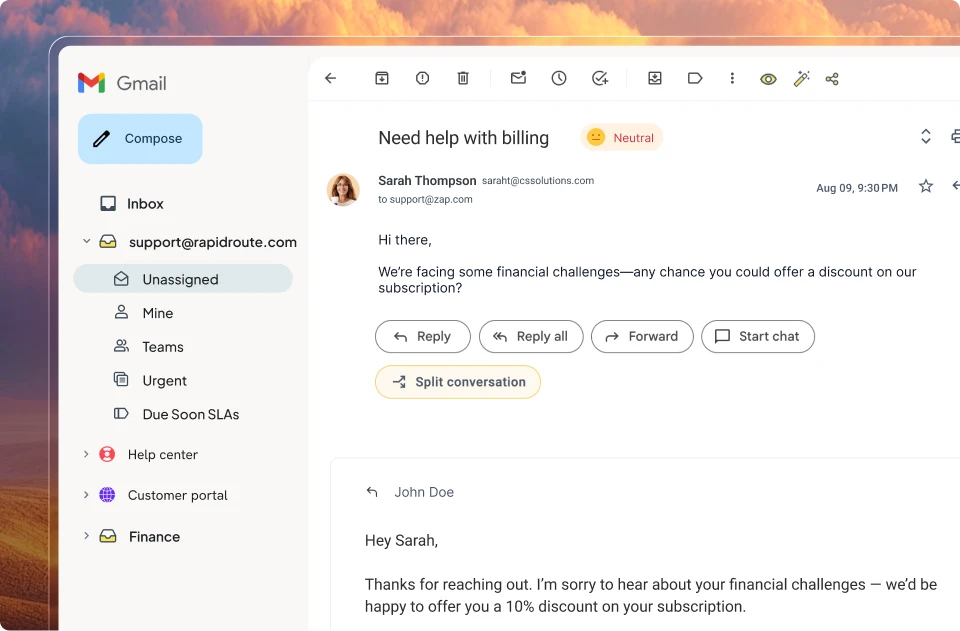





Gmail does not offer a built-in way to attach notes directly to emails. That gap often leads people to search for workarounds that keep reminders, ideas, or context close to essential conversations.
The good news is that you can still create notes in Gmail using native Google tools like Google Keep, or by using collaboration tools that sit inside your inbox. In this guide, we walk you through the most practical options, step by step.
When Should You Use Notes in Gmail?
Notes help when emails carry more context than the message itself. Gmail-based teams often rely on notes to stay organised without switching tools.
Use notes in Gmail when you need to:
- Track next steps like follow-ups or pending replies
- Record conversation context, such as call summaries or client preferences
- Share internal updates without looping customers into CC chains
- Reduce app switching while working inside Gmail all day
For customer service, sales, and operations teams, notes prevent context loss and help everyone stay aligned.
How to Create Notes in Gmail: Step-by-Step Guide
Creating notes in Gmail helps you capture important ideas, reminders, or to-dos without leaving your inbox. Follow the steps below to start managing your Gmail notes efficiently.
Step 1: Open Gmail on Desktop
Sign in to your Gmail account using a desktop browser. The Google Keep sidebar is only available on desktop.
Step 2: Access Google Keep
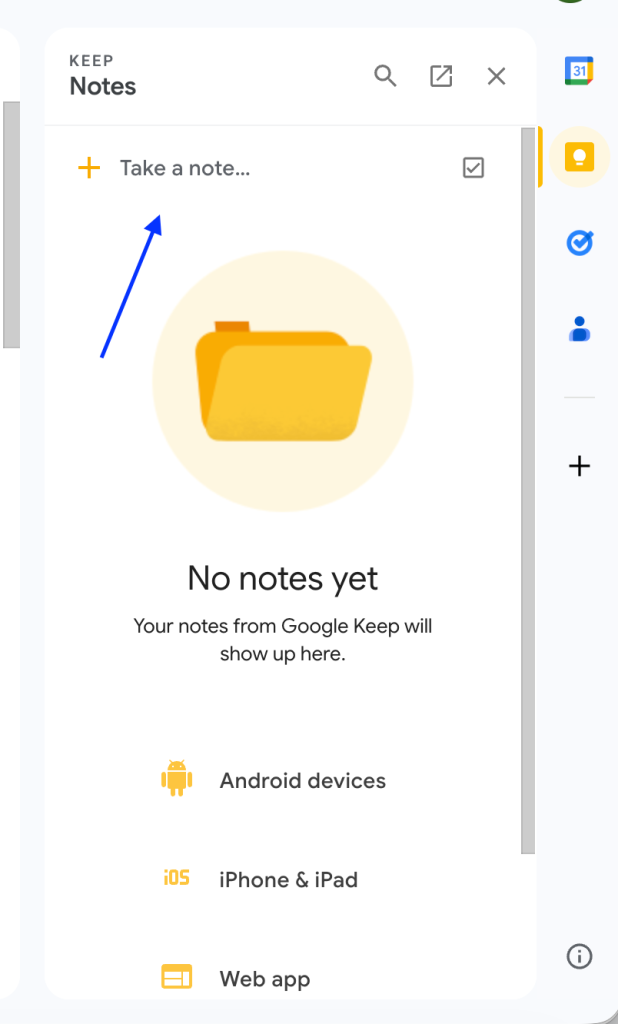
Look at the right-hand sidebar and click the Google Keep icon, shown as a yellow lightbulb.

Step 3: Create a New Note
Click the “Take a note” field at the top of the Keep panel. A text box opens instantly.
Step 4: Add Content to Your Note
Type reminders, ideas, or snippets you want to save. Google Keep saves notes automatically as you type.
Step 5: Pin Important Notes
Pin important notes to keep them at the top. Add labels to group notes by topic or priority.

Note: Google Notes sync automatically across devices where you use the same Google account.
Step 6: Delete or Archive Notes
Archive notes you might need later, or delete notes that are no longer relevant.

You’ve successfully created and managed notes in Gmail using Google Keep. Your notes are now neatly organized within Gmail, ready for easy access.
Boost Your Gmail Productivity with Notes
You now know how to create, organise, and manage notes in Gmail using Google Keep. Notes help you capture ideas, track tasks, and keep important details close to your inbox, so nothing gets missed during a busy day.
Want to take Gmail notes beyond personal reminders?
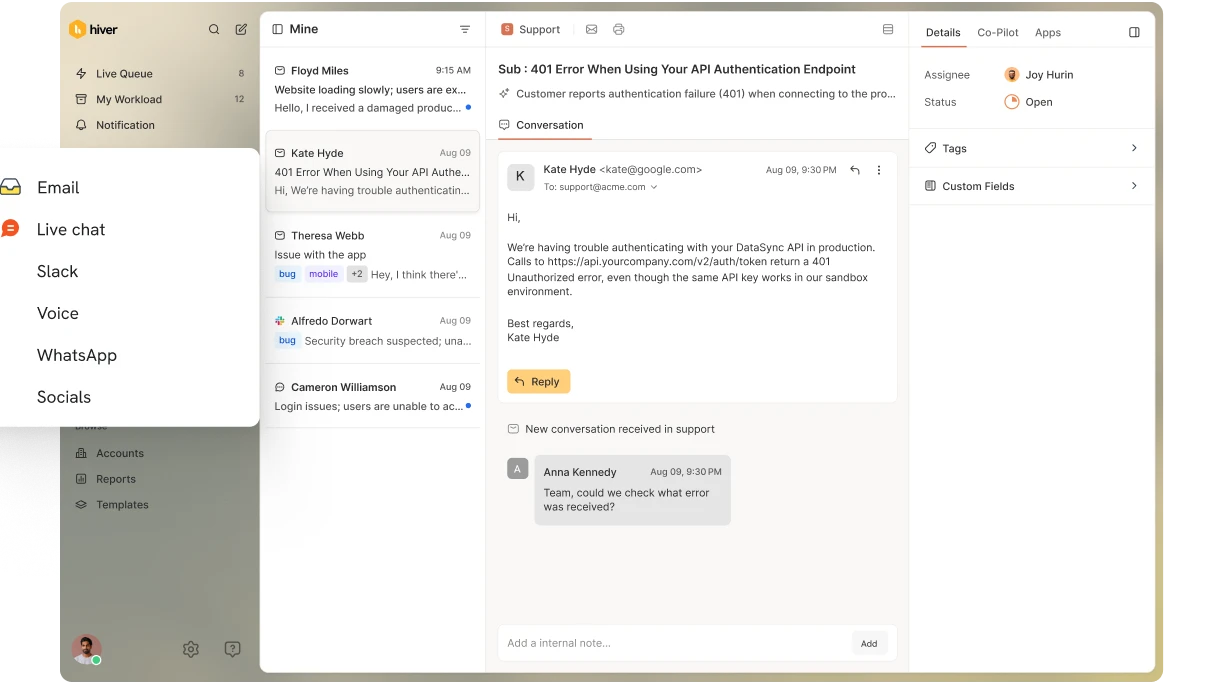
Try Hiver to add shared notes, assign tasks, and collaborate with your team on email. Start a free trial to see it in action.
Frequently Asked Questions
1. How do Gmail notes sync across devices?
Notes created using Google Keep sync automatically when you sign in with the same Google account on each device.
2. Can Gmail notes be shared with teammates?
Yes. Google Keep notes can be shared manually, but they are not tied to email threads. Tools like Hiver allow internal notes to be shared directly within conversations.
3. Where can I find my notes later?
Google Keep notes appear in the Gmail sidebar and in the Keep app. Hiver notes appear inside the related email threads and are searchable.