




Can you have multiple Google accounts? (quick summary):
Yes. Google doesn’t limit how many accounts you can create, each just needs a unique email address and its own sign-up. Most people run two to four: one for work, one personal, and sometimes a dedicated one for newsletters or subscriptions. Creating multiple accounts is permitted, but the bigger consideration is how securely and efficiently you can manage and switch between them.
One Inbox Isn’t Enough Anymore
Managing our digital lives often requires more than just one Google account. Whether you’re looking to keep your work and personal life separate, overseeing different projects, or simply organizing the flood of incoming emails, multiple Google accounts can help you stay on top of things.
For instance, you can use one account for work, another for personal emails, and a third for newsletters and deals. This way, you prevent important emails from getting lost in one single cluttered inbox.
But, how many Google accounts can you actually set up? (Spoiler alert: there’s no limit)
In this guide, we will explore:
- The benefits of having multiple Google accounts
- Google’s policy on having multiple accounts
- How to create, switch between, and secure multiple Google accounts
- How to keep work and personal accounts separate
We will answer all these and any other questions you have about creating, setting up, and managing multiple Google accounts.
Why Listen to Us
Hiver manages shared Google accounts for over 10,000 support, finance, and IT teams, so the multi-account section above isn’t theoretical. See how Kiwi turned their Gmail distribution lists into shared inboxes without losing track of ownership.

Benefits Of Having Multiple Google Accounts
If you are looking to switch to the multiple Google accounts approach to managing your emails, here are some more benefits waiting for you:
- Better Organization: By having different accounts for different purposes, you can keep your documents, activities and inboxes more organized. For example, as we discussed, use one account solely for work-related emails and another for personal communication.
- Improved Focus: Different accounts can help you focus better. For instance, when you log into your work account, you can concentrate on work-related tasks without distractions from personal emails
- Enhanced Privacy: Keeping separate accounts for sensitive activities (like banking) and general use (like social media) can protect your privacy. Another advantage is that even if one account is compromised, not all information and data is lost.
- Simplified Sharing: With multiple accounts, you can manage settings for sharing data more easily. For example, you can share family photos from your personal account without worrying about work colleagues having access to those.
- Custom Settings: Each account can have its own settings and preferences, allowing you to customize notifications, permission levels, themes, and app preferences to suit different aspects of your life.
What’s Google’s Policy on Multiple Accounts
Google allows users to create as many accounts as they need, but it’s important to understand their policies to avoid any potential issues. Here’s a closer look at what you should know:
- Unlimited Accounts: Google has no limit on the number of accounts a user can have. However, as we know, each account must have a unique email address.
- Policy Adherence: While you are free to have multiple accounts, it’s important to adhere to Google’s terms of service. For example, creating accounts for malicious activities, spamming, or circumventing restrictions can lead to suspension of the respective accounts.
How to Create Multiple Google Accounts: Step-By-Step Guide
Google makes it very easy for users to create multiple accounts.
- Sign Out of Your Current Account: Make sure you’re logged out of any existing Google accounts.
- Go to the Google Sign-Up Page: Visit the Google account creation page.

- Fill in the Details: Enter the required information, like your name, email, and password.
- Verify Your Account: You may need to verify your account using a phone number or another email address.
- Repeat as Needed: Follow the same steps to create additional accounts.
Pro Tips:
- Different Browsers or Profiles: Use different browser profiles or even separate browsers for each account to keep things organized. This will also keep your bookmarks, settings and extensions segregated. This also makes all your workspaces more productive for you
- Consistent Naming: Use a naming system to easily keep track of your accounts, such as adding “work” or “personal” to your email addresses.
Ways To Manage Multiple Google Accounts
Having multiple Google accounts is convenient right up until toggling between them and managing email volume across them becomes its own chore. Six methods handle most of what you’ll need.
Google Account Switcher
The fastest option for quick switches. Click your profile picture in the top right of any Google service (Gmail, Drive, Calendar) and select the account you want, or click “Add another account” to sign into one that isn’t listed yet.
This switches your active session instantly but keeps all your accounts signed in behind the scenes, so switching back is just as fast.

Browser Profiles
The better option when you want full separation, not just a different inbox, but separate bookmarks, extensions, and browsing history per account. Click your profile icon in Chrome’s top-right corner, select “Add,” and follow the setup.

Email Forwarding and Aliases
The right call when you don’t need a separate login at all, just fewer emails landing in your main inbox. Go to Gmail Settings > See all settings > Forwarding and POP/IMAP, then add a forwarding address to route specific senders (newsletters, brand emails) to a dedicated account.

Secure Each Account Independently
Reusing one password across accounts turns a single breach into a total one, use a password manager and a unique password per account. Set up 2FA independently on every account, don’t assume one method covers them all. Watch for recovery email chains too: if one account’s recovery email is another Google account, a breach on the first can cascade to the second.

Keep Work and Personal Separate
Don’t forward everything from personal to work or vice versa, it defeats the purpose. Keep your work calendar for work meetings only, mixing in personal events makes them visible to anyone it’s shared with. And keep app and extension installs separate per browser profile so nothing crosses the boundary you’re trying to maintain.

Third-Party Tools
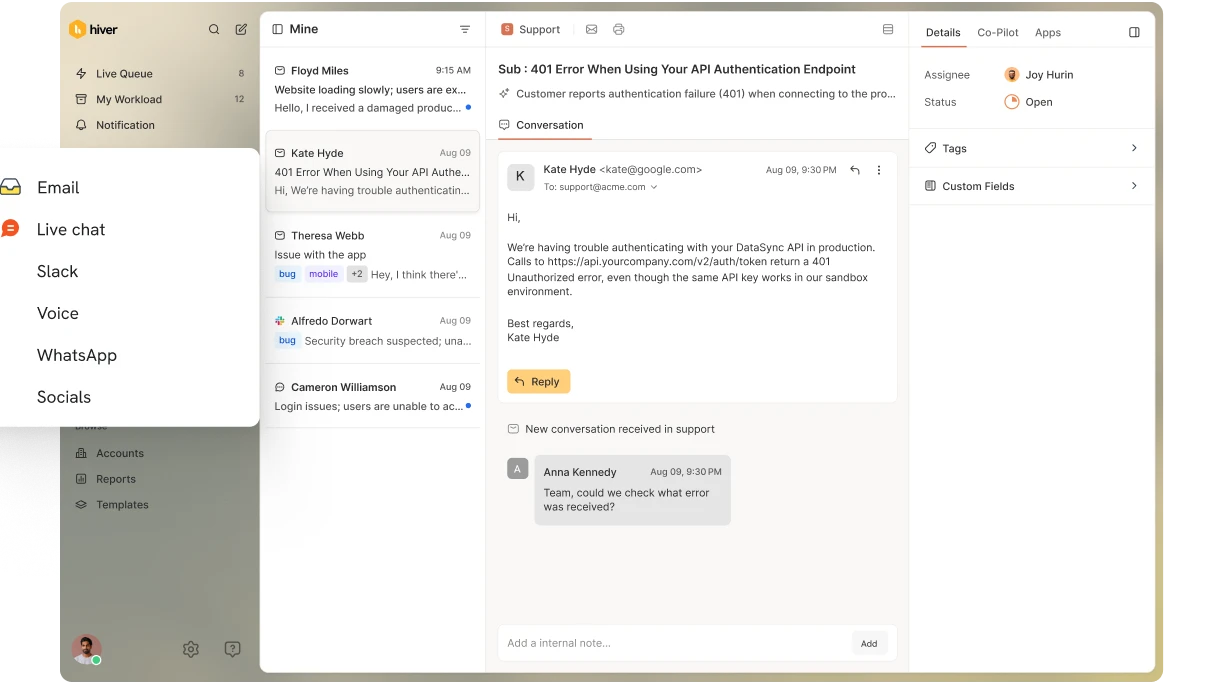
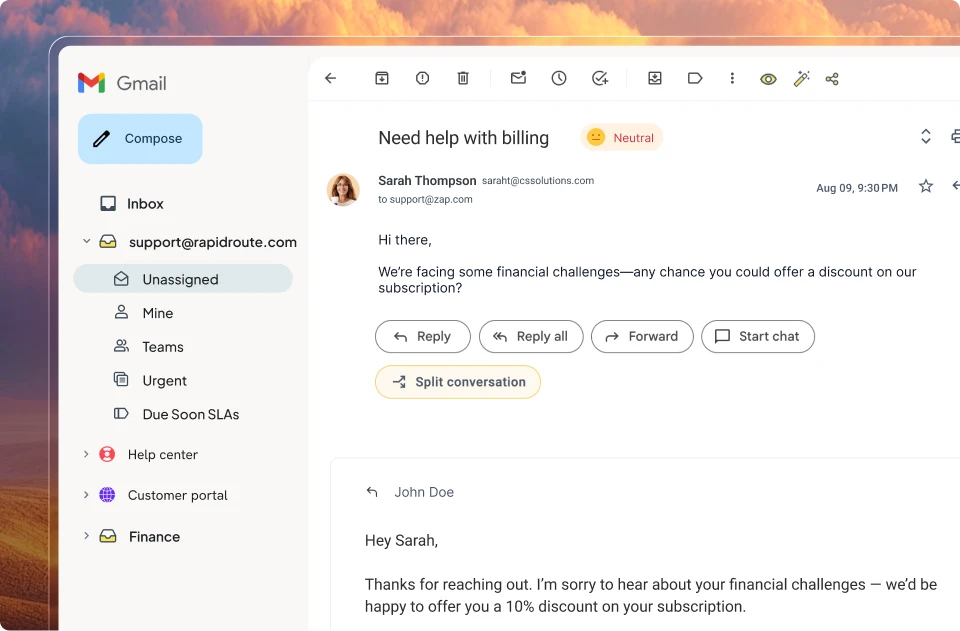
Teams managing shared addresses like support@ or info@ have a different problem: it’s not personal switching, it’s giving a whole team ownership over accounts nobody logs into individually. Hiver handles this directly: it turns emails into trackable tickets, gives you tools to collaborate with other teams with @mentions instead of endless CCs and forwards. You can even report on team performance with analytics and respond to emails with AI. It’s a real lift for team productivity when the team shares one inbox instead of forwarding things around.

Ready to Take Control of Your Google Accounts?
There’s no cap on how many Google accounts you can run, the real work is in switching between them cleanly, securing each one independently, and keeping work and personal accounts apart rather than quietly merging back together.
Teams face a related challenge with shared accounts like support@: nobody logs into them personally, so ownership and triage need to happen automatically. Hiver allows teams to triage emails, assign them to owners for better accountability, monitor it’s status ands and respond to routine ones with AI. The best part? Teams can accomplish all of this inside Gmail without having to learn a new interface.
See it running on your own shared inbox. Book a demo.