

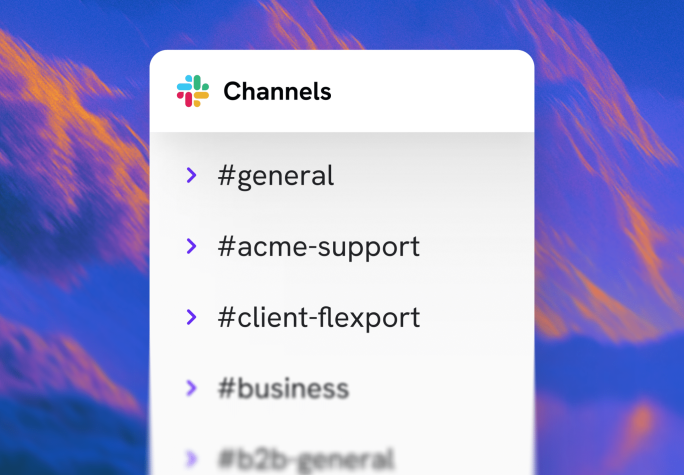


For many B2B companies, Slack has become the default channel to manage customer relationships. It typically starts during onboarding — a dedicated Slack channel gets created for the account, and from that point on, it becomes the go-to space for implementation updates, product walkthroughs, and weekly check-ins.
But as you add more customers, you add more channels. And with every new channel comes a new stream of support requests your team needs to stay on top of. At five customers, that’s manageable. At fifty, your support team is spread across dozens of conversations with no consolidated view of what’s work in progress, who owns what, or what’s been sitting unanswered for two days.
Why managing customer support over Slack is harder than it looks
Managing support across dozens of customer Slack channels gets chaotic before you know it. Here’s why.
1. Support requests on Slack never make it into your helpdesk queue
When a customer raises an issue in their Slack channel, it stays there. It doesn’t land in your help desk, it doesn’t get assigned, and it doesn’t appear on anyone’s radar unless someone happens to be in that channel.
2. One agent per channel creates its own set of problems
The obvious workaround is to assign one support agent to each customer Slack channel. But that agent is already working through a help desk queue with active tickets and escalations. Asking them to simultaneously monitor a Slack channel on top of that requires constant switching between two entirely different systems.
Messages get seen between other tasks, responses get delayed, and because Slack has no way to track what’s pending or resolved, there’s no visibility into whether anything is actually being handled until the customer follows up.
3. Context gets lost across handoffs
When a customer raises a technical issue on Slack, the person who sees it first isn’t always the person who can resolve it. Finding the right person to handle it, and passing on the full context of what the customer reported — accurately and completely — is harder than it sounds. In technical support, a single missed detail can send the team down the wrong path entirely.
4. Governance and audit readiness become an afterthought
Support teams often need audit trails, data retention controls, and secure handling of sensitive customer information. Slack wasn’t built primarily around these requirements. Teams either work around the limitations with additional tooling or accept the risk, neither of which is a clean answer.
Hiver Omni turns Slack into a support channel with real accountability
The problem isn’t Slack. It’s that Slack has never had a place in your support infrastructure. Hiver Omni fixes this by bringing every customer Slack conversation into a single queue — the same queue your team already uses for email and chat.
Your support team works from one place, with clear ownership and full visibility across every customer channel. And for the customer, nothing changes. They’re still in Slack, still seeing replies in the same thread they started.
Here’s how it works in practice.

1. Bring every Slack support request into your helpdesk queue
When you connect your customer Slack channels to Hiver Omni, every message that needs support attention automatically becomes a conversation in your helpdesk queue. Your support team works from one place, with full visibility across every customer channel, without having to be in any of them.
Start by linking your customer-facing Slack channels to Hiver Omni – either manually, or by using keyword matching to connect channels automatically. Set a keyword like “support” or a client name prefix, and any channel created with that pattern gets pulled in without any additional setup.

Once connected, you choose how Slack messages become conversations in your help desk queue:
- All messages — every new message in the channel creates a conversation. You can group consecutive messages from the same person within a set time window into one conversation, so a customer who sends three messages in quick succession doesn’t generate three separate items in the queue.
- Mentions only — a conversation is created only when someone — typically the CSM or a specific user group — is @mentioned in the channel. Useful for accounts where the channel handles a mix of casual updates and genuine support issues, so only what actually needs support attention gets surfaced.

Every conversation arrives with the full message thread, the channel it came from, a timestamp, and the customer’s details. Conversations sit in the same default views an agent uses for tickets from other channels — Unassigned, Mine, All Assigned, Tags, and Closed. Selecting a conversation opens the full thread as a single chronological list, not the nested thread view Slack uses.
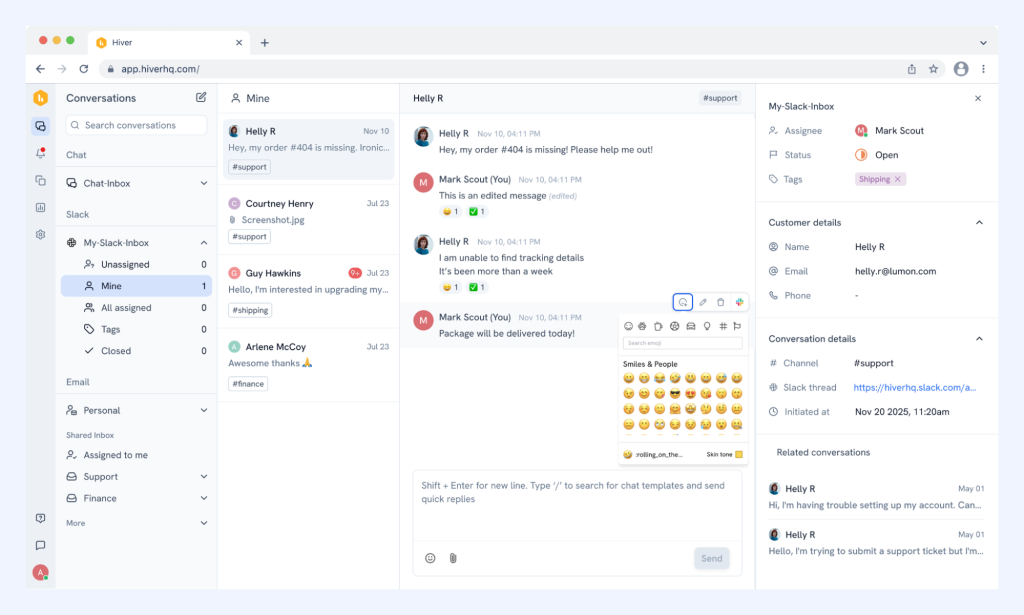
For the agent, it’s just another conversation in their queue. And when they respond from Hiver, the reply threads back into the original Slack conversation automatically. The customer sees it in the same channel they posted in, without having to follow up anywhere else.
Recommended reading
2. Ensure every conversation gets a dedicated owner
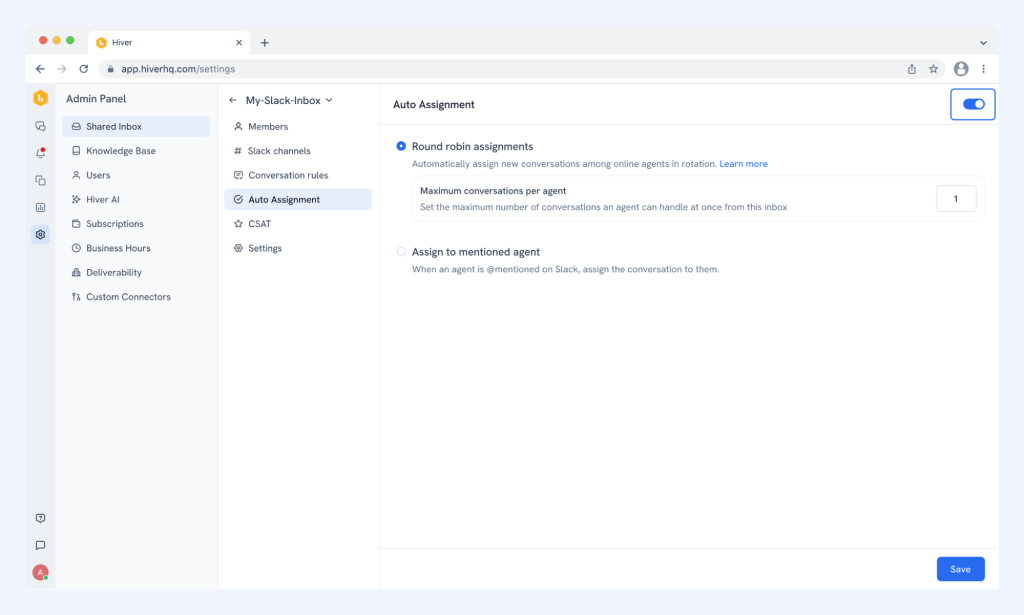
Once Slack conversations are in your help desk queue, the next step is making sure every one of them gets picked up. In Hiver Omni, every incoming Slack conversation gets an owner automatically, based on how your inbox is configured:
- Round robin — conversations are distributed evenly across the team. You can set a cap on how many conversations each agent can hold at once. Once someone hits their limit, new conversations skip to the next available team member.
- Assign to mentioned agent — when a team member is @mentioned in a Slack message, the conversation is assigned directly to them in Hiver.
- CRM-based assignment — if your CRM defines which support rep is responsible for which customer account, Hiver routes incoming Slack conversations to them automatically. If Acme Corp is managed by Sarah, any conversation coming in from Acme goes directly to her queue without anyone having to manually assign it.
Availability is managed per agent. Anyone marked unavailable is excluded from the rotation automatically, ensuring conversations never land with someone who can’t respond.
Recommended reading
Step-by-step guide to set assignment rules for Slack conversations
3. Resolve every conversation with the right context and the right people
A support agent picking up a Slack conversation shouldn’t have to open multiple tabs to understand who they’re dealing with. Hiver Omni surfaces data from your CRM, billing platform, and issue trackers (like Jira) directly alongside the conversation. The agent has everything they need before they type a single word.
When the issue needs another team, that coordination stays inside the conversation. Agents can leave internal notes and @mention the right person without leaving the thread. For issues that need to go into Jira or ClickUp, agents can create a linked ticket directly from Hiver. Updates from those tickets sync back in real time. The customer continues to see replies in their Slack thread. The internal coordination happens entirely out of view.
4. Get full visibility into Slack-based support
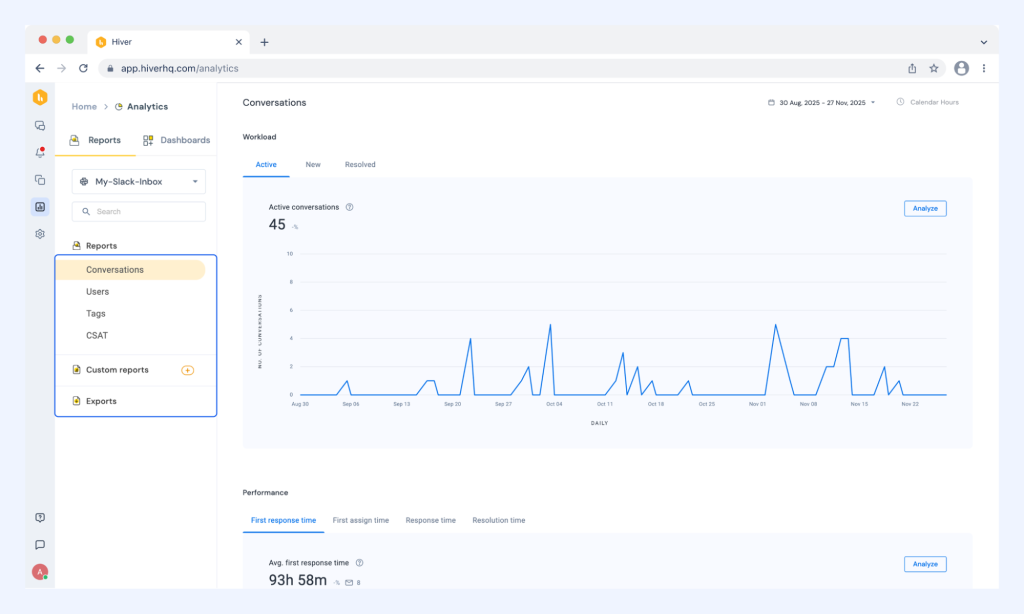
Resolving a Slack conversation is one thing. Knowing whether it was resolved well, how long it took, and which agent handled it is another. Hiver’s analytics lets you filter performance specifically for Slack — conversation volume, first response time, resolution time, and agent workload. All of it is filterable by inbox, agent, tag, or time period.
5. AI that works across your entire support queue — including Slack
Most AI in customer service is built to deflect (handle straightforward queries and keep humans out of the loop). Hiver’s AI takes a different approach, and that matters especially in Slack, where your most important customer relationships live.
The moment a Slack conversation arrives in your queue, it gets routed to the right agent based on intent and not just keywords. If a customer’s tone turns negative, that conversation gets surfaced before it escalates. And when an agent sits down to respond, they’re not starting from scratch — AI drafts a reply based on the full conversation history and your team’s knowledge sources, ready to review and send.
Recommended reading
6. Hold Slack conversations to the same SLA standards as any other ticket
SLAs in Hiver can be configured per inbox. If your team commits to a two-hour first response for enterprise accounts, that clock starts the moment a conversation lands in the queue. When an SLA is approaching breach, the relevant agent and manager are notified automatically.
Slack is where your best customer relationships live. Treat it that way.
Adding your support team to every customer Slack channel isn’t a strategy. At some point the volume outgrows the workaround.
Hiver Omni solves for this. Every support request originating from Slack flows into one queue. Your team responds and resolves these requests from their help desk. At the same time, your customers stay in Slack, getting faster, more accountable support without changing a thing about how they communicate.
Get a walkthrough of how Hiver handles support requests from Slack