




The TL;DR
- Hiver works best for complex, multi-step B2B support where ownership and escalation matter.
- Front earns its place when routing is the hard part: high volumes, multiple channels, rules.
- Help Scout suits small teams that want a clean shared inbox with AI included from day one.
- Freshdesk suits teams that need strict SLA enforcement and cross-team ticket workflows.
- Zendesk suits large teams that need deep routing and reporting and have the admin bandwidth.
Email works fine when it’s one person talking to another. The moment a team starts sharing an address like billing@ or support@, the cracks start showing. Someone replies without knowing a colleague already did. An urgent email sits unread because everyone assumed someone else picked it up. There’s no way to assign a thread, no way to see who’s handling what, and no easy way to hold anyone accountable.
That’s usually when teams start looking for shared inbox software. I spent several weeks researching 12 platforms to help you find the right one. I work for Hiver, so that bias is worth flagging upfront. I’ve reviewed every tool against the same criteria and will be direct about where Hiver falls short.
Recommended reading
Why Listen to Us
Hiver runs shared inboxes for over 10,000 support, finance, and IT teams. Take Egnyte for instance, a content security company, a 3-person support team handles 13,000 customers using Hiver, proof that the right ownership and AI setup lets a small team operate at enterprise scale without adding headcount.

How I Evaluated These Shared Inbox Tools
I spent several weeks researching each tool across product docs, pricing pages, G2 and Capterra reviews, and Reddit threads where real teams talk about what broke and why.
For each tool, I looked at:
- Ownership and routing: Clear conversation ownership, automatic assignment, and how stalled threads surface to managers
- SLA tracking: Which tier actually unlocks auto-escalation, not just whether SLAs exist
- AI depth and cost: Whether triage, drafting, and insights are included in base pricing or gated behind add-ons
- Channel coverage: Native support for chat, WhatsApp, voice, and social vs integration-dependent
- Setup speed: Time from signup to first assigned conversation, including any DNS or IT steps
What didn’t make the list: A few tools didn’t make the cut because the essentials were gated behind add-ons, enterprise tiers, or complicated setups. I kept the list focused on shared inbox solutions that deliver real team value without extra friction.
What an Agentic Shared Inbox Actually Does
“AI-powered” shows up in almost every tool’s marketing on this list. What that actually means in practice varies enormously, and it’s worth being precise about it before you start comparing 12 tools that all use the word. Here’s what happens, step by step, in a shared inbox built around AI Agents rather than AI features bolted onto a traditional one.
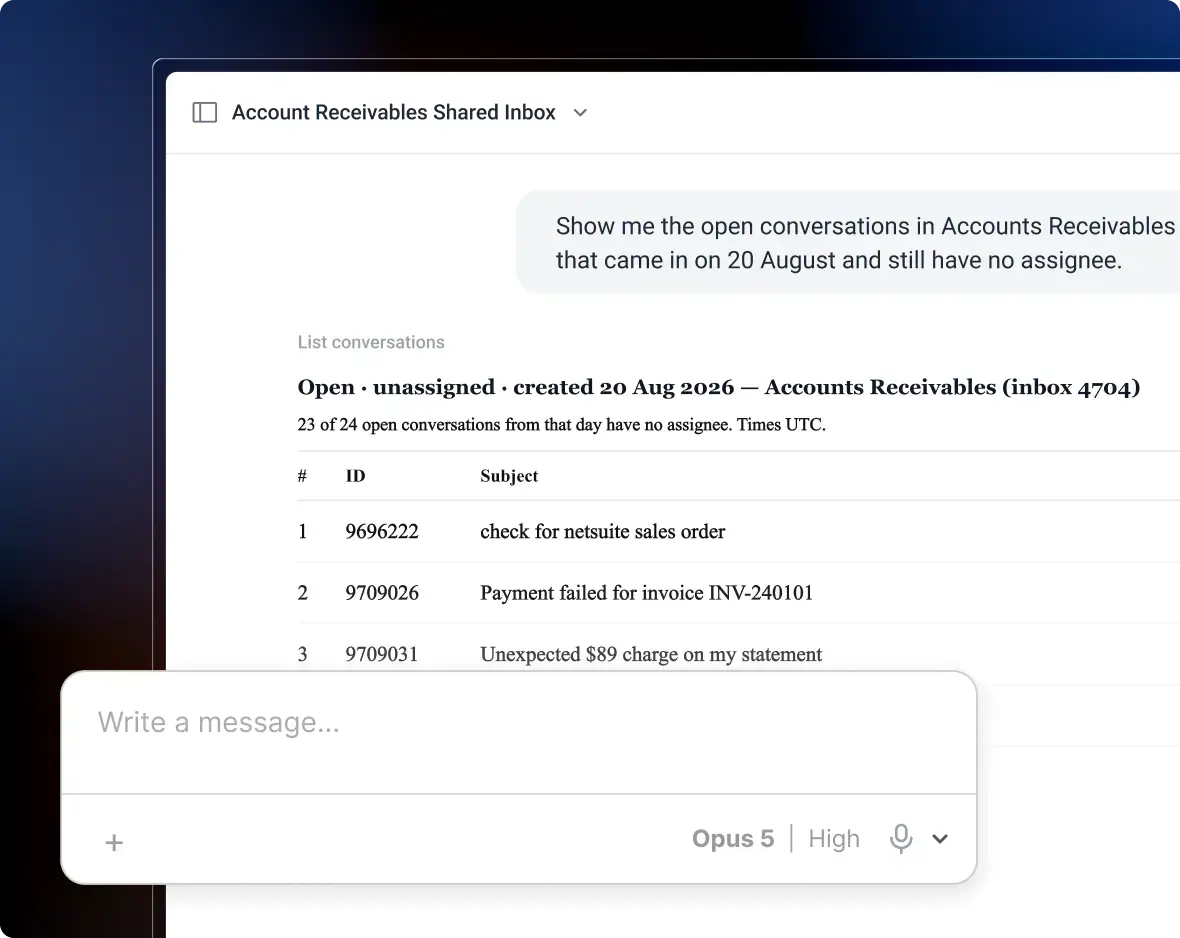
- The request comes in, and the system already knows who this is: A message lands in support@ or billing@. Before anyone reads it, the inbox pulls account context from your connected CRM, ERP, and order systems, renewal status, past conversations, order history, so whoever (or whatever) handles it next isn’t starting cold.
- For a large share of requests, that’s where it ends: AI Agents read the request, reason across your help center and past resolutions, and take the action itself: answering directly, updating a record, or closing the loop, without a human touching it. A password reset, a shipping status question, an account access request. No one on your team gets involved.
- When a request needs a person, it’s a handoff, not a restart: The agent doesn’t open a blank reply box. AI Copilot has already pulled the relevant history, drafted a response grounded in your team’s tone and past replies, and flagged anything that needs judgment. Your teammate reviews, adjusts, and sends, rather than reconstructing context from scratch.
- Every reply gets checked before the thread closes: AI QA scores the response against the standards your team defines, tone, accuracy, completeness, not a random 2% sample a manager has time to pull.
- The resolution becomes the next team’s shortcut: If the answer wasn’t already documented, it gets written into the help center automatically. The next time a similar request comes in, the system already knows the answer instead of solving it from zero.
That’s the actual difference between “has an AI chatbot” and “is built around AI Agents.” One deflects FAQs. The other runs the lifecycle.
How Do the Top Shared Inbox Tools Compare in 2026?
| Tool | Rating | Key Shared Inbox Features | Setup Time | Pricing |
| Hiver | 4.6 (G2) | AI triage, AI agents, auto-assignment, SLA tracking, collision detection, internal notes and @mentions, account context from CRM and ERP integrations | Minutes; no IT or DNS setup needed | $25–$85/user/mo |
| Front | 4.7 (G2) | Conditional multi-layer routing, collision detection with live draft previews, omnichannel inbox across email, SMS, WhatsApp, social, and chat, internal comments on threads | Quick for small teams; onboarding required at enterprise scale | $25–$105/user/mo; AI add-ons extra |
| Help Scout | 4.4 (G2) | Collision detection, round-robin assignment, AI Summarize and AI Assist, Beacon widget for query deflection | Minutes; minimal configuration | Free up to 5 users; $25–$75/user/mo; AI Answers at $0.75/resolution |
| Missive | 4.7 (G2) | Live co-editing on shared drafts, inline team chat alongside customer threads, workload balancing across multiple methods, AI via connected OpenAI account | Quick start; automation rules need configuration | Free up to 3 users; $14–$36/user/mo |
| Zoho TeamInbox | 4.2 (G2) | Assignment-based ownership, threaded internal discussions, basic routing rules, team performance reports | Minimal; almost no learning curve | $6–$9/user/mo |
| Freshdesk | 4.4 (G2) | Skill-based routing, multiple SLA policies with auto-escalation, parent-child ticketing for cross-department issues | Moderate; requires email forwarding and DNS setup | Free up to 2 agents; $19–$89/agent/mo; AI add-on extra |
| Zendesk | 4.3 (G2) | Multi-policy SLAs with custom escalation, contextual workspaces per agent role, Zendesk Explore reporting | Days to weeks; requires dedicated admin | $55–$169/agent/mo; AI add-on extra |
| Gmelius | 4.4 (G2) | Gmail-native shared inbox with zero app switching, Kanban board view for emails as task cards, SLA timers with alerts, auto-tagging by sender or keyword | Fast via Chrome extension; routing rules need configuration | $19–$40/user/mo |
| Groove | 4.6 (G2) | Conversation assignments, internal notes and @mentions, knowledge base on all plans | Quick; email-like interface needs minimal training | $29–$56/user/mo |
| Crisp | 4.5 (G2) | 6-channel inbox across email, chat, WhatsApp, Instagram, SMS, and phone, MagicBrowse co-browsing, workspace-based pricing, AI chatbot | Fast; automation rules need configuration | $45–$295/workspace/mo |
| Kayako | 4.1 (G2) | AI-driven triage and routing, AI Answers for autonomous resolution, deflection analytics, free collaborator seats | Simple for core features | $79/agent/mo + $1/AI resolution |
| ProProfs | 4.5 (G2) | Centralized shared inbox for multiple addresses, collision detection, parent-child ticketing, canned responses | Minimal; Gmail-like interface | Free; $49–$499/mo |
1. Hiver
Pricing: Free plan available. Growth: $25/user/month. Pro: $55/user/month. Elite: $85/user/month. 7-day free trial.
Quick disclaimer: I work for Hiver. I’ve reviewed it using the exact same criteria and structure as every other tool on this list.
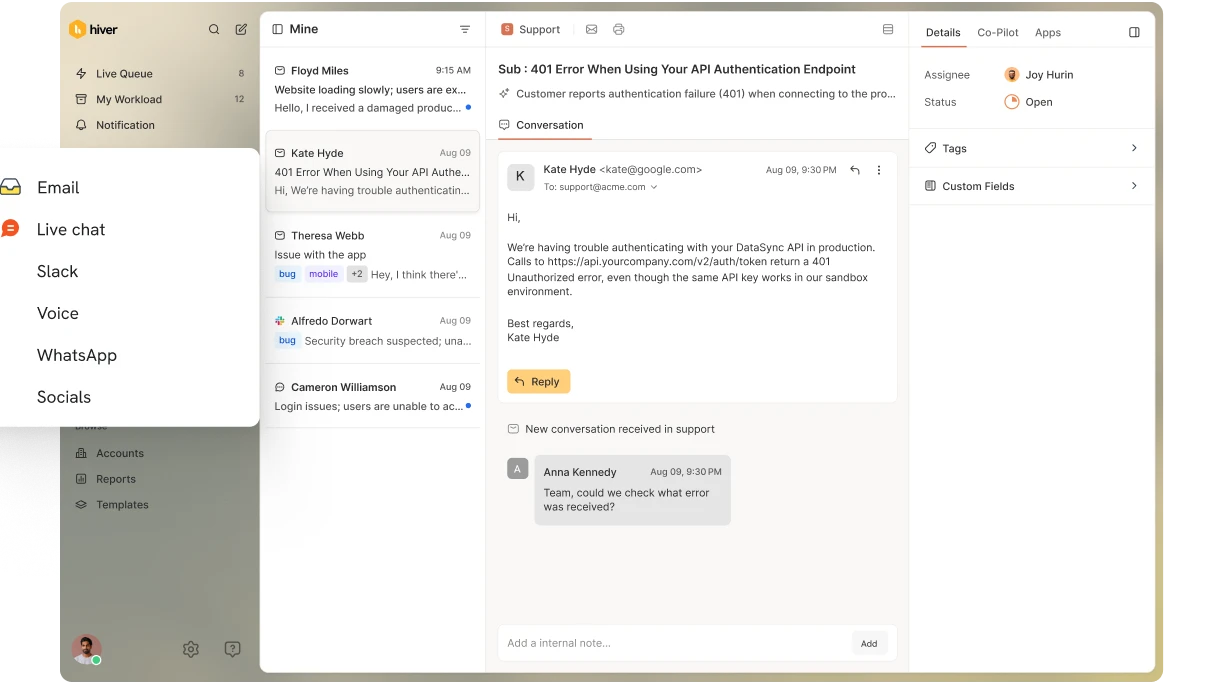
Hiver is an agentic customer service platform built for complex, high-stakes support operations. Every incoming conversation gets a clear owner through round-robin, rule-based routing, or AI triage. When a ticket needs input from another team, agents loop in colleagues via internal notes and @mentions without forwarding the email or creating a separate thread. The full context stays in one place.
Where Hiver differs from most tools in this category is in what happens before an agent types a single word. Customer data from connected CRMs, ERPs, and 100+ integrated systems surfaces automatically alongside each conversation. The agent sees account history, renewal status, and past interactions before they respond, not after they go looking for it.
Flexport’s operations team handles around 1,000 customer emails a month across shipping lines and regions. Before Hiver, the team was using Gmail filters and Slack to assign emails, which made ownership unclear and responses slow.
After switching, Nathan Strang, Ocean Freight Operations Manager, said: “With Hiver, I have much better visibility into where an issue is on the resolution path. And we’ve stopped missing emails. It is essentially like having an additional person on my team.” Resolution times dropped by 50%, saving the team 387 hours a month.
SLA tracking with auto-escalation is available from the Pro tier. Integrations with Jira, Linear, Slack, Salesforce, and NetSuite keep cross-team escalations visible and in sync. Unlike most tools in this list, AI is included on every paid plan. That covers AI Copilot for agent assistance, AI Agents for autonomous resolution, AI QA for quality scoring, and AI Insights for understanding contact volume and process gaps.
Hiver is an AI customer service platform built for complex, high-stakes support operations. It offers two products: Hiver Omni, a dedicated omnichannel platform for teams managing support across email, chat, WhatsApp, voice, and social; and Hiver in Gmail, which turns Gmail into a full AI helpdesk without leaving the inbox.
Pros:
- AI on every paid plan, no add-on fees
- SLA tracking with auto-escalation built in
- Account context from CRM and ERP systems surfaced automatically
- Works with any email provider
- 24/7 vendor support included in all plans
Cons:
- Mobile app lags behind desktop
- No deep ITSM workflow support
- AI Agents require higher-tier plans
My final take
Hiver works best for B2B teams handling complex, multi-team operations where ownership, account context, and SLA enforcement matter. It goes live fast and doesn’t require dedicated admin setup. Not the right fit for deep ITSM processes or large-scale contact center operations.Explore Hiver’s shared inbox or try it free.
2. Front
Pricing: Starter: $25/user/mo (max 10 seats). Professional: $65/user/mo (max 50). Enterprise: $105/user/mo. 14-day free trial.

That’s why Front needs to be evaluated carefully in any best shared inbox software comparison for 2025 or 2026. The feature depth is real, but so is the pricing jump once AI and advanced workflows enter the picture.
If your team juggles conversations across email, SMS, WhatsApp, social, and chat, Front is built for exactly that.
It’s an omnichannel shared inbox with some of the most powerful conditional routing rules in this category.
The routing rules builder is where Front really shines. You can layer automations, route by language, flag VIP accounts, and distribute via round-robin — all simultaneously.
Zendesk matches that depth, but with significantly more setup time. Multi-channel coverage is native from day one, putting Front ahead of email-only tools like Gmelius and Zoho TeamInbox.
The tool’s biggest catch is cost. Professional plan ($65/user/month) unlocks most features, but AI, Copilot, Smart QA, and Smart CSAT are paid add-ons on lower tiers. A 15-person team can hit $100+/user/month once AI is enabled.
Reporting is solid for operational metrics, but doesn’t reach the depth of Zendesk Explore.
Pros:
- Flexible routing engine for complex, multi-brand operations
- True omnichannel shared inbox from day one
- Strong shared drafting and internal commenting
Cons:
- AI features are paid add-ons, quickly increasing total cost
- Starter limited to one channel and 10 seats
- Mandatory onboarding for large contracts adds cost
My Final Take:
Front earns its reputation for complex, high-volume shared inbox operations where routing flexibility and multi-channel coverage are non-negotiable.
The trade-off is cost. Once AI is layered in, per-seat pricing can double. Teams with simpler workflows or tighter budgets will find better value with Hiver or Help Scout.
Recommended reading
3. Help Scout
Pricing: Free (5 users, 1 inbox). Standard: $25/user/mo. Plus: $45/user/mo. Pro: $75/user/mo. AI Answers: $0.75/resolution. 15-day free trial.

Help Scout is a lightweight helpdesk built around a clean, shared inbox experience, with AI bundled into every paid plan.
It’s built for teams that want structured email management without committing to a heavyweight,enterprise-style ticketing system.
The interface is intentionally simple. There’s no dashboard clutter, just conversations organized into “Assigned,” “Unassigned,” and “Mine.”
Reviews consistently praise how easy it is to get started. A new agent can realistically begin handling email within minutes, without formal training.
Its Beacon widget adds another layer of efficiency by surfacing knowledge base articles before a customer submits a ticket, helping deflect repetitive queries.
AI features are also included at the Standard tier — AI Assist (rewrite, shorten, translate) and AI Summarize come bundled in. AI Answers, which can automatically resolve tickets, is usage-based at $0.75 per resolution. At scale, that cost can become meaningful.
Where the platform starts to show its limits is in operational depth. SLA tracking is basic, with no true auto-escalation workflows as you’d get in more automation-heavy tools such as Freshdesk or Hiver.
Routing is limited to round-robin or manual assignment, which is far simpler than Front’s conditional logic or Zendesk’s skill-based routing. Multi-channel support is primarily email and chat, with social media handled through integrations. This makes Help Scout a strong contender for the best shared inbox software for small teams, startups, and support teams that want a clean inbox plus knowledge base without enterprise complexity.
Pros:
- AI Summarize and AI Assist included at Standard with no add-on fees
- Beacon widget deflects inquiries before they reach the inbox
- Free plan for up to 5 users is genuinely usable
Cons:
- Standard limited to 2 inboxes and 25 users
- AI Answers usage-based pricing can spike under heavy load
- SLA tracking lacks escalation depth
My Final Take:
Help Scout is the cleanest, lowest-friction shared inbox for teams that value simplicity and want AI bundled in.
The Beacon widget adds real deflection value. However, its limits begin to show as you scale. Complex routing, enforceable SLAs, and multi-channel coverage beyond email and chat are all areas where Hiver or Freshdesk offer more room to grow.
Recommended reading
4. Missive
Pricing: Free (3 users, 15-day history). Starter: $14/user/mo. Productive: $24/user/mo. Business: $36/user/mo. 30-day free trial.
Most shared inbox tools treat real-time collaboration as an add-on feature.
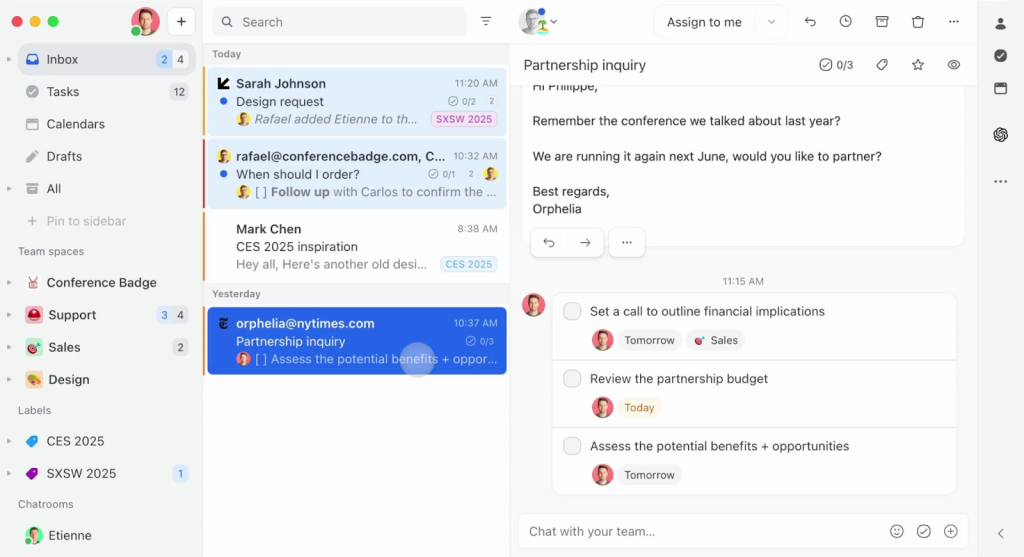
Missive makes it the headline. It is a strong option for teams looking for lightweight team email management software focused on collaboration rather than strict support workflows. It combines email, chat, and tasks in a collaborative shared inbox.
Most shared inbox tools treat real-time collaboration as an add-on feature.Two agents can edit the same reply simultaneously with live cursors — think Google Docs, but for customer messages. It pulls SMS, WhatsApp, Facebook, and Instagram into the same view.
Multi-channel coverage at this price point is rare – five channels starting at $14/user/month undercuts most competitors.
Front offers comparable coverage but starts at $25 and scales to $105. Internal chat is embedded alongside customer threads, so there’s no context-switching to Slack.
Rules and workload balancing on the Productive plan handle basic distribution well. AI is available via a bring-your-own-key OpenAI setup, which is a DIY approach compared to the productized AI in Hiver or Front.
The structural gaps are significant for support teams. There’s no SLA engine, no CSAT module, no automated routing beyond basic rules, and reporting is limited to basic metrics. Hiver, Freshdesk, and Zendesk all offer these as core helpdesk features. If your shared inbox needs go beyond “manage conversations” into “enforce accountability,” Missive isn’t built for that.
Pros:
- Best real-time co-editing experience in this category
- Five-channel coverage at $14–$36/user/mo
- Inline chat alongside threads reduces context-switching
Cons:
- No SLA tracking or CSAT features
- No automated routing beyond basic rules
- Reporting limited to basic metrics
My Final Take:
Missive delivers multi-channel coverage and strong collaborative drafting at a price that undercuts most competitors. The trade-off is structural.
There are no SLAs, no advanced routing, no real reporting. If your team’s need is to manage conversations efficiently rather than enforce formal support workflows, Missive is a strong pick.
5. Zoho TeamInbox
Pricing: Starter: $6/user/mo. Professional: $9/user/mo. Extra channels: $4 each. 14-day free trial.
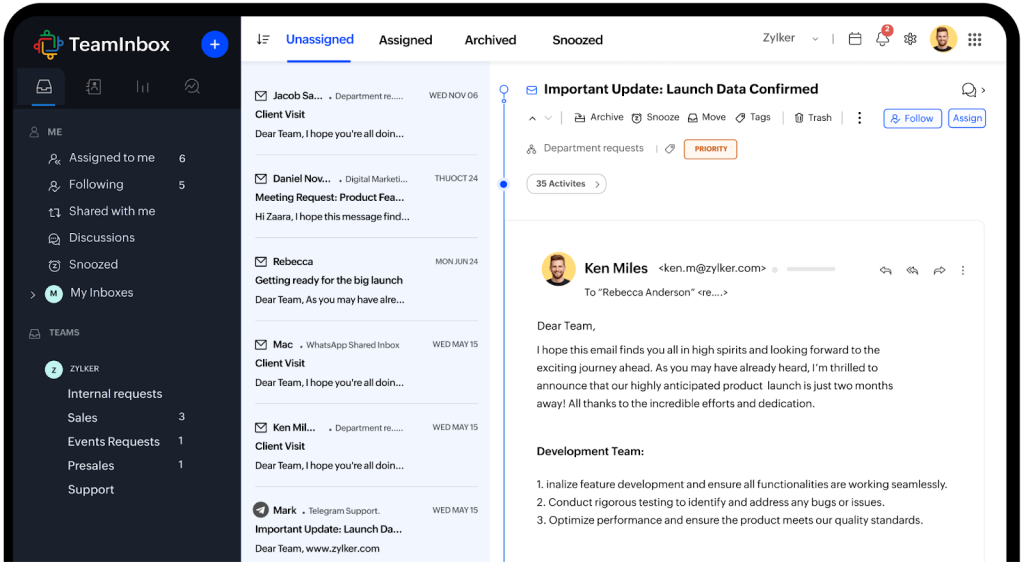
Zoho TeamInbox is one of the most affordable shared inbox software options for small businesses that need basic shared mailbox functionality with ownership. Its teams manage shared email conversations with assignment-based ownership. At $6/user/month, Zoho TeamInbox is the cheapest dedicated shared inbox available. It covers the essentials — shared email addresses, assignment-based ownership, internal discussions, and basic routing rules.
Email ownership and assignment are clean. Every incoming email has a clear owner, and internal discussions are threaded below the customer message.
The rules engine on Starter is limited to 5 rules; Professional unlocks unlimited rules and basic analytics. But there’s no round-robin, no skill-based routing, and no conditional logic beyond simple matching.
Hiver and Front both offer automated assignments from their lowest-paid tiers.
Additionally, there’s no AI, no SLAs, no CSAT, and channels are limited to only email. If you’re in the Zoho ecosystem, integrations are seamless. Outside it, options are thin.
Pros:
- Lowest-cost dedicated shared inbox on the market
- Clean UI with clear email ownership
- Easy onboarding — almost no learning curve
Cons:
- No AI, SLA, or CSAT features
- Routing is very basic
- Limited integrations outside the Zoho ecosystem
My Final Take:
Zoho TeamInbox is the right pick when budget is the overriding constraint and structured email ownership is the core need. It handles the basics at a price that no other tool on this list matches. But growing teams will hit the ceiling quickly.
The lack of critical helpdesk features like AI, SLAs, and advanced routing can feel very limiting. Teams with expanding volume should look for other options.
Recommended reading
6. Freshdesk
Pricing: Growth: $19/agent/mo. Pro: $55/agent/mo. Enterprise: $89/agent/mo.
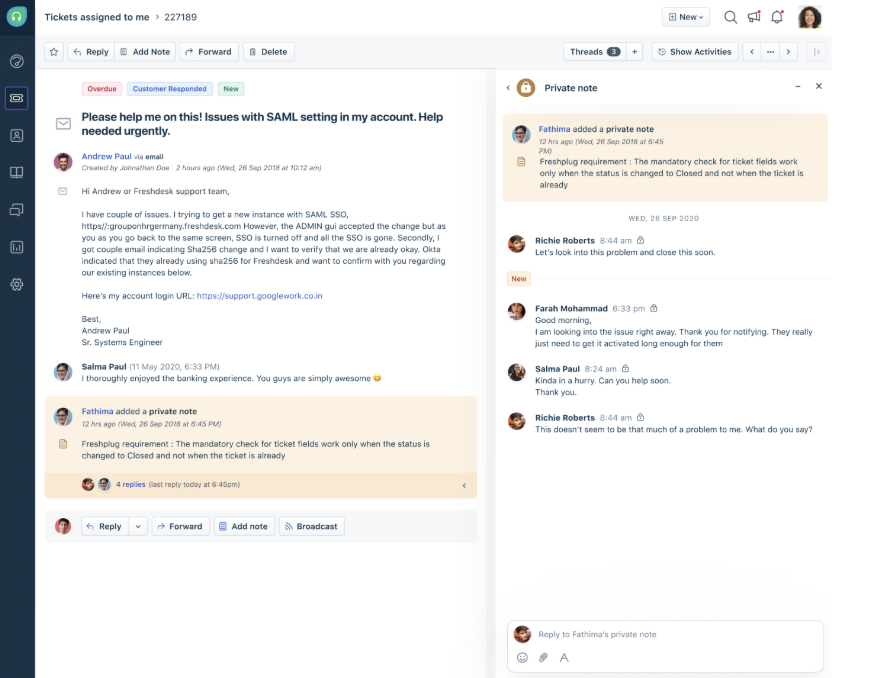
Freshdesk is a full-featured help desk with built-in shared inbox capabilities. Every incoming email becomes a structured ticket with a status, priority, SLA clock, and owner.
SLA tracking is where Freshdesk really stands out.
Multiple policies, business-hours support, auto-escalation, and custom tiers make it the most granular SLA engine available in this comparison.
Its parent-child ticketing lets you split a customer issue across departments while keeping everything synced. Reporting capabilities are pretty deep too, with custom reports, CSAT, SLA dashboards, and leaderboards.
AI comes at a steep premium. Freddy AI Copilot requires a higher-tier bundle, and autonomous agents are usage-based, adding several thousand dollars annually for a mid-sized team.
That’s a big gap from Hiver, where AI is included on every paid plan.
The biggest trade-off is that Freshdesk feels like a full-fledged help desk, not a lightweight shared inbox.
Statuses, priorities, and field panels are always front and center, which creates a steeper learning curve for email-first teams compared to lighter tools like Help Scout or Hiver.
Pros:
- Most granular SLA engine in this list
- Strong routing even on lower tiers
- Parent-child ticketing for cross-department workflows
Cons:
- AI is a steep add-on
- Ticketing-first UX means learning curve for email-first teams
- Requires email forwarding and DNS setup
My Final Take:
Freshdesk makes sense when your team needs structured ticketing and a clear path to scale with SLAs, automation, multiple channels, and the works.
But if you’re a lean, email-first team just trying to stay on top of conversations, it can feel heavier than necessary.
Recommended reading
7. Zendesk
Pricing: Support Team: $19/agent/mo. Suite Team: $55/agent/mo. Suite Professional: $115/agent/mo. Suite Enterprise: ~$169/agent/mo. AI as an add-on. 14-day free trial.
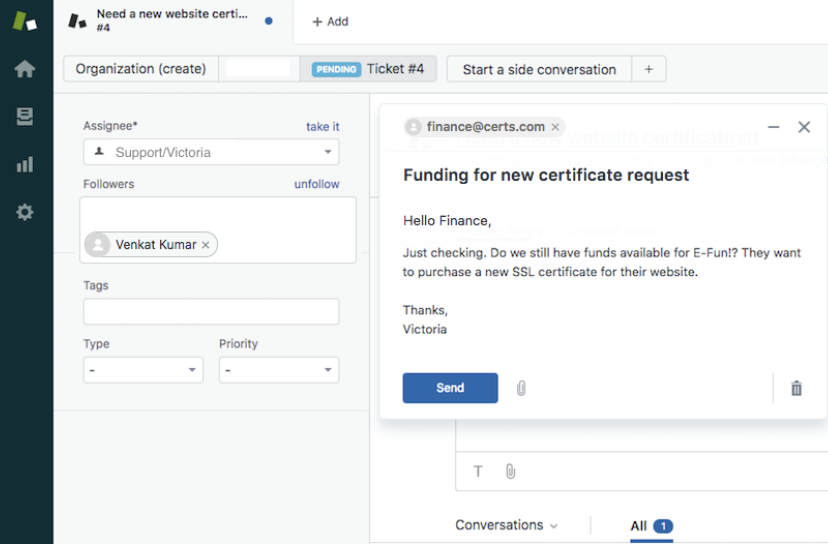
Zendesk is often considered the best shared inbox software for enterprise teams, especially when advanced routing, reporting, and multi-channel support are required There’s no other tool in this list that gives you as much control over routing, automation, and reporting as Zendesk. It’s also the only one where you’ll genuinely need a dedicated admin to set it up properly.
Routing is where Zendesk has no equal. Skill-based routing by billing, language, expertise, and priority is a level of control that no other tool on this list matches.
Front comes closest with conditional rules, but Zendesk’s ability to layer skill groups on top of multi-condition automations makes it distinctly more powerful for large teams. SLA tracking matches Freshdesk in granularity.
Reporting via Explore is the most flexible in this comparison, with multi-dimensional dashboards that no other tool here can replicate.
On the flip side, setting up Zendesk takes months, not minutes.
User reviews consistently flag that proper configuration needs a dedicated admin. AI features (autonomous agents, intelligent triage, Copilot) are strong but gated behind higher tiers or add-ons with pricing that can be opaque.
Multi-channel coverage is extensive, with email, chat, phone, SMS, social, and WhatsApp included natively.
Pros:
- Best shared inbox with automation and advanced routing capabilities
- Most flexible reporting (Zendesk Explore)
- Broadest multi-channel coverage
Cons:
- Setup complexity requires dedicated admin
- AI gated behind higher tiers with opaque pricing
- Expensive at scale
My Final Take:
Zendesk is the deepest, most configurable platform here, and the only one where budgeting for a dedicated admin is non-negotiable.
If your team doesn’t need that depth, the complexity and cost aren’t worth it. Hiver or Freshdesk deliver the majority of the capabilities at a fraction of the setup time (and price).
Recommended reading
8. Gmelius
Pricing: Meli: $19/user/mo. Growth: $25/user/mo. Pro: $40/user/mo. Enterprise: Custom.

Gmelius is best suited for teams specifically looking for help desk software for a Gmail shared inbox, with a fully Gmail-native experience.
It’s a Chrome extension that layers shared inbox features like assignments, SLA timers, and Kanban boards, directly inside your inbox.
The Gmail-native experience means zero app-switching. Shared addresses, assignments, and internal comments appear as native elements.
The Kanban view is what makes Gmelius unique.
Emails become draggable cards across project boards, with automatic label, status, and note updates when you move them.
For teams where customer emails regularly spawn internal tasks, this is cleaner than tagging or forwarding. SLA timers on the Growth plan let you set response and resolution targets with email alerts.
Some of its limitations are that it’s Gmail-only, so setting up Google Workspace might be an easy task, has basic routing, and offers limited reporting with 3–6-month data windows.
AI capabilities exist on Growth+, but they aren’t as robust as those offered by Hiver, Kayako, or Help Scout. If you need cross-platform support or deeper analytics, you might want to weigh other options.
Pros:
- True Gmail-native shared inbox, so there’s zero app-switching
- Kanban board view
- SLA timers and auto-tagging on Growth
Cons:
- Gmail + Chrome only — no cross-platform support
- Limited reporting depth and data windows
- Basic routing capabilities
My Final Take:
Gmelius is one of the best options if your team uses Gmail.
The Kanban view is genuinely unique. The limitation is ecosystem lock-in and limited depth in routing and reporting. If you need broader email provider support or more robust helpdesk features, Hiver is a stronger pick.
Recommended reading
9. Groove
Pricing: Standard: $29/user/mo. Plus: $36/user/mo. Pro: $56/user/mo. 30-day free trial.

For teams that outgrow a Gmail or Outlook account but aren’t ready for a full-fledged help desk, Groove is worth taking a look at. It pairs an email-like interface with a built-in knowledge base and just enough automation to add structure.
The interface looks and feels like email, so minimal training is required. A knowledge base across all tiers is a genuine advantage.
Lite user seats (10 free on Plus, 50 on Pro) let managers or ops teammates view conversations without consuming a full license.
The costs, however, add up quickly. Round-robin assignment, SLA management, AI features, and premium integrations (Salesforce, HubSpot) are all gated behind Plus ($36/user/mo). Even on Plus, the SLA and AI depth don’t match Freshdesk.
Reporting is basic on Standard, with custom reports only on Pro.
Pros:
- Email-like interface so there’s minimal training
- Knowledge base included on all tiers
- Lite user seats for cross-functional visibility
Cons:
- SLA, AI, and premium integrations gated behind Plus
- Routing and reporting are basic
- Standard caps user count and inboxes
My Final Take:
Groove is a solid stepping stone for teams graduating from a shared mailbox that want a familiar UX with a built-in knowledge base.
It handles the basics well. If you see yourself needing SLAs, AI, or deeper routing within 6 months, choose from a more fitting tool on this list.
Recommended reading
10. Crisp
Pricing: Free: 2 seats. Mini: $45/workspace/mo (4 agents). Essentials: $95 (10 agents). Plus: $295 (20 agents).
Most shared inbox tools charge per seat. Crisp charges per workspace, which can work out significantly cheaper for larger teams.
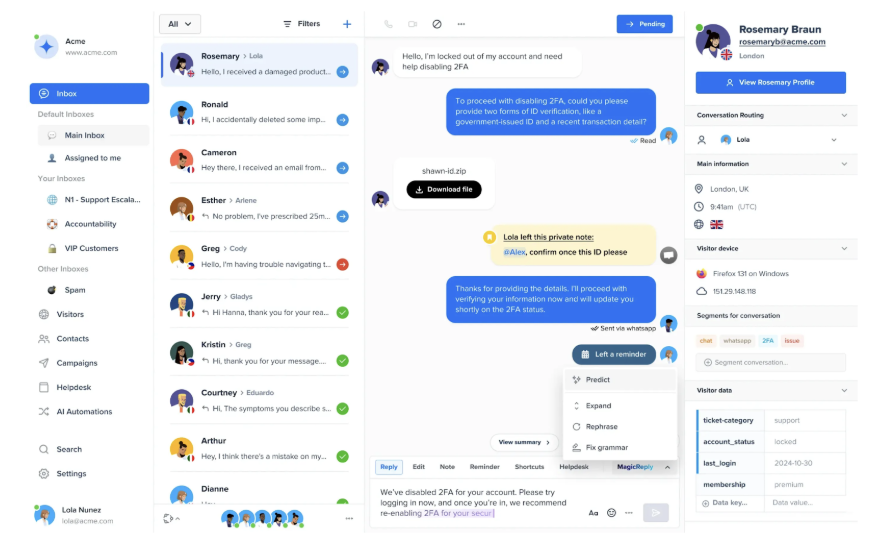
It unifies chat, email, WhatsApp, Instagram, SMS, and phone into a single interface.
The tool’s MagicBrowse feature lets agents see a customer’s screen during live chat and take cursor control to guide them through a flow, without either party needing to install anything.
For SaaS onboarding or e-commerce troubleshooting, nothing else in this list comes close. Crisp’s multi-channel coverage is broad, on par with Front and Zendesk at a lower per-agent cost.
The pricing cliff is the issue.
Ticketing, advanced analytics, and unlimited AI are locked behind Plus ($295/mo). The AI chatbot on Essentials is capped at 50 uses/month. There’s no SLA tracking on the Essentials plan.
Pros:
- Workspace pricing works out cheaper for large teams
- MagicBrowse co-browsing is genuinely unique
- Broad multi-channel coverage
Cons:
- No SLA tracking on Essentials
- AI capped at 50 uses/month on mid-tier
- Steep jump from Essentials to Plus
My Final Take:
Crisp is the strongest pick for chat-heavy teams that want co-browsing and workspace pricing. The limitation is the pricing cliff and the missing SLA layer.
Email-first teams and those requiring SLA enforcement will find greater value in Help Scout or Freshdesk.
11. Kayako
Pricing: $79/agent/mo. AI resolutions: $1 per fully AI-resolved ticket. 14-day free trial.
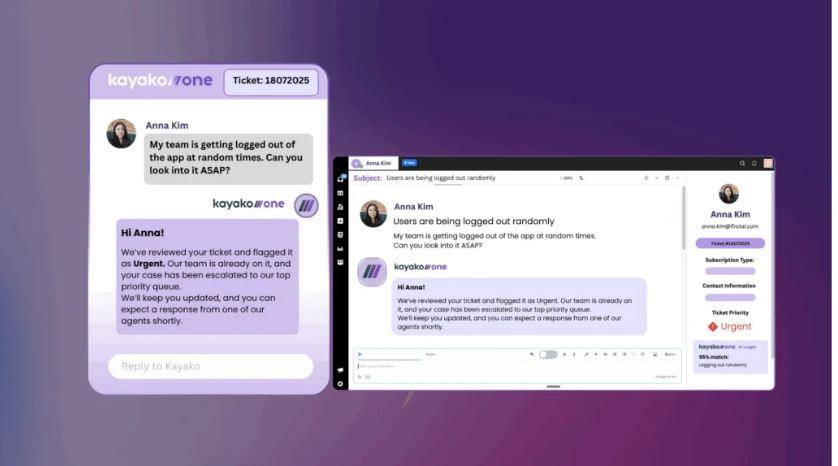
Every other tool on this list treats AI as a feature. Kayako treats it as the foundation.
It’s an AI-first help desk where triage, deflection, and resolution are designed to run autonomously, with humans stepping in only for complex issues.
The AI stack includes triage, AI Answers, summaries, suggested replies, and a chatbot that runs across channels, handling repetitive requests end-to-end and passing complex ones to humans with full context.
Routing is AI-driven rather than rule-based, which means less manual configuration but less control than Front or Zendesk.
Analytics focus on contact drivers, deflection trends, and predictive churn risk — more forward-looking than traditional operational dashboards.
Free collaborator seats let non-agent stakeholders participate without consuming licenses.
The trade-off is that the $1 per AI-resolved conversation model ties your costs directly to usage, which can make monthly spend fluctuate rather than remain predictable under a flat per-seat plan.
It also focuses primarily on email, chat, and a help center, so if you need deeper, more expansive multi-channel coverage as you scale, other tools may offer a more unified path forward.
Pros:
- Deepest AI stack of any shared inbox in this list
- AI-driven analytics and deflection tracking
- Single-plan simplicity — no tier confusion
Cons:
- Usage-based AI pricing makes costs variable
- Narrower channel coverage than competitors
- Less manual routing control
My Final Take:
Kayako is the right fit when AI-first resolution is the core strategy, and you want deflection analytics, not just ticket metrics.
The trade-offs are variable costs and limited channels. Teams wanting predictable per-seat pricing with AI included and broader channel support will prefer other tools on this list.
Recommended reading
12. ProProfs Help Desk
Pricing: Free (limited). Team: ~$49/month (3 users). Business: $89/month (5 users). Enterprise: $499/month (unlimited).
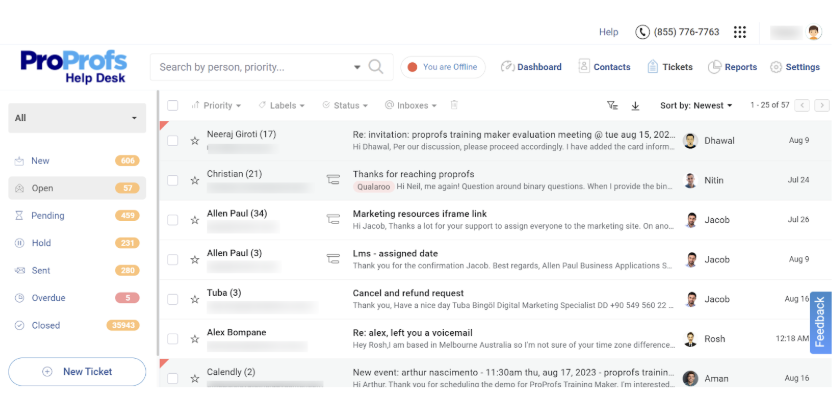
ProProfs Help Desk is a solid, budget-friendly shared inbox for startups and very small teams that just need basic ticket tracking and assignment.
The shared inbox consolidates support@, billing@, and sales@ into a single view. Every email becomes a ticket with status, priority, and assignee. Parent-child ticketing lets you split a customer issue across departments. AI features (Summarize, Responses, Prompts) are available on paid plans, putting ProProfs ahead of Zoho TeamInbox on AI.
That said, you’ll feel the limits pretty quickly.
There’s no SLA tracking, no automated assignment, reporting only scratches the surface, and there are few integrations. For teams that rely on routing rules, response-time accountability, and meaningful analytics, this won’t be enough to support real operational scale.
Pros:
- Lowest cost for a shared inbox with AI
- Simple UI with almost no training
- Parent-child ticketing
Cons:
- No SLA tracking or automated routing
- Limited integrations and reporting
- Basic channel coverage (email + chat)
My Final Take:
ProProfs is one of the best shared inboxes for small teams on a tight budget. The parent-child feature adds real value at this price.
If you expect to scale past 5 agents within a year, start with a more scalable platform like Freshdesk.
How to Choose the Right Shared Inbox Software
The decision comes down to four things: how complex your support operations are, how many channels you manage, whether you need formal SLA enforcement, and what your total cost looks like at 18 months.
Hiver Omni is the strongest fit for complex B2B support across teams and channels. AI, SLA tracking, account context, and cross-team workflows are all in the core product, not behind add-ons.
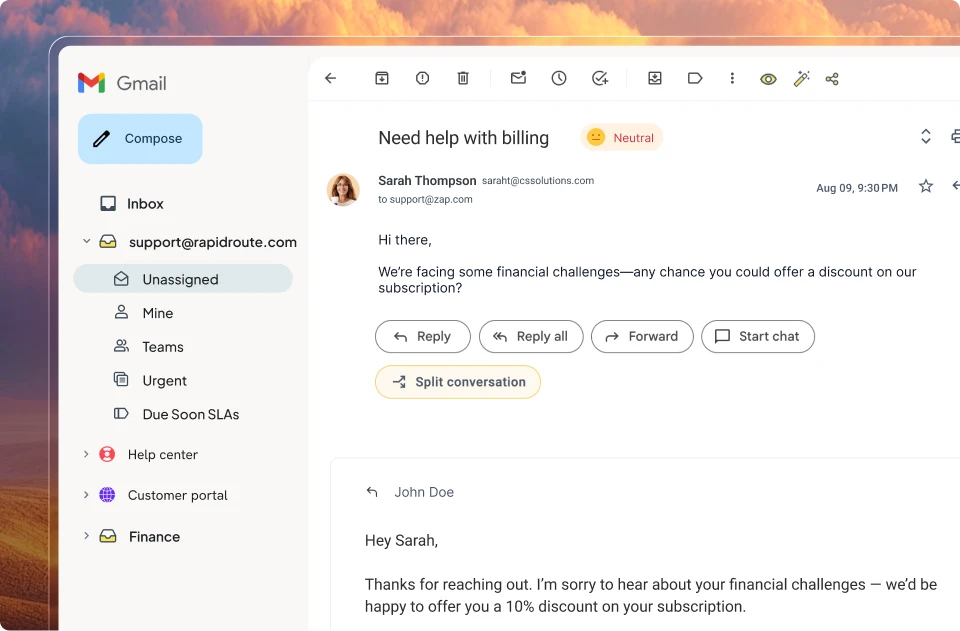
Hiver in Gmail works best for teams already on Gmail that don’t want to switch tools. You get full helpdesk capabilities, routing, AI, and SLA tracking without leaving your inbox or changing how your team works.
Front is the right pick when multi-channel routing at scale is the hard part. It has the most flexible conditional routing engine on this list, but omnichannel support only kicks in from the Professional plan at $65/user/month, and AI features are add-ons on top of that.
Help Scout is the easiest setup for small teams. AI Assist and Summarize are included at the Standard tier, the interface needs no training, and the free plan covers up to 5 users with one inbox.
Freshdesk is the best option when SLA enforcement is non-negotiable. Multiple SLA policies, business-hours support, and auto-escalation are more granular here than anywhere else on this list. Most teams end up on Pro at $55/agent/month to get round-robin routing and CSAT.
Zoho TeamInbox and Missive are the right starting points when budget is the overriding constraint. Neither has SLA tracking. Missive’s automations and integrations only unlock on the Productive plan at $24/user/month, and AI requires connecting your own OpenAI account separately.
Zendesk is built for enterprise routing with multi-brand operations. It has the deepest routing and reporting on this list, but plan for a dedicated admin and a multi-month setup window. Most teams land on Suite plans starting at $55/agent/month.
Kayako is worth considering when AI-first autonomous resolution is the core strategy. The full AI stack is included at $79/agent/month, but AI-resolved tickets are charged at $1 each on top of the seat fee, so costs can vary month to month.
Before you sign anything, model your total cost at 18 months. The per-seat price on month one rarely reflects what you’ll actually pay once AI add-ons, extra inboxes, onboarding fees, and usage-based charges are factored in. A platform listed at $19/user/month can land at $80+ once the capabilities your team actually needs are unlocked.
Which shared inbox fits your team?
| Team type | What you need most | Best fit |
|---|---|---|
| B2B SaaS support team, 10–40 agents, handling escalations across support, engineering, and customer success | Cross-team collaboration, SLA enforcement, account context from CRM, AI that handles complexity not just FAQs | Hiver Omni |
| Customer support team running entirely on Gmail, wants structure without switching tools | Shared inbox with assignment, collision detection, and SLA tracking inside Gmail | Hiver in Gmail |
| Support team managing high volumes across email, SMS, WhatsApp, and social with complex routing rules | Multi-channel routing with conditional logic, omnichannel from day one | Front |
| Small support team under 10 people, wants clean email management with AI included and minimal setup | Simple shared inbox, AI Summarize and Assist at Standard tier, fast onboarding | Help Scout |
| IT team handling internal requests, access approvals, and engineering escalations | Ticket workflows linked to engineering tools like Jira, structured request management | Jira Service Management |
| Finance or operations team managing billing@, ap@, or vendor@ addresses | Email ownership, internal notes for approvals, audit trail on sensitive communications | Hiver in Gmail |
| Team with strict contractual SLAs across multiple customer tiers | Multiple SLA policies, business-hours support, auto-escalation, granular enforcement | Freshdesk |
| Enterprise support org with multi-brand operations, 50+ agents, dedicated admin resources | Deep routing logic, multi-brand inbox management, Zendesk Explore reporting | Zendesk |
| Early-stage team managing support, sales, and ops email on a tight budget | Basic shared inbox with ownership and collision detection, low per-seat cost | Missive or Zoho TeamInbox |
What 10,000+ support teams have taught us about shared inboxes
Email is where most support operations start, and for many B2B teams, it stays the primary channel even as complexity grows. After working with over 10,000 teams on exactly this problem, the pattern we see most often is teams that over-buy early. They stand up a platform with routing logic, custom fields, and multi-tier escalation paths before they understand their actual ticket distribution. Six months later, half the configuration is unused, and the team works around it instead of with it.
Start with what your team actually needs today. Ownership, collision detection, SLA tracking, and visibility into what’s open and who owns it. Those four things solve the majority of shared inbox problems.
If your team handles complex B2B support and needs AI, cross-team collaboration, and account context built in from day one, try Hiver free.
Frequently Asked Questions (FAQs)
What is shared inbox software?
Shared inbox software lets multiple team members manage and respond to emails sent to a common address, like support@ or billing@, from one collaborative interface. It adds assignment, collision detection, internal notes, automation, and reporting that standard email clients do not offer.
What features should I look for in shared inbox software?
Prioritize collision detection, automated assignment, internal notes, SLA tracking, reporting dashboards, and compatibility with your email provider. For B2B support teams, also look for AI beyond simple deflection, account-level context from integrated systems, and cross-team collaboration features like linked tickets and Slack integration.
What is the best free shared inbox software?
Free plans vary significantly across tools. Hiver and Help Scout both offer genuinely usable free tiers, though Help Scout caps contacts at 100 per month, which most active support teams hit quickly. Freshdesk’s free tier supports up to 10 agents but expires after 6 months. Zoho TeamInbox is the most affordable ongoing paid option at around $6/user/month. If you need a free plan you can actually run support on without hitting a wall in 30 days, Hiver is the only one with no user cap and no expiry.
What is the best shared inbox software for small teams?
For teams under 10 people, Hiver’s free plan, Help Scout’s Standard tier, or Missive offer the best combination of usability, AI features, and cost. All three have minimal setup requirements and do not need dedicated admin time to maintain.
What is the best shared inbox software for B2B support teams?
For B2B support teams handling complex, multi-team operations, Hiver Omni, Front, and Zendesk are the strongest options. Hiver Omni includes AI and account context from CRM and ERP systems on every paid plan, and goes live without enterprise-level setup. Front has the most flexible routing logic for teams managing multi-brand or high-volume operations across channels. Zendesk gives the deepest reporting and routing control but requires dedicated admin time. The right choice depends on whether your priority is getting operational fast or having maximum configurability.
What is the best shared inbox software for startups?
If your team runs on Gmail, Hiver in Gmail offers the fastest setup with no tool switch. If you need a clean standalone inbox and want AI included from day one, Help Scout’s Standard tier is the most straightforward. If you’re managing support across email, WhatsApp, and SMS on a tight budget, Missive covers more channels at a lower price than most alternatives. None of the three require dedicated admin time to maintain.
What’s the difference between a shared inbox and a ticketing system?
Shared inbox software keeps workflows close to email, with assignment, internal notes, and collision detection built in. Ticketing systems add structured statuses, priority fields, formal SLA enforcement, and multi-tier escalation paths. Several modern platforms, including Hiver Omni, Freshdesk, and Zendesk, now combine both.
What’s the best free shared inbox software?
Hiver and Help Scout both have usable free plans, and Freshdesk offers a free tier for 2 agents. Zoho TeamInbox is the most affordable paid option at $6/user/month.
What are the benefits of shared inbox software?
The main benefits are clear email ownership, collision detection to prevent duplicate replies, automated routing, SLA tracking, and analytics on response times and workload. For B2B support teams, the added benefit is account-level context, so every agent responds with the full picture of the customer’s history, revenue, and account health.
Can shared inbox software integrate with Gmail and Outlook?
Yes. Hiver works natively with both Gmail and Outlook as well as any other email provider. Hiver in Gmail embeds directly inside the Gmail interface. Gmelius is Gmail-only. Most other platforms, including Front, Help Scout, and Freshdesk, connect via email forwarding rather than embedding inside the inbox.
What’s the difference between a shared inbox and a helpdesk?
A shared inbox keeps things close to email: a common address, clear ownership, internal notes, collision detection. A helpdesk adds structure on top, formal ticket statuses, priority fields, SLA enforcement with auto-escalation, and multi-tier routing. The line has blurred: several platforms on this list, including Hiver, Freshdesk, and Zendesk, now do both, so the real question isn’t “shared inbox or helpdesk,” it’s whether you need SLA enforcement and formal ticketing on top of shared-inbox basics, or whether ownership and collision detection alone solve your problem.
Is Google Collaborative Inbox a shared inbox?
Partially. Google Collaborative Inbox, a free feature inside Google Groups, gives a team basic shared-inbox behavior: a common address, conversation assignment, and status tracking. What it doesn’t have is what most people mean by “shared inbox software”: no collision detection, so two people can reply to the same email without knowing it; no internal chat on threads; replies go out from personal addresses instead of the shared one; and no automation, reporting, or AI. It’s a reasonable starting point for two or three people with very light volume. For a full breakdown of how it works and where it breaks down, see our complete guide to Google Collaborative Inbox.
How is a shared inbox different from a distribution list?
A distribution list just forwards a copy of every email to everyone on the list, with no shared visibility into who’s already replied. A shared inbox gives the whole team one place to see, assign, and act on the same message. Distribution lists are the setup most teams start with before the duplicate-reply problem forces a switch.
What are the benefits of shared inbox software?
The main benefits are clear email ownership, collision detection to prevent duplicate replies, automated routing, SLA tracking, and analytics on response times and workload. For B2B support teams, the added benefit is account-level context, so every agent responds with the full picture of the customer’s history, revenue, and account health.